# Set up PHASE//VOID live visuals and a projector
Canonical guide: https://phasevoid.com/guides/live-visuals/
## Plan the live setup
[Open the source, output and signal planner](https://phasevoid.com/guides/live-visuals/#live-setup). The live guide’s MIDI control workshop provides three public assignment recipes: cue performance, Program Energy/Motion/Glow, and the A/B picture mix. Choosing a job/control gives exact Assign to labels, signal type, Learn/release/check steps and a fixed Studio review link. The Studio MIDI route reveals Sound → Timing & beat sync and selects that target for review only. It never requests MIDI or audio access, connects, learns, binds, plays or starts a mixer. Plans are not device detection or a controller test; private mappings/media are not in the URL. Program parameter bindings stay on Program, including with independent mapped surfaces. Physical controller compatibility remains unverified. The live setup planner separates music in a browser tab from music in a desktop/DJ application, a browser-visible recording input, a room microphone and a local MP3/WAV. It branches from seven signal problems to specific checks and deliberate alternative routes. Sharing a picture does not prove an audio track is present; app/system audio availability depends on the browser, OS and source offered in its picker. A microphone is not automatically a digital feed from another app. Source, destination and symptom choices are instructions only, not device detection, a signal test, playback or permission approval. Alternative-route buttons keep the chosen destination and reset the symptom to the new route. Only fixed public choices enter the URL. The canonical live-visuals guide starts with a five-source, three-output instruction planner: browser tab, desktop/DJ app, browser-visible interface, room microphone or local MP3/WAV; one projector, this screen or a recorded live take. It opens existing Studio controls without connecting inputs or starting sound. The full original reference remains in searchable, grouped chapters with the same old fragment IDs; deep links reveal the relevant chapter. The shared-tab recording and dated timing evidence are retained, with no new hardware, latency or endurance certification. Reference players start muted and pause when their chapter is closed or hidden. Search stays in this tab; only fixed source/output/symptom choices can appear in the URL. No device permission, media upload, local file reading or saved query is performed by this guide.
### Choose the actual source
- **Music in a browser tab:** In Sound, choose Tab / system. Select the tab that plays the music and enable its audio-sharing option, if offered. Sharing a picture without an audio track cannot drive the visual. Keep that tab’s player running and check LOW / MID / HIGH. The browser decides which audio sources are available. If the intended tab offers no audio, use another available input or a local MP3/WAV. [Details](https://phasevoid.com/guides/live-visuals/#shared).
- **DJ software / desktop player:** A desktop/DJ app is separate from a browser tab. In Sound, Tab / system can use the intended application/system audio only if the browser picker actually offers it. Review the source and its audio option before sharing. If that audio choice is absent, do not assume Microphone will hear the app digitally. Use a supported tab, an already available browser-visible recording/loopback input, or a local MP3/WAV. This guide does not install a driver or patch the DJ application. [Details](https://phasevoid.com/guides/live-visuals/#shared).
- **Mixer / audio interface:** In Sound, open Microphone / interface input and Refresh inputs. Choose the browser-visible recording input, then press Microphone deliberately. Listing/selection never starts capture. Browser permission and device routing still apply. Check the input name reported by the browser, if supplied, and send the intended mixer passage. Inspect LOW / MID / HIGH before changing Energy. No network mixer connection, automatic channel patching or device compatibility is implied. [Details](https://phasevoid.com/guides/live-visuals/#input-routing).
- **Room microphone:** In Studio → Sound, choose Microphone and allow the intended microphone. This listens to the selected input; it is not a direct digital feed from your DJ software. Play sound through the normal room system and check the LOW, MID and HIGH meters. Room noise and microphone placement affect this signal. Live input monitoring stays off in Studio; keep other routes from sending a duplicate monitored signal back into the room. [Details](https://phasevoid.com/guides/live-visuals/#input).
- **Local MP3 / WAV:** In Studio → Sound, choose Open MP3 / WAV and select your file. The normal Studio file-open action starts playback after successful admission. Use Speakers off before opening for quiet monitoring, then review Play / Pause. The file stays on this device. Check the moving LOW, MID and HIGH meters during playback. Speakers off mutes browser monitoring while the visual can still respond. The separate MP3/WAV guide also offers a quiet on-page preview. [Details](https://phasevoid.com/guides/live-visuals/#input).
### Choose the destination
- **One projector / second display:** In Output, match the frame to the intended display, then Open projector window. Move that clean window to the display and double-click its picture for fullscreen. Keep the projector window visible; Output shows which window drives the picture. If both output windows are hidden, the show pauses. Real-time recording still requires Studio visible. Use Mapping only when you need surfaces or corner alignment. On the real screen, rehearse Freeze, Blackout and the looks you will use. Check alignment and sound-to-picture timing through your actual chain; a connected window does not prove the projector is aligned. Disconnect live capture when finished. [Details](https://phasevoid.com/guides/live-visuals/#mapping).
- **This screen / fullscreen:** Choose the frame in Output. Use Stage view or Fullscreen to give the picture room while keeping performance controls reachable. Fullscreen availability varies by browser and device. Rehearse Freeze, Blackout and your saved looks on this screen. Keep the Studio active. Stop playback or Disconnect live capture when finished; changing the workspace is not a signal check. [Details](https://phasevoid.com/guides/live-visuals/#stage-workspace).
- **Record a performed take:** Set the frame in Output, then use Record video in the header for a real-time take. Connect sound yourself and perform while recording. File render is the separate preplanned MP3/WAV film workflow; it does not capture a live microphone or shared tab. Stop and review a short take, save it and reopen the actual file. Check movement and sound before a long recording. Browser codecs and capture limits apply. Disconnect live capture when finished. [Details](https://phasevoid.com/guides/live-visuals/#capture).
Choose a world in Look and frame in Output. Check the actual meters and screen. Studio keeps live input monitoring off; your external sound system is a separate route. Read instructions or opening a window does not prove a working input or calibrated projector. [Open Sound](https://phasevoid.com/studio/?panel=audio).
### Find the missing signal
Choose the symptom in the [existing live setup planner](https://phasevoid.com/guides/live-visuals/#live-signal-help). Its alternative-route buttons keep the destination and start the new source plan without capture or playback. Advice is based on your choices, not device detection or a completed signal test.
#### The sharing picker has no audio option
1. A desktop/DJ app is separate from a browser tab. Use its window or system audio only if the browser picker explicitly offers the intended audio source.
2. Cancel a picker that offers no suitable audio. A permission prompt or an application-window picture cannot create a missing audio route.
3. If your setup does not offer that share, use a browser tab that can share audio, an already available browser-visible recording/loopback input, or a local MP3/WAV. The guide does not install or configure a driver.
[Related reference](https://phasevoid.com/guides/live-visuals/#shared).
#### Studio says the shared source has no audio
1. A desktop/DJ app is separate from a browser tab. Use its window or system audio only if the browser picker explicitly offers the intended audio source.
2. Cancel a picker that offers no suitable audio. A permission prompt or an application-window picture cannot create a missing audio route.
3. If your setup does not offer that share, use a browser tab that can share audio, an already available browser-visible recording/loopback input, or a local MP3/WAV. The guide does not install or configure a driver.
[Related reference](https://phasevoid.com/guides/live-visuals/#shared).
#### Connected, but LOW / MID / HIGH stay quiet
1. Keep the actual shared player running with its intended audio enabled. Confirm that Studio reports the intended shared source.
2. Inspect LOW / MID / HIGH during a passage you expect to contain sound. A quiet section is not by itself a connection failure.
3. For Microphone/interface, select the intended available input in Sound and reconnect deliberately. Refresh lists inputs; it does not switch a running source.
4. If the route still cannot supply audio, choose another available source below. Increasing Energy cannot create an absent input signal.
[Related reference](https://phasevoid.com/guides/live-visuals/#shared).
#### Meters move, but the picture is still or black
1. If LOW / MID / HIGH move, inspect Freeze and Blackout near the transport. Check Motion and Energy in Look.
2. Inspect the actual output frame and the selected world. Independent mapped surfaces keep their own looks and effects; changing Program does not replace them.
3. If the picture is dim, inspect output brightness. If it is choppy, use the timing/performance route rather than repeatedly reconnecting sound.
[Related reference](https://phasevoid.com/guides/live-visuals/#perform).
#### I hear doubled sound or feedback
1. Speakers off mutes this Studio monitor for files/demo while leaving analysis and recorded audio available. Live capture keeps Studio monitoring off.
2. That button cannot mute the original shared player, DJ software, interface direct monitoring or the room system. Check which of those is supplying the second audible copy.
3. Avoid sending an unintended monitored copy back into the captured input. Keep the intended audience playback and use your device’s documented monitoring controls.
[Related reference](https://phasevoid.com/guides/live-visuals/#input).
#### The picture feels late or choppy
1. Distinguish a steadily late reaction from choppy picture updates. Browser analysis, audio output, display and projector can contribute different delays.
2. In Sound, open Match sound and picture timing. Start at zero and compare through the actual playback/display chain before adjusting.
3. For a choppy picture, use the existing performance/render-detail controls and rehearse the intended world and mapping. A BPM value is not a fix for dropped picture updates.
4. The dated shared-tab timing example describes one software setup. It does not certify your mixer, room or projector delay.
[Related reference](https://phasevoid.com/guides/live-visuals/#latency-evidence).
#### Access was declined or I do not want capture
1. Declining capture is valid. The guide cannot grant browser/OS access or silently replace a denied input.
2. If you want the live route, review the normal browser and OS/site permission for the intended input, then reconnect deliberately. Otherwise use a local MP3/WAV, or choose the public demo in Studio.
3. A room microphone hears its physical environment; it is not an automatic digital substitute for a desktop application feed.
[Related reference](https://phasevoid.com/guides/live-visuals/#input).
Share-related examples above use the desktop/DJ application route. A local file uses Open MP3 / WAV, while a browser-visible recording input uses Microphone; neither needs a screen-sharing picker. A microphone is not an automatic digital feed from another app.
Screen sharing may return video without audio. Available audio sources depend on the browser, OS and chosen surface; requesting system audio is not a compatibility guarantee. PHASE//VOID keeps the required capture video track alive for audio continuity, without displaying or recording that shared picture. Browser/source limits reviewed 27 October 2026: [Screen Capture specification](https://www.w3.org/TR/2026/WD-screen-capture-20260716/), [Chrome screen-sharing controls](https://developer.chrome.com/docs/web-platform/screen-sharing-controls), [MDN getDisplayMedia reference](https://developer.mozilla.org/en-US/docs/Web/API/MediaDevices/getDisplayMedia).
## Detailed reference
Updated: 2026-10-28
The [guided live path](https://phasevoid.com/studio/?flow=live) takes a browser-permitted audio input from connection to a checked visual output. It is free and needs no account. Open the HTML guide for the [recorded shared-tab example](https://phasevoid.com/guides/live-visuals/#live-example), manual timing controls and their limits.
1. Choose **Microphone** for the input selected by your browser or operating system, including a supported audio interface; or choose **Tab / system** and enable audio in the sharing picker when offered. Some shared screens or windows provide no audio track, and browser support differs. Capture begins only after your permission choice.
2. Start sound through your normal mixer, application or room speakers. Check the low, mid and high meters and watch the chosen scene react. PHASE//VOID does not play captured live input back through its speakers. If the meters remain still, check the input selection, cable, gain, hardware mute and sharing option before raising visual sensitivity.
3. Choose a scene and the canvas shape: 16:9 wide, 9:16 portrait, 1:1 square or custom dimensions. Prepare looks and, if useful, manually set BPM, Tap and Resync for a pulse or timed scene cuts. The app does not detect BPM or phrases automatically.
4. In **Output**, open the projector window, move it to the second display and double-click its image for fullscreen. Allow the popup when prompted. Keep the Studio tab visible to continue drawing frames. Test Freeze, Blackout and Gentler motion before a set.
5. Make a short real-time recording and replay it with sound. Download and reopen the saved file to check the actual result, then Disconnect to release the live input. Browser-supported WebM or MP4 codecs and achieved frame rate vary. A segment stops at 30 minutes or 750 MB, whichever comes first; device limits may stop it sooner.
## Prepare favorites and scene banks
The library contains 108 procedural worlds. Use search and collection/family filters, star a world for your shortlist, then select **Favorites** to browse starred worlds.
Open **Set banks** beneath the library controls. Create a named bank, select a world and add it to that bank. Select a bank to browse its members; removing a member leaves the world in the full catalog. Up to **twelve banks** are allowed, with names up to **48 characters** and up to **72 world IDs per bank**.
Favorites and banks are remembered in this browser. Separate **Export banks** and **Import banks** JSON transfers both lists to another browser, independently of session files. Import checks known world IDs, duplicates and limits before replacing the complete banks and favorites lists; the limit is **64 KiB**. Export the existing lists first if you want a backup. Import does not change Program or off-air Preview and does not start audio or a performance.
A bank contains world choices, not tuned looks, cue order, audio, artwork or video. Use copied A/B looks or **Show sequence** to keep parameter settings and prepare an ordered performance. [Read-only MCP](https://phasevoid.com/connect/mcp/) can explain the bank workflow but cannot read or change your private lists. [Explore the 36 new worlds](https://phasevoid.com/scenes/#new-worlds); the historical Pressure pack recording still covers its original twelve.
## Manual A/B visual mixing
Open the **Layers** inspector for the A/B mixer and Clip Deck, below its Look/Output settings. Audio inputs, Performance timing, Beat sync and MIDI controls are in **Audio**; the global Program rack is in **Effects**, while source choice, look and surface effects are in **Mapping**. Use the **header ☰ menu** for Save session, Help, Create video and Live guide.
The free [Studio A/B mixer](https://phasevoid.com/studio/#mixer-heading) holds two copied procedural looks against the same audio analysis. Choose and tune a world, then **Take Preview into A**; choose another and take it into B. Start live mix, drag the picture crossfader, or use CUT A and CUT B. The fader blends the image, not the sound. Decks keep separate animation clocks. Freeze and Blackout remain global.
### Prepare the next look off air
The low-resolution moving **Preview** is a separate WebGL canvas. While the mix is active, choosing a third world or changing its Look controls updates Preview without changing the stage, projector or recording. **Edit A/B in Preview** copies that deck into editable controls; it does not change the live deck until **Take Preview into A/B** is pressed. Taking into the visible fader side changes the audience image immediately. On an unsupported graphics device a static scene reference replaces Preview. It refreshes less often during recording or slow frame pacing. [See an actual console capture](https://phasevoid.com/media/examples/live-vj-console.png).
Press **[** for a cut to A or **]** for a cut to B while focus is outside text editors. The optional MIDI Learn panel maps an **absolute 7-bit CC** to the picture crossfader, or a note/CC button to Cut A/B or Take Preview into A/B. Connect MIDI explicitly; your controller does not carry or adjust audio. Mappings save with the local session but hardware compatibility is not established. Test the controller, output and export together.
[Open the sample Rave laser + Interference mix](https://phasevoid.com/studio/?mixA=laser-cathedral&mixB=interference&blend=50&ratio=16%3A9&start=demo) at 16:9 and 50/50. Press Start instant demo, then Start live mix; the URL never starts audio or asks for capture permission by itself. In Studio, Copy mix link shares the two deck looks, crossfader and preset aspect ratio, without music, artwork or browser permissions. This link uses generated demo sound. To reproduce the recorded input, [download our original 160 BPM test WAV](https://phasevoid.com/media/examples/techno-test-loop-160bpm.wav) and select it in Studio.
The [HTML guide contains a seven-second playable first-party A/B export](https://phasevoid.com/guides/live-visuals/#mix); [download the original WebM](https://phasevoid.com/media/examples/live-mix-laser-interference-160bpm.webm) if your browser cannot play VP9/Opus. It was recorded in Studio from the original stereo WAV at 1920 × 1080, with the picture fader moving A → 50/50 → B → 25% B. The saved clip reopened with changing video frames and decoded stereo audio. This short desktop Chrome run is not a long-set or physical projector test.
Manual mixing stops Auto scene and the running cue sequence. Firing a cue or starting Auto scene takes control back; ending the mixer leaves its more visible deck on stage. Saved sessions keep both deck looks and the fader position but do not automatically resume a live mix. Mixing two worlds and drawing a separate Preview require extra GPU resources; try lower canvas size or render detail if it stutters. The procedural mixer supplies the base for the separate local video layers described below. Native OSC and multi-projector routing remain unavailable. Earlier A/B browser checks covered A, midpoint, B, 16:9, 9:16, 1:1, Freeze and Blackout in one local Chrome setup, not a physical stage or the later video layers.
## Compose two local video layers
In the **Layers** inspector, use one of the 108 worlds or the procedural A/B mix as your base, then add two video layers. These are separate from the procedural decks: their opacity and blend controls determine how each clip covers or combines with the base.
1. Open a separate MP3/WAV or connect supported live audio. Video clips are always muted and do not enter playback, analysis or recorded audio.
2. Add local MP4/WebM files to the clip library: up to **12 clips**, **200 MB per file**, **512 MB total**, and a decoded maximum edge of **4096 pixels**. Decoding depends on the browser's codec support, not just the extension.
3. Assign a clip to each layer. Play/pause, restart, seek, loop and set speed between **0.25× and 2×**. Trim in/out restricts the playable segment.
4. Tune opacity and **Normal, Screen, Add, Multiply or Difference**. Check the combined image at low opacity before fading a layer up.
5. Choose **Fit** to preserve the whole frame or **Fill** to crop into the output shape. Flip a layer or swap the video-layer order when needed. Check the final crop in landscape, portrait and square.
The Program monitor shows a small, downsampled view of the final output beside the layer controls. Titles and artwork sit above the final effects.
[See the clip-deck console](https://phasevoid.com/media/examples/clip-deck-console.png). Selected video stays on your device in the Studio workflow. Sessions contain clip metadata and settings, not video bytes: reattach the files after restoring, then explicitly start playback. Restored layers remain paused.
## Prepare and recover your local video set
[Try the media-recovery rehearsal](https://phasevoid.com/studio/?panel=layers&clip-show=1&cue-pads=1&media-library=1). Opening retains the current setup; loading requires a click and replaces settings, with Undo available.
1. **Inspect off air.** Open Assets in the Studio header, or Layers & text → Video layers → Open media library. Select a clip and use Play preview, seek and Loop preview. This separate video element is muted and never replaces Program. Close stops the preview; returning from a hidden tab does not resume it automatically.
2. **Organize your set.** Give clips a display name and bin, then Save clip details. Search matches names, original filenames and bins. Filter by bin, attached, missing or used-by-acts status, and sort by name or duration. Organization does not change clip IDs or cue dependencies. These bins differ from the procedural world Set banks.
3. **Prepare a trim.** Set Default In/Out in seconds or at the preview playhead, then Save clip details. The next Take into A/B uses that trim and starts the muted live layer. Existing layers and captured acts keep their own trim. Use Show sequence → Edit cue to revise a saved act off air, Preview draft, then explicitly Save; this updates the cue without firing it. Cancel discards the draft.
4. **Save and reopen.** Save complete session downloads settings, display names, bins, default trims, layer controls, effects, cue acts and mapping. Media checklist downloads original filenames, dimensions, sizes, trims and affected acts as local TXT. Keep the original media separately. Reopen session restores settings with files missing and transports stopped; it does not package video or restart a show.
5. **Resolve every dependency.** Use Need reattaching to see missing files and select one to read affected acts. Add / reattach files can check a batch; the last import report separates added, reattached, already-loaded and rejected files. Cancel stops further work while retaining admitted files. Reattach original file targets the selected missing entry; filename, size, decoded dimensions and duration must match. This metadata check is not a content hash. An ambiguous match needs explicit selection rather than silent replacement.
6. **Prepare, perform, inspect.** Reattached layers stay paused. Detach releases a file while keeping assignments and captured dependencies; Remove saved entry is blocked if an act uses it. Use Prepare show to check the complete show, then Open performance pads. Start separate MP3/WAV or live audio deliberately and launch the chosen act. Record a short take, download it, reopen it in the recording inspector and check motion, crop and sound before a longer performance. Speakers off in the audio strip disables only this Studio monitor output for files/demo. It keeps analysis and recorded-audio level separate; the existing volume still controls the recorded level. The preference stays in this browser and is not replaced by session import. It cannot silence another app or the original source of shared-tab audio.
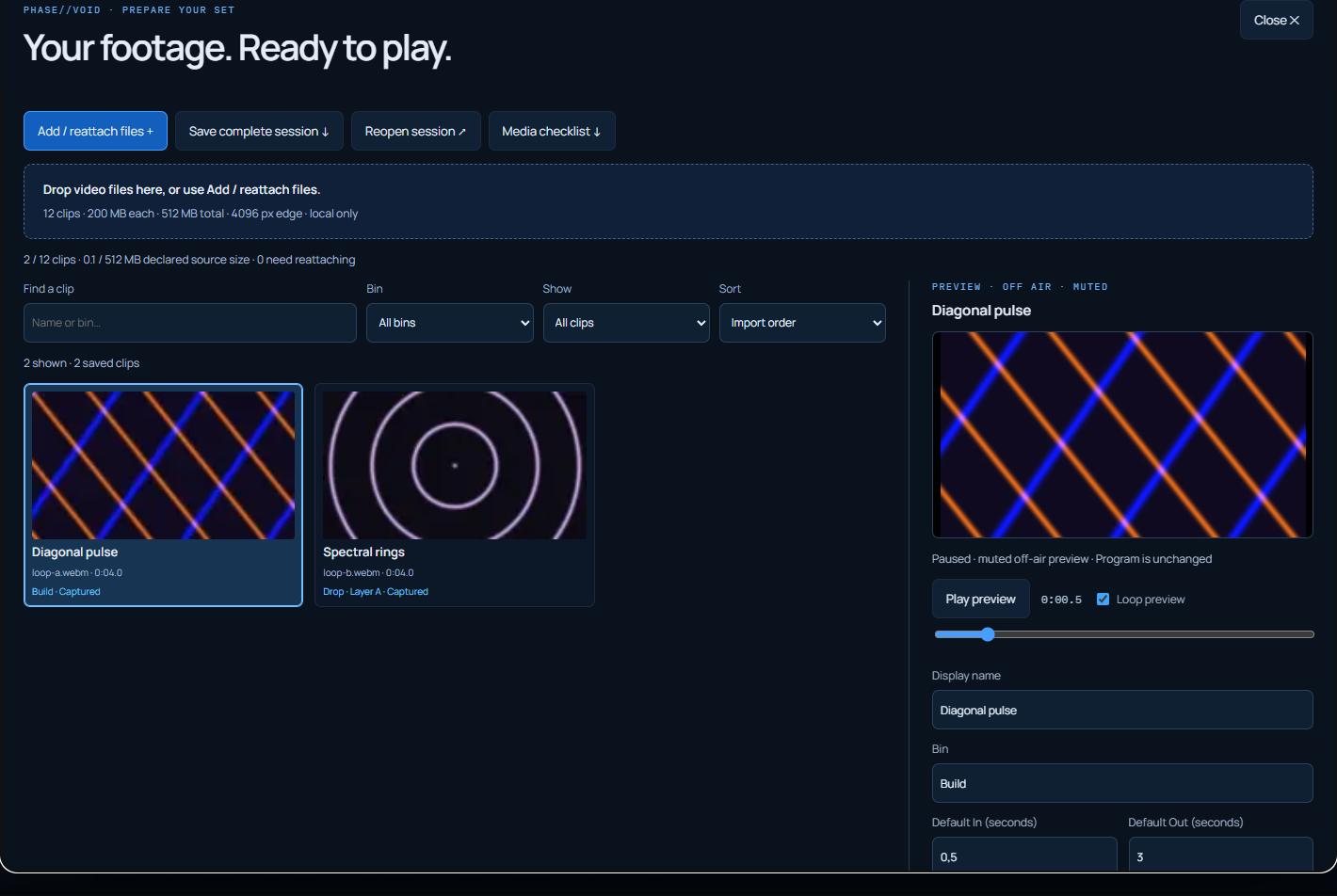
Actual desktop Chrome controls, not endurance or physical projection.
### Repeat the complete recovery rehearsal
Download the [actual settings-only session](https://phasevoid.com/examples/media-library/session.json), [original loop A](https://phasevoid.com/examples/clip-show/loop-a.webm), [original loop B](https://phasevoid.com/examples/clip-show/loop-b.webm) and [original 160 BPM test WAV](https://phasevoid.com/examples/clip-show/sound.wav). Reopen from Assets, observe missing files, reattach both loops, Prepare show and start audio separately. Sources are our synthetic footage, not a customer set.
[Watch the actual recovered performance](https://phasevoid.com/examples/media-library/performance.webm). This downloaded WebM was reopened and inspected locally. It shows the recovered performance, not a screen recording of every recovery click. [Encoded-file report](https://phasevoid.com/examples/media-library/recording-check.json); content-based A/V synchronization remains unverified.
Up to **12 files, 200 MB each, 512 MB total and 4096 pixels per decoded edge**. Browser codecs and resources vary. Two muted video layers feed Program before mapping; independent procedural surfaces have no separate clip decks. Preparation does not cache every incoming decoder or guarantee zero latency. Sessions and checklists may contain private names; review before sharing. Fixed action counts exclude names, bins, media and sessions. [Privacy](https://phasevoid.com/privacy/#media-workspace) · [Recording checks](https://phasevoid.com/guides/youtube-visualizer/#check).
### Capture the whole look. Fire the next act.
Prepare a procedural world, two local video layers and final Program effects, then capture them together as a cue. Cut, Dissolve, Dip and Wipe change complete compositions while current calibrated mapping corners and masks stay fixed. [Try complete clip show](https://phasevoid.com/studio/?panel=layers&clip-show=1) opens the kit banner in Studio, without applying the show, starting audio or requesting input permission.
1. In **Layers & text → Video layers**, add local clips and assign them to layers A/B. Set opacity, blend, Fit/Fill, flip, trim In/Out, speed, Loop and layer order. Video clips remain muted; their audio is not analyzed or recorded.
2. Set the [Program rack](https://phasevoid.com/guides/live-visuals/#output-fx): Kaleidoscope, Pixelation, RGB split, wet amount, audio response and bypass. It processes Program and clips **before mapping**; independent procedural surfaces use their own surface FX. Press **Add current look** to capture the Program look, both clip layers, desired playback and rack. With Mapping enabled, it also captures surface looks. After tuning an existing act, use **Edit cue → Copy current Program into draft → Save**.
3. Set the hold and transition in [Show sequence](https://phasevoid.com/guides/live-visuals/#sequence). Incoming layers captured playing restart from trim **In**; captured paused layers stay paused. Outgoing clips continue during the transition. **Dissolve** blends complete outputs, each with its own Program clips, rack and surface looks; **Dip** fades through black; **Wipe** reveals the incoming output. These last **0.25–4 seconds**; **Cut** switches directly.
4. Before starting audio, recording or going live, press **Prepare show**. It checks every cue's required clip decoders off air and warms the procedural worlds used by the show, keeping the current stage, settings, map and transport. A missing file blocks preparation and names the file to reattach. Rehearse after preparation; it is not a zero-latency guarantee.
5. Connect separate MP3/WAV or supported live audio, then fire a cue or **Run** deliberately. Incoming clip decoders still prepare on cue fire before Program, mapping looks or FX switch; preflight does not cache every cue video. A missing or unusable file blocks the whole cue. Manual BPM, holds and MIDI controls keep their existing roles, with optional whole-cue scheduling on a manual beat/bar/four-bar grid, not independent per-layer launching or pixel-perfect synchronization.
6. Use **Save full session** or **header → Save session**. After import/reload, reattach the same files. Layers stay paused and the sequence does not resume automatically; fire a cue when ready. Saved cues retain requested playback behavior without running decoder state or media bytes.
### Rehearse with the original kit
[Watch the rehearsal recording](https://phasevoid.com/examples/clip-show/performance.webm), then choose either path:
**Try it directly in Studio.** Follow [Try complete clip show](https://phasevoid.com/studio/?panel=layers&clip-show=1), save your current session, then press **Load complete clip show**. Studio downloads and decodes both original loops before replacing settings and the clip library. Loaded layers are paused and audio does not start. Press **Prepare show**, then **Open test audio**, Run, rehearse and Record. **Undo clip show** restores previous settings in this tab until reload; your own media needs reattaching.
**Use downloaded files.** Download the [session JSON](https://phasevoid.com/examples/clip-show/session.json), [loop A](https://phasevoid.com/examples/clip-show/loop-a.webm), [loop B](https://phasevoid.com/examples/clip-show/loop-b.webm) and [synthetic test WAV](https://phasevoid.com/examples/clip-show/sound.wav). Import the session, reattach both loops and press **Prepare show**. Open the WAV separately, then fire cues or Run and make a short recording. Keep source files alongside the JSON; they are not embedded in it.
The Studio test-WAV button plays the **24-second original**. Downloadable `sound.wav` contains **12 seconds** from that source, with identical PCM for the first 12 seconds. The rehearsal recording uses the first **10 seconds**. This is original synthetic test audio, not a user's track. The recording is software output, not physical-projector or endurance evidence.
The library supports **12 files** for **two Program video layers**. Program mapping surfaces receive that composition; independent procedural surfaces retain their own sources and do not gain separate clip layers. Master FX does not warp calibrated output geometry. Manual Live mixer banks do not capture clip layers or master FX. Full sessions contain local clip metadata and settings, without media bytes or blob URLs. Studio does not upload selected media. Public recipes and MCP do not carry or access private clips or private source code.
Browser decoding and device resources still matter. Rehearse the actual setup and inspect a [short downloaded recording](https://phasevoid.com/guides/youtube-visualizer/#check). This workflow does not establish native media-server parity, frame-perfect sync, independent per-layer quantization, physical projector behavior or long-set endurance.
## Start live with one moving world
[Open the simple homepage live setup](https://phasevoid.com/?project=1&intent=live&scene=event-horizon&start=live&ratio=16%3A9&resolution=720&motion=gentle&from=home-builder#project-builder). Choose **A live set → Choose my look → One moving world**, a world and canvas, then **Audio & launch**. Choose microphone/tab, local MP3/WAV or public demo and continue to Studio.
In Studio, deliberately connect the chosen input in **Sound** and check its signal. A homepage File requires **Receive selected track** and arrives paused. **Output** opens the separate projector workflow. A single moving world needs no acts or mapping plan.
For a sequence or mapped regions, explicitly choose **A changing show**. Single-world and show edits remain separate in this page; audio choice, frame, size and motion are shared. Existing library/show links still open the complete planner. Copy the selected public setup before leaving; it contains no audio, filename, inactive draft, private media or later calibration. Leaving/reloading ends unsaved drafts. No connection, playback or physical calibration happens automatically.
## Start with a show, then make it yours
The [homepage show library](https://phasevoid.com/#show-library) has four distinct starting points:
- **Warehouse pressure**: Four acts move from glass and wire to laser crossfire, then back into an orbit. [Build this show](https://phasevoid.com/?show-plan=1&show-layout=screen&show-sources=program&show-ratio=16%3A9&show-size=720&show-audio=demo&show-motion=gentle&show-bpm=142&show-decks=1%2C2&show-acts=orbital-glass%7Eoff%7E1%7Eseconds%3A8%7Ecut%3A0%3Bwire-loom%7Eoff%7E2%7Eseconds%3A8%7Edissolve%3A1.5%3Blaser-switchyard%7Eoff%7E5%7Eseconds%3A8%7Ewipe%3A1.5%3Borbital-glass%7Eoff%7E1%7Eseconds%3A8%7Edip%3A1.5&panel=mapping&from=home-show#project-builder) · [Session JSON](https://phasevoid.com/media/show-starters/warehouse.json). Scene images are static references, not recorded full-show previews.
- **Living metal**: Reflective shells, mirror petals and a biomechanical drop form one evolving set. [Build this show](https://phasevoid.com/?show-plan=1&show-layout=screen&show-sources=program&show-ratio=16%3A9&show-size=720&show-audio=demo&show-motion=gentle&show-bpm=142&show-decks=1%2C2&show-acts=alloy-eclipse%7Eoff%7E1%7Eseconds%3A8%7Ecut%3A0%3Bmirror-petals%7Eoff%7E2%7Eseconds%3A8%7Edissolve%3A1.5%3Bchitin-signal%7Eoff%7E5%7Eseconds%3A8%7Ewipe%3A1.5%3Bmercury-morph%7Eoff%7E1%7Eseconds%3A8%7Edip%3A1.5&panel=mapping&from=home-show#project-builder) · [Session JSON](https://phasevoid.com/media/show-starters/metal.json). Scene images are static references, not recorded full-show previews.
- **Optical drift**: Woven light, optical folds and sweeping shutters change the visual structure. [Build this show](https://phasevoid.com/?show-plan=1&show-layout=screen&show-sources=program&show-ratio=16%3A9&show-size=720&show-audio=demo&show-motion=gentle&show-bpm=142&show-decks=1%2C2&show-acts=phase-lace%7Eoff%7E1%7Eseconds%3A8%7Ecut%3A0%3Blenticular-iris%7Eoff%7E2%7Eseconds%3A8%7Edissolve%3A1.5%3Bphase-scissors%7Eoff%7E5%7Eseconds%3A8%7Ewipe%3A1.5%3Btear-tunnel%7Eoff%7E1%7Eseconds%3A8%7Edip%3A1.5&panel=mapping&from=home-show#project-builder) · [Session JSON](https://phasevoid.com/media/show-starters/optical.json). Scene images are static references, not recorded full-show previews.
- **Layers in motion**: Two original video loops, four captured acts and different Program effects. Includes a real recorded rehearsal. [Rehearse in Studio](https://phasevoid.com/studio/?panel=layers&clip-show=1) · [Session JSON](https://phasevoid.com/examples/clip-show/session.json). [Watch the actual rehearsal](https://phasevoid.com/examples/clip-show/performance.webm).
In the [central homepage builder](https://phasevoid.com/#project-builder), choose **A live set**, then **A changing show** in Look & frame. Library recipes open this mode directly. Start with four procedural acts and edit **2–8 acts**. Choose One screen, Triptych, Room corner or DJ booth + wings in one output; Program or independent worlds; act worlds/surface FX/palette/holds/transitions; A/B act banks; manual BPM, demo/file/live starting path, frame and gentler/full motion.
1. Copy the public setup link or download full settings-only Session JSON. No audio, video, artwork, private titles or later room calibration is included. Homepage Preview plays one selected world, not the complete mapped composition. A separately selected local track can continue with the show through explicit receipt in Studio.
2. Review in Studio and press **Load planned show**. Settings remain until that explicit action. **Undo planned show** restores replaced settings in the current tab until reload; it does not restore earlier audio. Video media may need reattaching.
3. Press **Prepare show**, start audio deliberately, then **Run**. Align starter corners to real surfaces and inspect a short recording before performing. BPM is supplied, not detected; requested output does not guarantee frame rate or physical alignment. Follow the [complete soundtrack-to-show rehearsal](https://phasevoid.com/guides/live-visuals/#show-soundtrack).
**Layers in motion** is a separate fixed original clip kit, not a parametric clip editor. Use **Load complete clip show**, then Prepare show, separate audio and Run. Loops load paused. **Undo clip show** restores prior settings, with own media requiring reattachment. The composer and public recipes do not edit or share private clips. Follow the [clip-show rehearsal](https://phasevoid.com/guides/live-visuals/#clip-deck) or [detailed projection workflow](https://phasevoid.com/guides/projection-mapping/#projection-starters).
## Your planned show. Your own soundtrack.
Workflow owner: https://phasevoid.com/guides/live-visuals/#show-soundtrack
Build a complete procedural show on the homepage, keep the MP3/WAV you selected there, then rehearse the loaded acts in Studio. Receiving audio, loading settings, preparing the show, starting playback and running the sequence are separate actions.
[Plan my show on the homepage](https://phasevoid.com/#project-builder) · [Prepare and perform acts](https://phasevoid.com/guides/live-visuals/#sequence) · [Check a saved recording](https://phasevoid.com/guides/youtube-visualizer/#check)
1. **Plan with your track.** Choose A live set in the homepage composer, then My MP3 / WAV. Select one local file up to 200 MB and edit the 2–8-act recipe, layout, worlds, surface effects, holds, transitions, manual BPM and output frame. Homepage Preview sketches the selected act’s first world with your chosen preview audio. It does not preview the complete mapped show, act palettes, surface effects or transitions. Microphone / tab input connects only in Studio after a separate click.
2. **Receive the selected file.** Use Continue with my show & track in Studio. Keep the original page open until Studio confirms it loaded the track. In Studio, press Receive selected track; it receives audio only, paused with speaker monitoring off. The show is not loaded by that receipt. A modifier-click opens settings without the File transfer. If a popup is blocked, the source page closes, the transfer expires or you cancel it, use Choose MP3 / WAV in the rehearsal panel; this dedicated choice also loads paused. A planned file source alone does not mean audio was received.
3. **Review and load the show.** Review the listed acts and banks, then press Load planned show. Existing settings remain until that click. Loading replaces map, canvas, acts, timing and saved banks. Undo planned show restores the replaced settings in this tab until reload; it does not restore an earlier audio file or undo receiving a soundtrack. Video files remain separate and may need reattachment. Save a full session before leaving. After Undo, load and prepare the planned show again before rehearsing it; select another soundtrack explicitly if needed.
4. **Prepare, start and rehearse.** Press Prepare show and read its result. Edits to acts, output frame, calibrated geometry or required assets can invalidate preparation; prepare the changed show again. Choose Start loaded track deliberately. For a rehearsal, choose Run planned sequence separately and watch every act and transition; for a take including the first act, start capture before Run as described below. Manual holds need deliberate firing rather than an automatic advance. Start demo signal is a separate demo rehearsal. A file plan needs the local file source; another active input is not confirmation that the intended track is playing. For a live-input plan, connect microphone or shared-tab audio through the existing Audio controls and check its meters first.
5. **Record before launching the first act.** With the show prepared and the soundtrack playing, Record short take opens Capture without starting the sequence or recording. Choose 10-second test or the intended length, press Start recording, then choose Run planned sequence immediately as a separate action. Run remains available during recording; this order can include the first act. Opening Capture during an already running rehearsal may miss its beginning. These manual clicks do not synchronize audio and cue launches automatically. Keep Studio visible and the device awake. Stop recording before using Review recorded take; pause audio and stop the sequence when finished. Restart track from the beginning affects audio transport, not a promise to restart or synchronize a running cue sequence. Set the intended cue and soundtrack position yourself before the take.
6. **Save and reopen the actual film.** Read the recorded take’s inspection, then use Download video. Reopen the actual MP4/WebM with Open a saved video to check. Use Play start, Play middle and Play end to check moving geometry, transitions, trims and the intended sounds; playback is deliberate. Choose I have saved this video after checking the download. A download request or a saved-confirmation click alone does not prove a file was saved or its sound and picture synchronized.
The manual BPM grid, Tap/Resync and audio playback remain separate. Loading a recipe does not detect a track’s BPM, stretch its audio, align musical phrases or reproduce a performed set. Starter geometry must be aligned and tested on your actual projector; browser preparation is not physical calibration, a hardware-latency measurement or a guarantee of sustained frame rate.
The same File travels only between the two same-origin tabs after your explicit receipt. It is not uploaded, durably cached or included in the public recipe, copied setup link, saved session or MCP response. Reload requires choosing local media again. Settings-only sharing does not carry the soundtrack. Neither opening a show link nor receiving or loading it starts audio, the sequence, a recording or live-input permission. Public tools remain free; this is not an offline installation.
Capture formats, frame pacing and device limits vary. A recording stops at the end of a non-looping track, 30 minutes or 750 MB, and may stop earlier. Encoded packet timings and audio-track presence are useful checks, not decoded-frame counts, audible-content verification or a synchronization verdict. An unknown tail or unsupported inspection stays unknown; check the actual saved output before a longer show.
### A checked four-act rehearsal
A local Chrome rehearsal on 14 October 2026 followed one selected WAV through explicit receipt, Load/Undo, preparation, recording, download and reopening. Its 10.033-second saved WebM contains 293 distinct decoded pictures at 960 × 540 and stereo Opus audio. All four acts ran during capture. Six decoded-audio windows matched the controlled source at zero sample offset; this is not a physical or universal synchronization result. An earlier low-rate take was rejected. Keep the Studio window visible and inspect your own output.
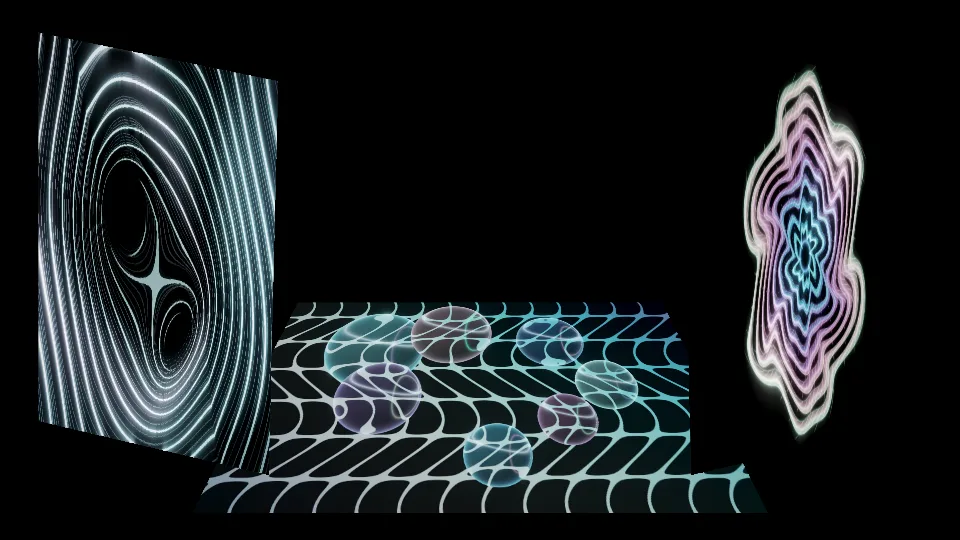
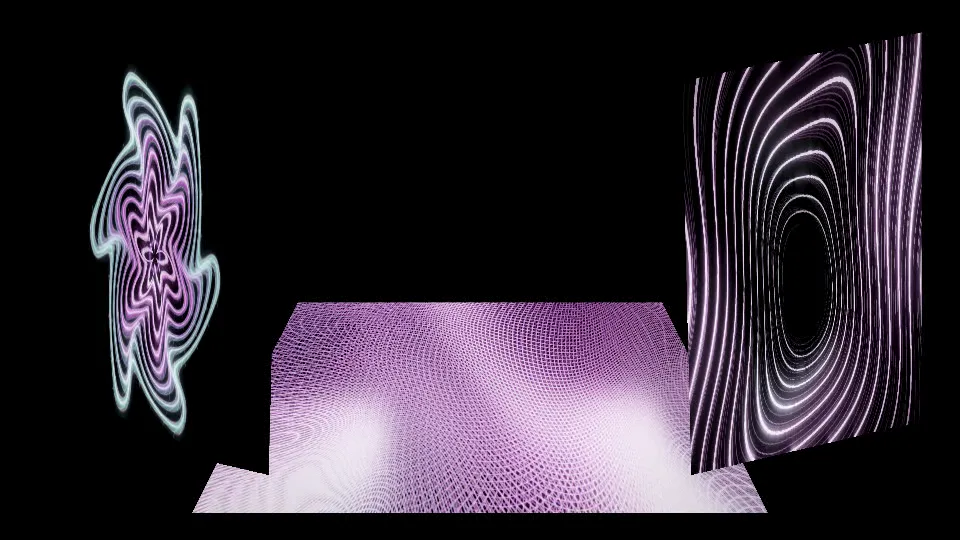
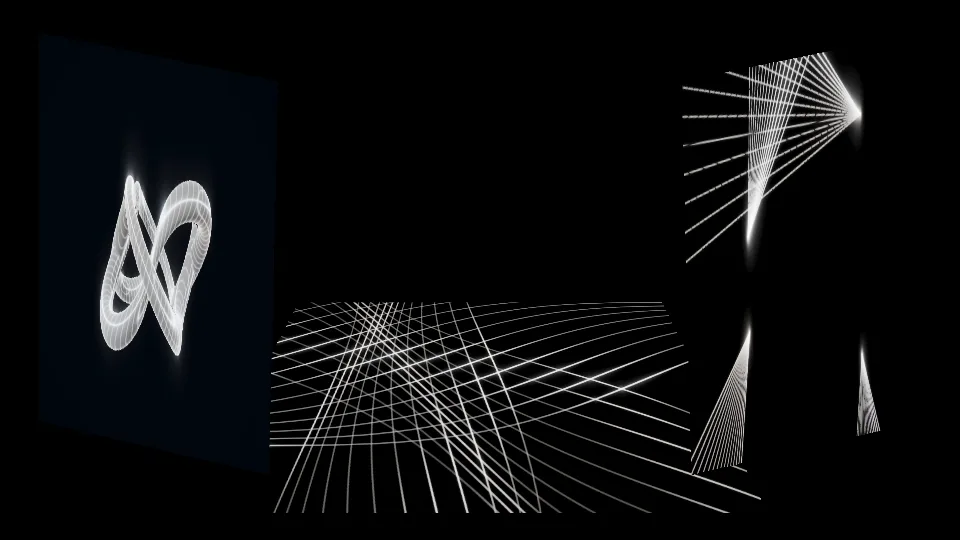
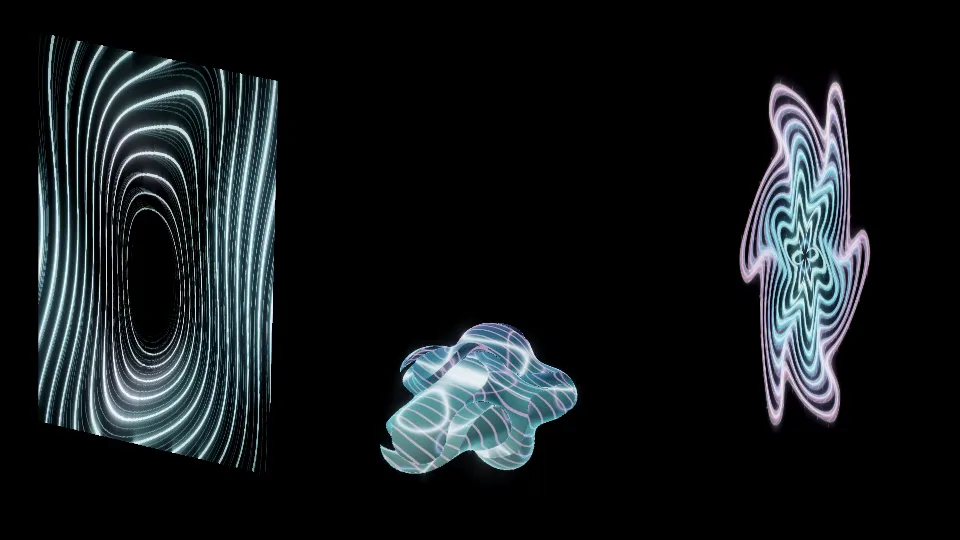
These are decoded stills; motion was checked in the actual saved video. [Measurements and limits (JSON)](https://phasevoid.com/evidence/show-soundtrack-2026-10-14.json).
### A finished film instead of a live take
Choose **Plan film with this show & track** with the loaded show and local file. It stops rehearsal and opens File render with the same file and sequence; nothing renders automatically. Fit film-only holds, review later pictures, then render and check the saved formats. [Full soundtrack storyboard workflow](https://phasevoid.com/guides/youtube-visualizer/#film-storyboard).
### Rehearse the exported show, too
Attach the same clips and audio, press **Prepare show**, then rehearse demanding cue changes, independent surfaces and transitions. A simple-world check does not cover that workload. Start audio deliberately, run the show and make a short recording with Studio in front and uncovered.
Use **Timestamped · where supported** under Capture method; retry **Browser capture · compatibility** when needed. The finished take is inspected locally. Use **Play start**, **Play middle** and **Play end**; check clips, effects, transitions and corresponding sound. Compare encoded packet timing with the preview-draw report: matching endpoints or a smooth stage do not prove content synchronization. Download, reopen the MP4/WebM through **Open a saved video to check** (up to 800 MB), and keep the **Download timing report** result. Keep calibrated corners/masks; reduce workload before changing room setup. Follow the [complete recording check](https://phasevoid.com/guides/youtube-visualizer/#check). Missing final packet duration leaves the tail/end difference unknown and packet rate approximate; codec priming can also affect decoded audio boundaries. Use Play end instead of inferring the final picture/sound from the last PTS. Capture is real time and device/memory-limited; a short rehearsal does not prove physical-projector or prolonged-set stability.
### Turn a recovered show into a music-video file
With a local MP3/WAV and all required clips attached, [file render](https://phasevoid.com/guides/youtube-visualizer/#file-render) uses the current composition or a reviewed cue timeline. Complete Manual holds before rendering; it does not replay MIDI or pad clicks. It includes both Program clips/master FX, captured surface looks and transitions on the current map, and pauses the show during the job without replacing Program. Microphone/shared-tab input and live gestures remain the real-time path. File render does not install the app for offline use or certify physical output timing.
## Use the final output rack
Open the **Effects** inspector for the global Program rack. The fixed chain is **Kaleidoscope → Pixelation → RGB split**, applied after the procedural base and both video layers are composed. Set individual amounts, optionally link the response to the separate audio source, and compare the global bypass with the processed picture. It belongs to Program; an independent surface world excludes it and uses its own rack in Mapping. It is not a per-clip plugin chain or a node editor.
**Freeze** holds the complete final picture; **Blackout** covers every world, video layer and effect. The stage, projector and real-time recording receive the same composed output. Test a short saved recording with both layers and the rack active, then reopen it and check motion, aspect ratio, crop and the connected audio source. Keep Studio visible. Video decoding and effects add CPU/GPU work; smaller output dimensions or lower procedural detail may help frame pacing.
File admission limits do not guarantee smooth playback. Browser codecs and available memory vary. There is no DXV, FFGL/VST plugin support, native NDI/Spout/Syphon, OSC, multi-projector routing, independent beat-quantized video-layer launch or continuous live BPM detection. Use the separate local MP3/WAV BPM finder to review a bounded file section. This is not evidence of native media-server parity or hours-long reliability. See the [recording guide](https://phasevoid.com/guides/youtube-visualizer/) and [troubleshooting](https://phasevoid.com/guides/troubleshooting/).
[One-projector projection mapping guide](https://phasevoid.com/guides/projection-mapping/): output setup, corner calibration, independent surface worlds/FX and the existing layout/show planner have one dedicated owner. Existing saved planner links are preserved.
## Three surfaces. Four acts. One moving show.
[Watch the mapped-show recording](https://phasevoid.com/media/examples/mapped-show-performance.webm) or [review its 16:9 setup in Studio](https://phasevoid.com/studio/?show-kit=three-surface-techno-16x9&panel=mapping). This is first-party browser output with test audio, without Studio editing handles. It is not evidence of physical projector alignment or a long-set test.
Intro, Build, Drop and Breakdown change the surface looks while current calibrated corners and masks stay in place. The session and [original 160 BPM test WAV](https://phasevoid.com/media/examples/techno-test-loop-160bpm.wav) are separate files.
Choose an example frame:
- **16:9 landscape**: [Review in Studio](https://phasevoid.com/studio/?show-kit=three-surface-techno-16x9&panel=mapping) · [Download full session JSON](https://phasevoid.com/media/show-kits/three-surface-techno-16x9.json).
- **4:3 projector frame**: [Review in Studio](https://phasevoid.com/studio/?show-kit=three-surface-techno-4x3&panel=mapping) · [Download full session JSON](https://phasevoid.com/media/show-kits/three-surface-techno-4x3.json).
- **9:16 portrait**: [Review in Studio](https://phasevoid.com/studio/?show-kit=three-surface-techno-9x16&panel=mapping) · [Download full session JSON](https://phasevoid.com/media/show-kits/three-surface-techno-9x16.json).
- **1:1 square**: [Review in Studio](https://phasevoid.com/studio/?show-kit=three-surface-techno-1x1&panel=mapping) · [Download full session JSON](https://phasevoid.com/media/show-kits/three-surface-techno-1x1.json).
1. Open a setup link and review the example. The link does not apply it, start audio or run cues. Press **Load example session** to replace the current setup with the example map, canvas, cues and saved mixer looks. **Undo example session** returns to the settings you replaced in this tab, until reload. Save a session before leaving; video files need reattaching.
2. Press **Open test audio** when ready to connect the original WAV. Audio requires your action and is not in the JSON. You can use your own local MP3/WAV instead.
3. In Mapping, align corners and masks to your surfaces. Use a calibration pattern, then switch it **Off** to show the visuals. Cue recall and mapped mixing keep this current geometry.
4. In **Show sequence**, fire Intro, Build, Drop and Breakdown. The example uses Manual holds: press **Next** to advance. Intro uses Cut; Build, Drop and Breakdown use Dissolve, Wipe and Dip respectively. Mapped cues offer **Cut**, or **Dissolve**, **Dip** and **Wipe** lasting **0.25–4 seconds**. Dissolve blends two moving mapped images; Dip fades through black; Wipe reveals the next image from left to right across the output without moving surface masks.
5. After tuning, use **Mapping → Save full session** or **header menu → Save session**. Reopen the JSON through Studio's session import and reconnect audio separately. The session keeps map geometry, canvas, cues and mixer settings without media bytes or a running show.
### Mix two mapped looks by hand
The example already saves Build in A and Drop in B. In **Live mixer**, enable **Mix independent surface looks**, press **Start live mix** and move the picture crossfader. Both banks keep moving with one shared audio input; the fader changes the image, not sound.
To prepare another pair, end the mix, tune your surfaces and press **Capture surfaces into A**. Change their visuals and FX, then press **Capture surfaces into B**. Each capture copies the current Program look and surface settings.
**End live mix** accepts A below 50% or B from 50%. End the mix before editing/capturing surface looks, changing sources or editing cues. Corners and masks remain editable and affect both banks. Capture both banks again after changing the surface list. Missing captured surface IDs reject a start or recall before changing output; restore the matching session or recapture for the current map.
### Know what travels with each file
A **map JSON** saves one map. A **starter link** carries public starting choices. The downloadable **full session** also saves the four-act cue show and mixer settings. Audio, artwork and video bytes remain separate; importing does not resume playback or the sequence.
Both moving banks share audio analysis and a **budget of 4,194,304 source pixels**; internal source resolution can be reduced. Test the actual setup. Short recordings do not establish physical projector alignment, sustained frame rate or hours-long reliability. This remains one raster, without multi-projector routing, projector edge blending, mesh/3D calibration or native OSC/NDI/Spout/Syphon/DMX. [Compare workflow requirements](https://phasevoid.com/compare/) or [build another starter layout](https://phasevoid.com/guides/projection-mapping/#projection-starters).
### Revise a saved act without replacing Program
[Try complete act editing](https://phasevoid.com/studio/?panel=layers&clip-show=1&cue-pads=1&act-editor=1), or [open your Studio](https://phasevoid.com/studio/?panel=layers), then **Show sequence → Edit cue**. The draft is separate from Program; opening and previewing it do not start audio.
1. **Open the saved act.** In Show sequence, choose Edit cue. Program look, Clips & FX and Surface looks belong to this draft; they do not apply changes to the current Program or audio. Cue thumbnails are static world references, not complete-act previews.
2. **Shape the complete composition.** Choose the Program world and controls. Assign existing library files to the two layers and adjust In/Out, opacity, blend, Fit/Fill, flip, speed, loop, layer order and Play on recall. Checked playback restarts at In when the cue fires; unchecked stays paused. Adjust the master rack and any saved surface look, crop or FX. Current calibrated corners and masks remain untouched. Program clips/master FX act before mapping; independent procedural surfaces retain their own FX.
3. **Check the draft deliberately.** Press Preview draft for a muted moving picture at 640 px on the longest edge, targeting about eight updates per second. It shares the existing audio analysis and does not start a song or request input permission. Global live title/artwork overlays are excluded because cues do not capture them. Use Pause preview for the draft; stage Freeze and Blackout do not pause or black out this separate preview. Changes release it: press Preview draft again to refresh. This adds graphics/decoder work and is not an output-frame-rate, physical-projector or long-set guarantee. An unavailable preview shows an error.
4. **Save or discard.** Cancel or close discards the draft. Save closes the editor and replaces that cue only; it does not fire it or change Program/audio. Stop recording, loading, pending launches, transitions and the running sequence before saving. Undo saved edit restores the previous version of one saved edit in this tab. It becomes unavailable after conflicting cue edits or reload; it is not persistent redo/history. Earlier/Later, Duplicate and Remove are immediate sequence actions: they discard the current draft and require stopped playback with no pending transition.
5. **Handle legacy or missing media explicitly.** An older cue keeps its earlier live-clip/FX behavior; its draft preview excludes those live clips/rack. Enable clips & FX for this act starts empty layers and a neutral rack in the draft; Copy current Program into draft copies the current composition. Save is still required. Missing media is listed; Save can retain those dependencies, but Preview and Prepare show cannot use them. Cancel, open Assets, reattach the originals and reopen the act.
6. **Prepare and rehearse the saved result.** After saving, press Prepare show. Start your separate MP3/WAV or permitted live audio deliberately, then fire the act, use performance pads or Run sequence. Prepare checks required files and warms worlds; incoming decoding still occurs on recall. Save complete session retains settings and clip metadata, not media bytes. Reopen stopped, reattach originals paused and prepare again. Record/download/reopen a short take before a longer show.
### Repeat the before-and-after act rehearsal
**Ready-loaded path:** open the [original rehearsal](https://phasevoid.com/studio/?panel=layers&clip-show=1&cue-pads=1&act-editor=1), then click **Load act editing rehearsal**. It checks/attaches both original loops paused and opens Drop as a draft. Loading replaces current settings/library after your click: save your own session first. **Undo clip show** restores prior settings in this tab, with your own files requiring reattachment. This is separate from **Undo saved edit**.
**Local recovery path:** download the [before session](https://phasevoid.com/examples/act-editor/session-before.json), [original loop A](https://phasevoid.com/examples/clip-show/loop-a.webm) and [original loop B](https://phasevoid.com/examples/clip-show/loop-b.webm). Reopen in Assets, observe missing files, reattach originals paused and open Drop. Preview/edit, try Cancel, reopen and Save. Compare Undo saved edit before another revision. Prepare show, open the [separate original test WAV](https://phasevoid.com/examples/clip-show/sound.wav) deliberately and perform.
**Compare the saved result:** [open the edited rehearsal](https://phasevoid.com/studio/?panel=layers&clip-show=1&cue-pads=1&act-editor=after) and click **Load edited act rehearsal**, or download the [after session](https://phasevoid.com/examples/act-editor/session-after.json). These actual native session downloads differ only in Drop: Program, calibration, Clip Deck and other acts match. Public Freeze is off for replay. JSON contains settings/metadata, not media. Sources are synthetic first-party loops, not customer footage. [Recovery steps](https://phasevoid.com/guides/live-visuals/#media-library) · [Check the downloaded take](https://phasevoid.com/guides/youtube-visualizer/#check).
### Inspect the revised act off air
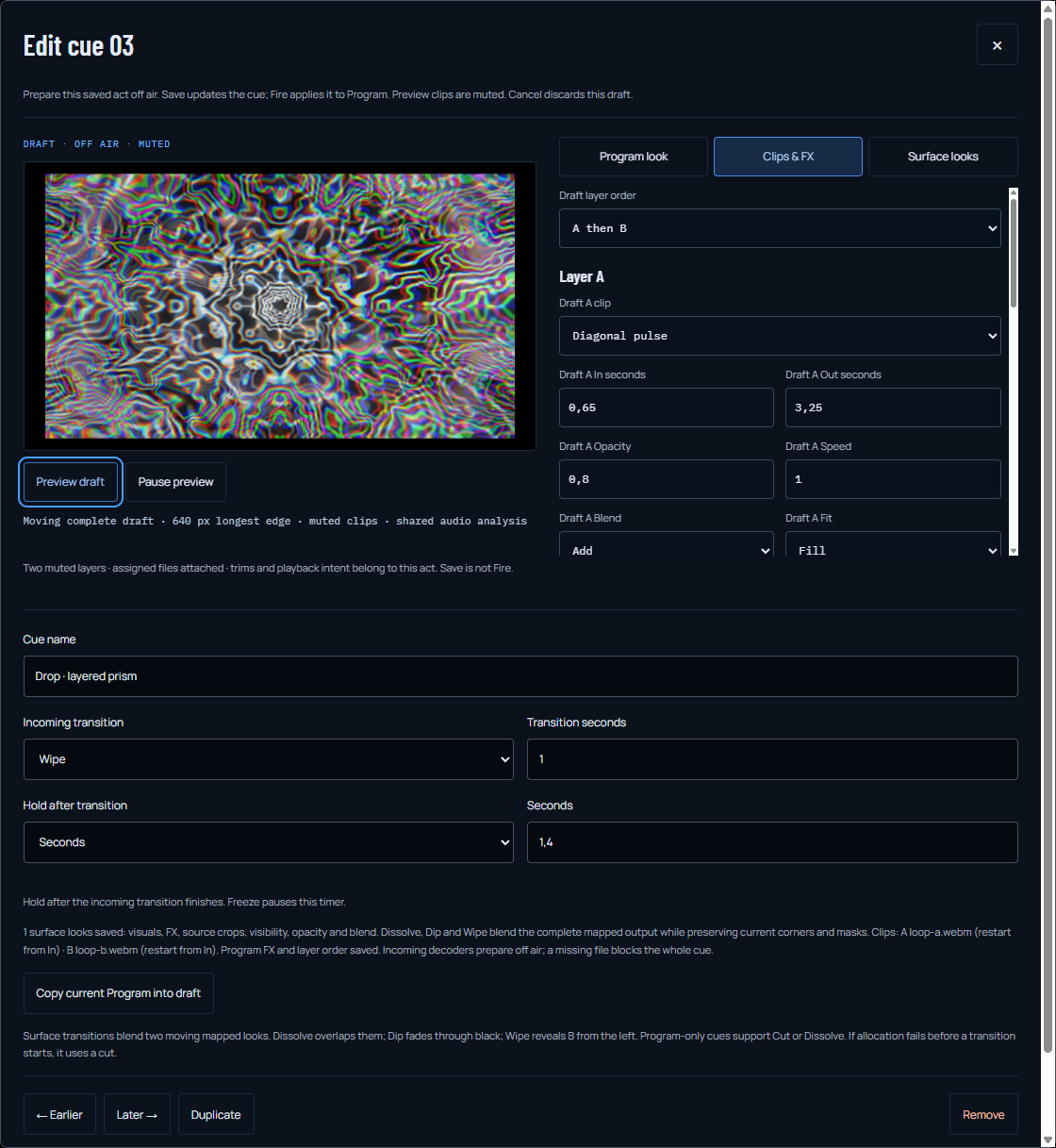
Actual native editor with muted moving-preview mode active. This still image shows the draft and clip controls; it is not a screen recording or proof of a Save action.
### Watch the revised Drop after restore
[Watch the original revised-Drop recording](https://phasevoid.com/examples/act-editor/performance.webm). Drop was fired with **Now** after session restore, media recovery and **Prepare show**. This is that act's final Studio output, not all four acts or a screen recording of editor/recovery clicks.
The native download was reopened. Independent file inspection found approximately **10.033 seconds**, **960 × 540 VP9**, **290 distinct decoded frames** and **48 kHz stereo Opus**. Studio **Speakers off** kept monitoring silent while audio was recorded. The [encoded-file report](https://phasevoid.com/examples/act-editor/recording-check.json) lists **290 video packets**, a **72 ms** largest picture gap and **zero busy-encoder skips**. Final packet tail is unknown and **syncVerified:false**; packet metadata does not establish universal frame rate or content A/V synchronization. [Revised captured-act settings](https://phasevoid.com/examples/act-editor/session-after.json) · [Original settings](https://phasevoid.com/examples/act-editor/session-before.json). This short desktop Chrome check does not establish long-set or physical-projector reliability.
Saved-act drafts and muted previews stay in this tab. Saved cue settings may persist in browser settings/session JSON, including private cue/clip names and metadata, without media bytes. Public recipe links and read-only MCP do not carry or access these private acts. Opening the editor, first drawn preview, Save, Cancel, Undo and successful Prepare each send a fixed anonymous milestone once per page; names, settings, media and visitor identifiers are excluded. Independent counts do not prove a joined funnel, unique performers or musical synchronization. Review private session names before sharing. Media is not uploaded. [Privacy](https://phasevoid.com/privacy/).
## Perform complete acts from pads
Canonical owner: https://phasevoid.com/guides/live-visuals/#sequence
Open **Show sequence → Open performance pads** after loading a [show starter](https://phasevoid.com/#show-library), reopening a session or capturing acts. Eight pads per bank reach all **32 cues**. Images are static world references, not previews of every saved layer/control. Program copies the complete final mapped output at up to 10 fps; stage, projector and recording retain their render cadence.
1. Reattach required clips, press **Prepare show** and start MP3/WAV or live audio separately. Keep Studio visible and uncovered. Check the record/speaker level: zero means a silent recording. Play/Pause and that level are available inside the performance view. Set **Manual BPM**, Tap quarter notes and **Resync** on a downbeat. This manual 4/4 clock does not detect tempo or time-stretch sound.
2. Choose **Now**, **Next beat**, **Next bar** or **Every 4 bars**. Quantized modes queue a whole act at a strictly future boundary; four bars align to Resync. Pads, keys **1–8**, Run sequence, Next and learned MIDI cue triggers use this choice. Automatic cue holds retain their transition-then-hold behavior.
3. **Preparing** preserves the image while incoming clips decode off air. Ready clips wait paused. **Queued** shows the act and remaining beats. Blue is current, purple is queued. A later request replaces the earlier one. **Cancel queued cue** keeps the image and resumes an earlier running hold; Stop cancels pending work and future sequence changes.
4. Freeze suspends pending launches, final motion, transitions and holds. Unfreezing or hidden-tab return re-arms a future boundary. BPM edits preserve the beat target; Tap/Resync re-arm it. Blackout hides output while timing continues. Changing launch mode or importing settings cancels queued launches. Opening an act draft leaves the pending request intact; Save is blocked until it is stopped.
5. Rehearse non-sequential choices, then [record, download and reopen a short take](https://phasevoid.com/guides/youtube-visualizer/#check). Save session retains launch mode and cue data, without armed launches or a running sequence after restore; files need reattachment. T/R/H/B work in the performance view; typing suppresses shortcuts and MIDI performance actions.
Preparation at/after a boundary or a render callback more than **100 ms** late waits for the next future boundary, without catch-up bursts. **Last quantized draw** separates request delay, render-completion delay and missed boundaries. It does not measure physical sound-to-screen latency, encoded frame placement or musical alignment. Poor frame pacing can repeatedly postpone launch: lower size/detail and check your setup.
Whole cues recall Program clips/master FX and surface looks while preserving calibrated corners/masks. This is not independent beat-quantized launching per video layer, automatic beat detection, MIDI Clock, SMPTE or frame/sample-accurate physical output. Legacy cues retain previous clip/rack behavior until explicitly copied into a draft and saved. [Read-only MCP](https://phasevoid.com/connect/mcp/) can explain/plan public setups, not press pads, read private sessions or perform remotely.
### Open the same four-act pad rehearsal
The actual [10.025-second Studio WebM](https://phasevoid.com/examples/cue-performance/performance.webm) uses non-sequential Next-bar pad requests on a manual 160 BPM grid, two original muted loops, Program FX, mapping and the original test audio. Downloaded and reopened: 960 × 540 VP9, stereo 48 kHz Opus, 279 video packets (about 27.9/s), largest packet gap 70 ms. Final-packet tail is unknown; physical synchronization and long-set reliability are unverified. [Encoded timing report](https://phasevoid.com/examples/cue-performance/recording-check.json).
[Review this rehearsal in Studio](https://phasevoid.com/studio/?panel=layers&clip-show=1&cue-pads=1), explicitly **Load pad rehearsal**, Prepare show, Open test audio and Open performance pads. Settings and original loops load only after your click, paused with no armed launch; audio starts separately. Resync before pressing pads.
Manual restoration: download [actual saved session](https://phasevoid.com/examples/cue-performance/session.json), [loop A](https://phasevoid.com/examples/clip-show/loop-a.webm), [loop B](https://phasevoid.com/examples/clip-show/loop-b.webm) and [original 160 BPM WAV](https://phasevoid.com/media/examples/techno-test-loop-160bpm.wav). Import, reattach original filenames, Prepare show, open the WAV, then rehearse. The packet report cannot prove a pad boundary became an exact encoded frame.
## Bring selected acts into your next show
[Open Act Packs in Studio](https://phasevoid.com/studio/?panel=layers&act-packs=1). Arrival opens the workflow; it does not append a pack, attach media, fire a cue or start audio. Reuse captured compositions without replacing the receiving session.
1. **Export only the acts you need.** Open Act Packs from Show sequence, choose Export acts, select cue entries and press Download selected act pack. A pack retains their captured Program look, clip layers/playback intent/master FX, surface looks/crops/FX, transitions and holds. It is not a full session, world-ID bank or media bundle. Save your complete session separately as a backup.
2. **Keep a usable export.** If no file appears after Download selected act pack, use the visible Save act pack JSON link. Or press Copy pack JSON and save the complete text as a UTF-8 .json file. If clipboard copy fails, select/copy the read-only Generated pack JSON manually. After changing selection or pack name, generate again before using the link or copied JSON.
3. **Review before importing.** Open a pack JSON in Act Packs. Preflight shows the incoming acts, media dependencies, source surfaces and capacity. Import appends all acts in the selected pack; it does not replace your queue or take them on air. Current Program, audio, timing, MIDI, output dimensions/export options and calibration remain. If current work blocks append or the receiving setup changes, resolve it and refresh preflight.
4. **Choose each media entry.** Use the explicit dropdown to reuse a compatible library entry or add a new detached descriptor. Matching checks filename, size, decoded dimensions and duration within 0.1 seconds; it does not use modified time or establish cryptographic identity. A unique match defaults to reuse. Ambiguous matches default to a new detached entry, so review rather than assuming the file is attached. New IDs are assigned and cue references follow them.
5. **Bind looks to your own surfaces.** For captured surface looks, choose a current target for every source surface, or explicitly disable the captured looks. No two source looks in the same cue can use one target. An unknown or unanswered dropdown blocks append. Corners, masks, canvas and venue calibration never come from the pack; only stored looks/crops/FX bind to your targets. Review warnings: disabling looks on a legacy surface act can turn Dip/Wipe into Dissolve. Mapping stays off if it was off; enable it and disable test patterns deliberately before a mapped performance.
6. **Append, then check Undo.** Press Review import, then Add … reviewed acts; the button shows your pack’s count. Imported cues get new IDs and remain separate from your existing acts. Undo last pack import removes the latest pack’s unchanged acts and unused detached entries. It keeps reattached/loaded media and entries still in use. Editing imported acts blocks that Undo; editing earlier acts does not mean their changes will be reverted. This is not persistent history.
7. **Recover, prepare and fire deliberately.** Use Assets to reattach missing originals; recovered layers stay paused. Open an imported act in Edit cue to inspect or revise it off air, then Prepare show. Start separate audio yourself and fire through the existing sequence/pads. Bars use the receiving show’s manual BPM, not an imported tempo or automatic detection. Save the full receiving session, record a short take and reopen it to check image and sound.
### Try the original local-source packs
Download the [original four-act pack](https://phasevoid.com/examples/act-packs/original.json) or [revised four-act pack](https://phasevoid.com/examples/act-packs/revised.json), with separate original [loop A](https://phasevoid.com/examples/clip-show/loop-a.webm) / [loop B](https://phasevoid.com/examples/clip-show/loop-b.webm). Open your receiving show and import the example JSON. Review media reuse/descriptors and surface bindings before append. Try Undo last pack import, then import again, reattach missing originals and Prepare show. Open the [separate original test WAV](https://phasevoid.com/examples/clip-show/sound.wav) deliberately and fire an imported act. These synthetic first-party sources are not a customer set. JSON downloads/reference images do not demonstrate motion or a performed show.
### Repeat the transferred-show rehearsal
Use the [synthetic receiving session](https://phasevoid.com/examples/act-packs/receiving-session.json), [actual GUI-generated/copied pack](https://phasevoid.com/examples/act-packs/exported.json), separate [loop A](https://phasevoid.com/examples/clip-show/loop-a.webm) / [loop B](https://phasevoid.com/examples/clip-show/loop-b.webm) and [original test WAV](https://phasevoid.com/examples/clip-show/sound.wav). The receiving fixture is a full session; the pack contains selected acts without media or calibration.
1. **Start the separate rehearsal.** Save your own full session first. Import the receiving-session JSON with Import session, not the Act Packs file picker. This intentionally loads a synthetic full-session fixture with one existing act, two missing media entries and its own calibration; it replaces current settings for this rehearsal. Real pack import uses your receiving show without replacing it.
2. **Recover its two originals.** In Assets, reattach loop-a.webm and loop-b.webm. They remain paused. Open Act Packs → Import pack and choose exported.json, the complete pack generated and copied from the GUI during the native transfer check.
3. **Bind and review.** Reuse the two matching loaded media entries. Assign source My calibrated wall to target Receiving wall. Press Review import, inspect the 1 → 5 cue count and capacity, then Add 4 reviewed acts. The existing act and receiving calibration remain. No cue or audio starts from append.
4. **Prepare, then perform.** Press Prepare show, open the separate test WAV deliberately and choose Now to fire the imported Intro, Build, Drop and Breakdown. Keep the existing act separate from those four. Record a short take and reopen the saved local output through the file chooser. No export, copy or manual-text fallback uploads a private pack or media.
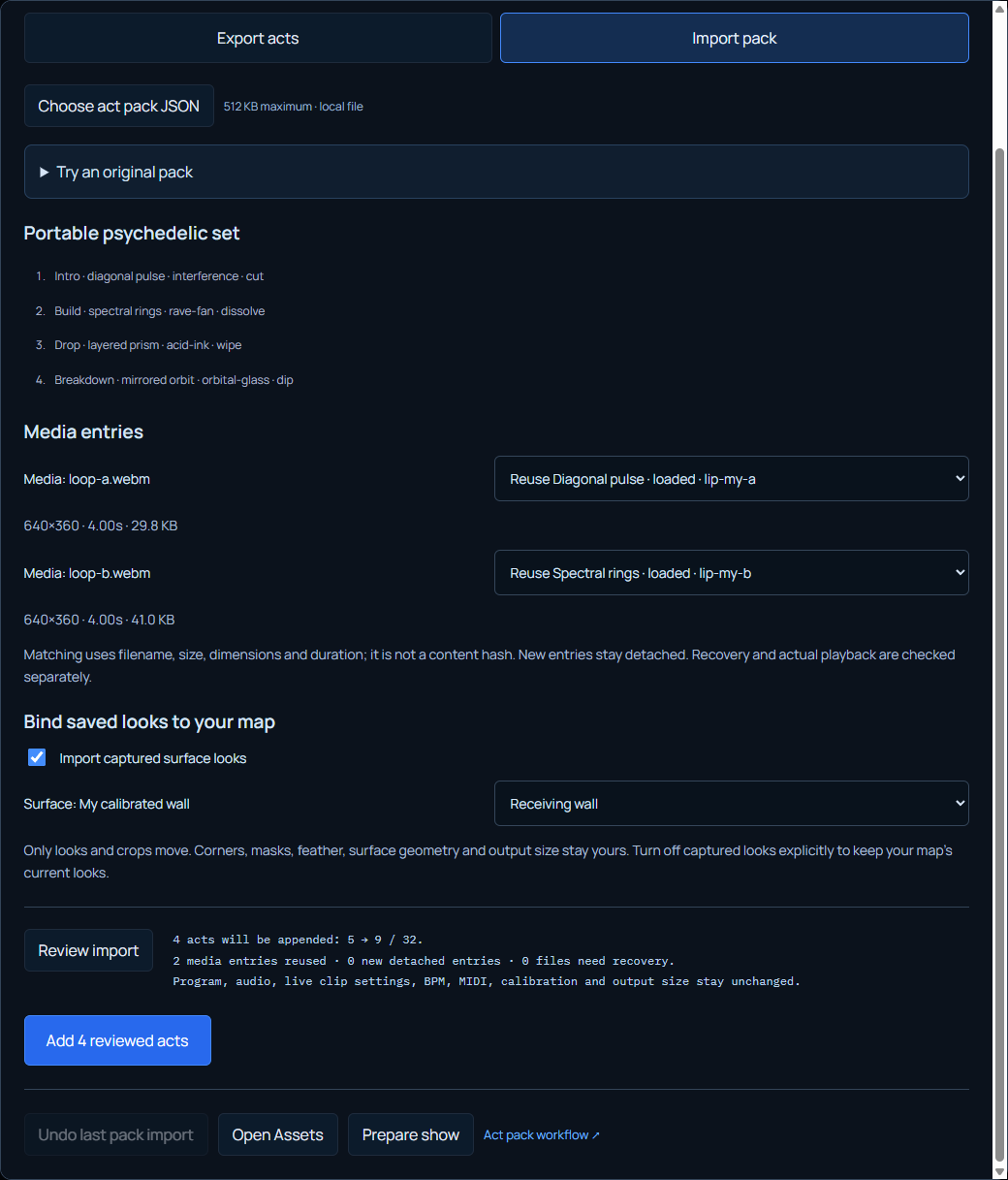
Actual native preflight still of a later proposed **5 → 9** append after the checked **1 → 5** import, with **two loaded entries reused** and **zero missing files**. It is not the first-import moment or a video of clicks. GUI Copy pack JSON → local file → GUI file import was checked separately; the existing act was retained and My calibrated wall was assigned to Receiving wall.
### Watch the four imported acts perform
[Watch the original Studio encoding](https://phasevoid.com/examples/act-packs/performance.webm): the first imported Intro / Build / Drop / Breakdown fired with **Now** after reattachment and **Prepare show**. This is the first imported set’s final output, not the later proposed append or a screen recording of copying/import/preflight. The encoding was saved from local Studio output and reopened through the file chooser.
Independent inspection found approximately **10.033 seconds**, **960 × 540 VP9**, **293 decoded pictures** and **48 kHz stereo Opus**. Studio **Speakers off** kept monitoring silent while audio was recorded. The [encoded-file report](https://phasevoid.com/examples/act-packs/recording-check.json) shows **293 video packets**, a **70 ms** largest picture gap and **zero busy-encoder skips**. Final packet tail is unknown and **syncVerified:false**; packet metadata does not establish physical/content A/V synchronization, zero dropped frames, long-set reliability or hardware compatibility.
Up to **512 KB JSON**, **32 total cues**, **12 library entries** and **512 MB total library media**. Descriptors need browser-decodable original files and do not bypass existing media limits. Acts keep captured playback intent; attached bytes stay local, and missing dependencies must be resolved before Prepare/Fire. Packs do not transfer calibration, global title/artwork overlays, audio files, running transport or source MIDI bindings. [Recover media](https://phasevoid.com/guides/live-visuals/#media-library) · [Edit and perform](https://phasevoid.com/guides/live-visuals/#sequence) · [Inspect a short export](https://phasevoid.com/guides/youtube-visualizer/#check).
Act Pack export/import reads and writes local JSON, without uploading private packs or media. Packs can contain private cue names, surface labels and original clip filenames/descriptors; review before sharing. Captured surface looks do not include venue calibration geometry. Public example downloads request fixed first-party assets; a Studio entry marker contains no private pack data. Read-only MCP can describe public examples but cannot read/export/import private acts, match local files, bind surfaces, append, undo or perform a show. [Privacy](https://phasevoid.com/privacy/#act-packs).
The [seven-second live example](https://phasevoid.com/guides/live-visuals/#live-example) used our original 160 BPM stereo WAV in a separate Chrome tab, shared that tab's audio, rendered Interference and saved a video with sound. The [96-event CSV](https://phasevoid.com/evidence/live-tab-pulse-2026-09-25.csv) measures estimated source audio-output to shader-pulse submission on one Chrome setup: median 45.5 ms and 95th percentile 54.2 ms. It does **not** measure physical mixer, loudspeaker, display or projector delay or guarantee sync on your setup. Start Visual timing at zero and check your actual signal and display chain by eye and ear.
Selected live audio and generated exports are not uploaded by the Studio. Website requests still reach Cloudflare; see [privacy](https://phasevoid.com/privacy/). The [techno guide](https://phasevoid.com/guides/techno-visualizer/) compares three recorded scenes from the same first-party test WAV rather than claiming a club performance.
## Studio: Sound → Look → Output
With no audio connected, one starter above the preview offers Music file, Live audio and Try the demo. Route selection alone does not play or capture. Live offers explicit microphone/interface or tab/system permission actions and a separate input-settings jump. Loading, Cancel and failed-source retry stay at this starting point; the normal Sound inspector remains available. Existing sources, including paused files, hide the starter. Public-test and planned-show arrivals retain their specialised actions. When Mapping is enabled, Look and Effects show an Edit target selector for Program and each named surface. Source-routing text states how many enabled surfaces use Program, including independent-only and all-hidden cases. Choosing a surface opens the existing Mapping editor for that exact ID and focuses Visual source or Surface FX. Back to Program returns to the original controls. Navigation does not apply a world, effect, source, geometry, calibration or output change; source counts do not prove final pixel visibility through masks, overlap or test patterns. Studio starts with three steps: Sound chooses MP3/WAV or an explicitly permitted live input; Look chooses a procedural world and its controls; Output sets aspect ratio/resolution and opens a projector or the frame-by-frame music-video renderer. Record video in the header is the separate realtime capture path. Layers & text groups Title & logo, Soundwave layer, Video layers and Mix two worlds. Effects controls Program before mapping; independent surface FX belong to the selected surface in Mapping. Worlds opens the world browser, Video library opens local media management, and Show opens the cue sequence. The Studio section selector stays available on compact screens and in Stage view. Save and Import session share the header menu, alongside help and Loxone control. Named advanced disclosures keep timing, MIDI and display tools available. Selecting a section changes navigation and its URL, not audio playback, show settings, output pixels or projector state.
1. Sound → Open MP3 / WAV, Microphone or Tab / system. Check source/meters and control playback explicitly. Timing & beat sync contains BPM, pulse and MIDI.
2. Look → Choose a visual world, then adjust the scene. A mixer’s copied decks and off-air preview still require an explicit Take.
3. Output → frame/resolution → Open projector window or Render music video. Record video in the header captures live performance instead. Check the actual saved output.
Layers & text contains Title & logo, Soundwave layer, Video layers and Mix two worlds. Effects changes Program before mapping; independent surface FX live in Mapping. Header Worlds, Video library and Show reach their actual tools. Save/Import session share the header menu; media bytes remain separate.
[Full workflow and scope table](https://phasevoid.com/guides/live-visuals/#studio-workflow).
## Independent audio-to-effect links
Audio links independently map Bass, Mid, High, Energy or the detected audio Transient to Kaleidoscope, Pixelation, RGB split and FX amount. Each link has Low/High endpoints, gain, a noise floor and Linear/Smooth/Punch response. Descending endpoints reverse the response. Program links sit in Effects; Mapping has separate links for the selected surface. Links follow the existing shared audio analysis without starting audio or creating another analyser. Sessions, saved compositions/cues and maps retain their respective settings; causal file rendering consumes the current decoded frame. Manual restores the rack value, Clear links removes the routing, Bypass FX disables the rack, and Reset rack also clears links. For repeating BPM-driven movement, choose the separate Beat loop driver. Audio-band mapping is relative signal mapping, not source separation, a new adjustable frequency crossover, independent attack/release timing, a calibrated meter or physical latency correction.
[Full setup, band choices, mapping, recovery and film checks](https://phasevoid.com/guides/live-visuals/#audio-links). [Open Effects](https://phasevoid.com/studio/?panel=effects).
Suggested first checks: Bass → Kaleidoscope 2–8 folds; High → RGB split 0–30%; Mid → Pixelation 0–40%; Energy → FX amount 10–90%. Set only the connections you need. Use Low/High endpoints, reverse them if wanted, tune gain/noise floor, then choose the response curve and inspect quiet and strong passages. Save session/map/captured act settings; reattach original media separately. A still transfer graph is not motion or physical-device proof.
### Set up and recover the connection
1. Open MP3/WAV or deliberately connect a supported live input in Audio. Check the meters. Enabling a link does not start sound. Video clip audio stays muted.
2. In Effects → Audio links & beat loops, choose a signal for each target you need. The resolved value changes beside it. In compact layouts, a bounded 2D mirror shows the actual final picture with the controls.
3. Set Quiet and High values; descending endpoints reverse the response. Kaleidoscope rounds to whole folds and values below two are Off. The other targets use percentages. Noise floor gates lower relative readings, then Gain scales the remaining range. Linear, Smooth and Punch shape the transfer; the diagram is not a time envelope.
4. For separate objects, enable Mapping and select a named surface before editing its Audio links. Only that surface’s FX changes. Program-source surfaces receive the Program rack first; independent worlds keep their own source. Undo/Redo preserve calibrated geometry. Calibration patterns bypass FX.
5. Save session for Program/mapping, Save map for surface links, or capture the appropriate composition/surface looks into an act. The draft editor can edit links; changed drafts need another preview. Reattach local media separately. Imported settings are validated.
6. Manual restores a target’s manual value. Clear links removes routing and retains manual settings. Bypass FX bypasses the rack; Reset rack clears both routes and effects. An Amount route replaces the legacy energy multiplier. Freeze/Blackout cover the final picture.
7. Review and render a local soundtrack film or record the live composition. Every file picture consumes the current decoded frame; live/file analysis is not promised pixel-identical. Reopen the real download and inspect quiet/strong passages and each output format.
### Actual first-party example
[Play the independently decoded mapped film](https://phasevoid.com/examples/audio-links/performance.webm): 960×540, 90 VP9 pictures, 48 kHz stereo Opus, measured container duration 3.020 seconds. Left: Bass → Kaleidoscope 2–8. Right: High → RGB split 0–60%, gain 2. The original test-audio passage is 0.3–3.3 seconds. Matching manual/world/map settings differ only in Audio links, and the compared decoded audio is exactly equal. [Actual frame comparison](https://phasevoid.com/examples/audio-links/before-after.webp), [dated evidence and limits](https://phasevoid.com/evidence/audio-links-2026-10-15.json). Short examples do not establish physical projector timing, every browser/device or long-set reliability.
## Stage workspace: prepare, perform and recover
Stage view enlarges the operator preview by folding the tools, world library and show-sequence editor. Hide controls also folds the inspector and mapping edit handles; Show controls or an explicit Map/inspector navigation reveals it. The transport, Freeze, Blackout, Record video and Go live remain available. Back to Studio or Escape returns to the full workspace; Escape respects open dialogs, text/select editing and browser fullscreen. A draggable, keyboard-accessible divider adjusts the inspector to a bounded 260–520 px while retaining preview space. Left widens controls, Right widens preview, Shift uses larger steps, Home/End reach the bounds and Enter resets width. On narrow screens controls stack below the picture. View, visibility and preferred width persist locally under phasevoid-workspace-v1, independently of portable sessions. Reset layout restores Studio and 352 px. Layout changes do not start sound, change output pixels, render detail, normalized mapping corners or export dimensions; Stage view is not projector routing or browser fullscreen.
1. Prepare the audio, output size and map in Studio. Verify the intended meters. Speakers off avoids unwanted local monitoring.
2. Press Stage view above the picture. It folds the tool rail, library and sequence editor. Hide controls also folds inspector and edit handles; the actual mapping stays unchanged.
3. Show controls or Map reveals the inspector again. On phones it appears below the picture. Resize its desktop divider by drag or keyboard; this does not drag a surface.
4. Workspace offers Browse worlds, Performance pads, Show sequence and Reset layout. Show sequence returns to the editor; Back to Studio restores tools/libraries. Escape returns unless another dialog, field or fullscreen owns it.
5. Output frame, resolution, mapping and audio remain separate. Inspect actual projector/recorded output before performing. Local view preferences are not included in sessions, maps or shared links.
[Actual Stage screenshot](https://phasevoid.com/examples/stage-workspace/stage.webp). [Earlier workspace](https://phasevoid.com/examples/stage-workspace/before.webp). The 1440×900 screenshots compare layout at different audio moments. An earlier 432×243 px fitted image became about 564×317 in default Studio or 1079×607 in hidden-control Stage in the measured configuration. This is not a rendering-quality, frame-rate or physical-projector benchmark. [Dated output/layout verification and limits](https://phasevoid.com/evidence/stage-workspace-2026-10-15.json).
## Beat-loop effect modulation
Beat loop is a separate driver in Effects or the selected mapping surface’s Audio links & beat loops editor. Each of four targets—Kaleidoscope, Pixelation, RGB split and FX amount—can use Manual, one existing audio band, or its own beat loop. Loops have Low/High endpoints, a quarter-beat to sixteen-bar period, Cycle offset and Sine, Triangle, Ramp, Alternating or deterministic Step random shape. Reversed endpoints reverse the response. Track sync follows the loaded file’s BPM/aligned beat-one grid through seeks and trimmed renders; other sources use the existing manual BPM grid, starting at film zero for file rendering. Visual timing offset also shifts loop phase. Gentler motion makes loops four times slower. Loops do not detect beats, start audio or alter playback speed. Program/surface loops share the same clock and persist in their settings, maps, sessions and captured acts; they do not reset on each cue or surface selection. Freeze holds final output while the clock can continue. Bypass retains routing, Manual removes one route and Clear links removes every route in that editor. Public MCP describes the feature without reading or operating private Studio settings.
1. Set/Tap BPM. For a file, align its beat grid and choose Track sync for absolute phase through seeks and trims.
2. Effects → Audio links & beat loops → Kaleidoscope signal → Beat loop starts a 2–8 fold, one-bar Sine. This choice starts no audio.
3. Expand the range. Set Low/High endpoints, Loop length, Waveform and Cycle offset. Reverse endpoints for reversed movement. The value beside each target is the actual resolved parameter.
4. In Mapping, select a named surface and give its rack a different period/phase. Other surfaces and calibrated corners stay separate. Program-source surfaces receive both Program and surface FX.
5. Save the session/map/captured act. Manual removes one route; Clear links removes all routes in that editor; Bypass retains them; Reset rack clears them. Freeze holds the final picture while the grid can continue.
6. Review and render the actual file. Track sync retains absolute file phase through trimmed starts; other sources start the manual clock at film zero. Inspect each downloaded format in motion. This is not physical projector/speaker-latency calibration.
[Play the actual mapped beat-loop film](https://phasevoid.com/examples/beat-loops/performance.webm): 960×540, 90 decoded VP9 pictures, stereo 48 kHz Opus, 3.020 seconds. Left: Chrome knot, Triangle, two beats, 2–8 folds. Right: Spectral organ, Sine, four beats, quarter-cycle offset, 2–8 folds plus High-linked RGB split. Same aligned 160 BPM grid, original 0.3–3.3-second soundtrack passage. Baseline settings differ only in clock routes, and decoded audio is exactly equal. [Frame comparison](https://phasevoid.com/examples/beat-loops/before-after.webp), [dated method and limits](https://phasevoid.com/evidence/beat-loops-2026-10-23.json).
Sine rises/returns smoothly, Triangle rises/falls evenly, Ramp resets at its boundary, Alternating holds low/high half-cycles and Step random holds one deterministic value per cycle. The graph is a settings diagram, not recorded audio. All loops share the selected grid and Visual timing offset; Gentler motion increases their periods fourfold.
## Audio spectrum composition
Soundwave opens a free Program layer with frequency Spectrum bars, a radial Ring or an instantaneous Waveform. Choose color, position, size, response, opacity and background darkening without replacing or starting audio. The layer uses the existing MP3/WAV or supported live-input signal, sits above Program video/worlds and below titles/artwork, and reaches the composed projector and realtime recording. File-render first-frame review, causal storyboard and encoded films consume the current decoded signal with frozen layer settings at each actual output size. Local/settings-only sessions retain the layer; legacy sessions default off. Freeze/Blackout cover the complete output. Independent mapped world sources and shared procedural-look links exclude this global layer. This is not a whole-track waveform, calibrated meter, lyric generator, source separation or physical latency correction. [Complete workflow](https://phasevoid.com/guides/audio-spectrum-visualizer/).
## Align the file beat grid
Sound → Timing & beat sync → Align file beat grid decodes a 2–32 second waveform window locally and silently. The operator places beat one, enters 30–300 BPM, inspects later windows for drift and deliberately applies BPM, file alignment and Track sync. Guarded Undo restores the earlier BPM, exact file phase and pulse source. Track sync and file-render reviews/films use the same pulse envelope at absolute soundtrack seconds, including trimmed starts and pulse delay. A different soundtrack cannot borrow the loaded file’s grid. Audio, playback, cue-grid position, mapping and delay stay separate. Alignment lasts in this tab for this file; replacement, session load and reload reset it. No changing tempo map, automatic downbeat detection, audio stretching or physical latency correction. [Full workflow](https://phasevoid.com/guides/music-visualizer/#file-beat-grid).
## Control room looks with Loxone.
Use one rendering PC and projector. [Set up room](https://phasevoid.com/studio/?panel=room&room-view=setup) prepares the installation; [Operate room](https://phasevoid.com/studio/?panel=room) opens daily controls.
1. **Prepare a local plan.** In **Set up room**, enter the PC and Miniserver private IPv4 addresses and a key-file path, then **Generate local plan**. Review the launch command and Loxone field instructions; nothing is installed or run automatically. Inputs stay in memory, without control/status keys. [Download the connector](https://phasevoid.com/integrations/loxone/bridge.mjs) and run with Node 22+. The key file belongs in an existing owner-private folder outside repositories/shared folders. Default RAM keys change after restart; Windows `0600` is not an NTFS ACL. Studio uses loopback `43120`; LAN `43121` accepts only that Miniserver. Restrict its firewall.
```text
node bridge.mjs --lan --miniserver --keys-file
```
2. **Prepare and pair.** Capture Ambient, Party and Techno procedural Program worlds/looks plus surface visuals/FX only. Clips, overlays, master FX, frame and calibration stay; surface IDs must match. Starters fill empty slots only. Allow HTTPS Studio’s Chrome/Edge local/loopback permission, enter the **pairing key**, then **Arm**. Refresh requires both again; audio starts separately.
3. **Configure Loxone.** Virtual Output HTTP address: `http://PC_PRIVATE_IP:43121`. Set **POST**, ON path `/v1/command`, ON headers/body below. Mode/Stop send ON only. Blackout/Freeze copy POST/path/headers to OFF, with false instead of true. Brightness uses analog ``.
```text
Authorization: Bearer CONTROL_KEY
Content-Type: application/json
```
| Command | ON body | Value |
| --- | --- | --- |
| Mode | `{"action":"mode","mode":"ambient"}` | Also party / techno |
| Brightness | `{"action":"brightness","value":}` | 0–100 picture |
| Stop | `{"action":"stop"}` | Blackout; not power-off |
| Blackout | `{"action":"blackout","value":true}` | false releases it |
| Freeze | `{"action":"freeze","value":true}` | false releases it |
### Wire the Loxone function block.
Paste [the supplied PicoC source](https://phasevoid.com/integrations/loxone/phasevoid-program.picoc) into native **Program 16**; wire Virtual Outputs below. No HTTP or factory plugin is installed. Ready alone never replays; enabling while Ready requests the current mode. Physical PicoC execution remains unverified.
| Signal | Wiring |
| --- | --- |
| I1 | Mode: 0 Stop / 1 Ambient / 2 Party / 3 Techno |
| I2 | Brightness 0–100 |
| I3 / I4 | Blackout / Freeze |
| I5 / I6 | Enable / Ready = online AND armed |
| I7 | Stop pulse |
| O1 / O2 / O3 | Ambient / Party / Techno pulses |
| O4 | Brightness |
| O5 / O6 | Blackout / Freeze levels |
| O7 / O8 | Stop / requestedMode (not applied-state) |
4. **Read status.** Virtual HTTP Input: `http://phasevoid:STATUS_KEY@PC_PRIVATE_IP:43121/v1/status`, Basic authentication, polling **at least 10 seconds**. Extract `online`, `armed`, `pending`, `lastOk`. HTTP **202 means queued**; check Studio’s `lastResult` acknowledgement. Connected does not mean applied.
5. **Run a fresh browser check.** Choose **Start new check**, then send Ambient, Party, Techno, brightness **0/50/100**, Freeze **on/off**, Blackout **on/off** and Stop through Loxone. Only successful browser acknowledgements from this check fill its eleven results; local clicks and HTTP 202 do not. Stop blackouts. Results describe past commands, not current connection or hardware health. Brightness affects projector/live capture, not File render.
6. **Check the room and hand it over.** Separately confirm the physical projector/mapping, audio, Loxone/PicoC and a long run; those are operator confirmations, not automatic passes. Test disconnect/reload: connection expires after **5 seconds**, commands after **3 seconds**, without stale replay. Hiding may throttle/expire the link. Choose Blackout or explicit Hold and test session restoration. **Copy handover** keeps a bounded configuration and check summary without network addresses, key paths, keys, file/surface names or receipt IDs. Use **Operate room** for daily modes, brightness, Freeze and Blackout; music stays under its own controls.
Protocol-based compatibility; venue Miniserver model/firmware unverified. Loxone selects modes; browser audio analysis remains direct. No offline installer, projector power/cooling or LED/DMX control. Closed/crashed browsers may retain a projector frame; software checks cannot certify physical alignment, latency or endurance.
[Polish installation PDF · v1.53](https://phasevoid.com/integrations/loxone/phasevoid-room-guide-pl-1.53.pdf) explains Operate room, the Set up room plan, the eleven-command check, connector/HTTP configuration and Program 16 wiring. Hardware acceptance remains an on-site task.
[Custom room visuals](https://phasevoid.com/custom-visuals/) are quoted separately; public tools stay free.
[Loxone Program/PicoC](https://updatefiles.loxone.com/KnowledgeBase/Online/Common/Documents/CustomScriptProgramming.pdf) · [HTTP outputs](https://www.loxone.com/enen/kb/virtual-inputs-outputs/) · [POST/header/body example](https://api.library.loxone.com/downloader/file/2733/Instruction%20Live-Data_FlexumShare%20platform_V1.1.pdf) · [Basic input/polling](https://www.loxone.com/enen/kb/virtual-http-input/) · [Chrome permissions](https://developer.chrome.com/blog/local-network-access) / [split permissions](https://developer.chrome.com/release-notes/145).
## Match the whole visual reaction to the room
Studio → Sound → Get the timing right offers a device-local visual-reaction delay from 0 to 250 ms, in 5 ms steps with 10 ms nudge buttons and Reset to zero. It delays observed bands, spectrum and audio hits together and adds the same delay to the selected manual/file BPM pulse. Input meters, sound playback and cue deadlines stay immediate. The correction reaches the Studio picture, projector and live recordings; preplanned file-rendered films ignore it. It is stored only in this browser, outside shared sessions. Pause, seek, source changes, Freeze and background gaps clear old analysis. When display callbacks are over 300 ms apart, Studio clears old history, uses current analysis and reports that the requested correction is unavailable. Delay cannot predict unknown live audio, remove a late-input path or measure physical room latency.
- Picture first: add 10 ms at a time, watching the actual speakers and screen.
- Picture late: reset added delay, prefer a direct input, lower Output render detail and check projector processing. The separate Visual timing control advances only a manual/file BPM pulse.
- Already aligned: keep zero. Recheck after changing the real signal/display chain.
Canonical instructions: https://phasevoid.com/guides/live-visuals/#reaction-timing
## MIDI control workshop
The live guide’s MIDI control workshop provides three public assignment recipes: cue performance, Program Energy/Motion/Glow, and the A/B picture mix. Choosing a job/control gives exact Assign to labels, signal type, Learn/release/check steps and a fixed Studio review link. The Studio MIDI route reveals Sound → Timing & beat sync and selects that target for review only. It never requests MIDI or audio access, connects, learns, binds, plays or starts a mixer. Plans are not device detection or a controller test; private mappings/media are not in the URL. Program parameter bindings stay on Program, including with independent mapped surfaces. Physical controller compatibility remains unverified.
### Assign one control at a time
1. Prepare the cue deck, Program world or live A/B mix before assigning hardware. Start audio separately.
2. Open the selected target’s Studio review link. In Sound → Timing & beat sync, press Connect MIDI deliberately and choose the intended Input.
3. Review Assign to, press Learn control and send one supported Note or absolute CC message. Learning does not perform the action.
4. Release trigger pads; CC buttons need below 64 before 64 or above. Continuous controls require absolute 7-bit CC; their next movement sets the full range, without soft pickup.
5. Check the named control during rehearsal. Save session retains mappings but not device identity or permission; reconnect after reload/import.
### Perform a cue set
These buttons act on the show. Freeze and Blackout affect the final picture, including mapped surfaces. Next cue uses the prepared cue deck and its current launch mode. Prepare and save cues in Show first. Rehearse away from the live audience; this plan does not create or fire a cue.
- **Next cue** — Note pad or absolute CC button. Advance through the cue deck with one pad. Release and press once. Check the named cue and any pending launch; do not confuse a queued action with a missed message. [Review in Studio](https://phasevoid.com/studio/?panel=midi&midi-plan=performance&midi-target=cue-next).
- **Toggle Freeze** — Note pad or absolute CC button. Hold the moving picture, then release it with the next press. Press and release once to hold, then press and release again to resume. Check the Freeze state. [Review in Studio](https://phasevoid.com/studio/?panel=midi&midi-plan=performance&midi-target=freeze).
- **Toggle Blackout** — Note pad or absolute CC button. Switch the final picture to black and back. Press and release once, then again. Check Blackout and the final picture during rehearsal. [Review in Studio](https://phasevoid.com/studio/?panel=midi&midi-plan=performance&midi-target=blackout).
### Shape the main world
These MIDI parameters edit Program. They do not retarget to an independent mapped surface when you select that surface in Look or Mapping. Choose the Program world and add sound separately. In a mapped show, check which enabled surfaces use Program before expecting the control to change them.
- **Energy** — Absolute 7-bit CC knob / fader. Adjust how strongly sound moves the Program world. After learning, move the absolute knob again and watch Energy. Match the physical position before a take; there is no soft pickup. [Review in Studio](https://phasevoid.com/studio/?panel=midi&midi-plan=look&midi-target=param%3Aintensity).
- **Motion** — Absolute 7-bit CC knob / fader. Adjust the pace of the Program world. Move the absolute knob again after learning and watch Motion. This changes visual motion, not the song tempo or playback speed. [Review in Studio](https://phasevoid.com/studio/?panel=midi&midi-plan=look&midi-target=param%3Aspeed).
- **Glow** — Absolute 7-bit CC knob / fader. Adjust the Program world’s glow. Move again after learning and watch Glow. Independent surface looks keep their own controls. [Review in Studio](https://phasevoid.com/studio/?panel=midi&midi-plan=look&midi-target=param%3Abloom).
### Mix the A/B picture
The picture crossfader blends visual decks, not speaker volume. The prepared live mixer must be on stage; Cut selects a side immediately. Prepare the existing A/B mixer and deliberate Start live mix first. A review link does not create decks, Take a preview or start the mix.
- **A/B picture crossfader** — Absolute 7-bit CC knob / fader. Blend the prepared visual A and B decks with an absolute fader. After learning, move the fader again. Watch the picture balance rather than the audio-volume slider. [Review in Studio](https://phasevoid.com/studio/?panel=midi&midi-plan=mix&midi-target=mix-crossfader).
- **Mix: cut to A** — Note pad or absolute CC button. Choose the A side of the live visual mix. Release, then press once during rehearsal. Check that the visual balance reaches A. [Review in Studio](https://phasevoid.com/studio/?panel=midi&midi-plan=mix&midi-target=mix-cut-a).
- **Mix: cut to B** — Note pad or absolute CC button. Choose the B side of the live visual mix. Release, then press once during rehearsal. Check that the visual balance reaches B. [Review in Studio](https://phasevoid.com/studio/?panel=midi&midi-plan=mix&midi-target=mix-cut-b).
### If the control does not work
Check browser support/HTTPS, the selected Input, controller OS visibility and the connection status. Release triggers after Learn, reconnect or a pause. Each source/target has one mapping; remove a conflict before learning another. Cancel Learn keeps the earlier mapping. Actions pause for other dialogs, outside-MIDI editing fields or a hidden Studio. A Program parameter binding does not become a surface binding when you choose that surface.
MIDI is control, not audio. No MIDI output/SysEx, relative encoder, NRPN, MIDI Clock or Ableton Link support; physical controller compatibility is not certified. [Web MIDI access requirements](https://developer.mozilla.org/en-US/docs/Web/API/Navigator/requestMIDIAccess) · [W3C working draft](https://www.w3.org/TR/2026/WD-webmidi-20261020/).
## Source opening and recovery
Sound keeps source opening, failure and recovery beside the existing MP3/WAV, microphone and tab/system choices. Cancel opening invalidates that attempt and aborts its public download; a late result cannot start playback or overwrite a newer choice. It releases a newly claimed input while preserving an older input that the attempt had not replaced. A browser picker may still need dismissing manually. Errors remain until retry, a new attempt or Dismiss message. Retry is a deliberate source action and can request the normal browser permission again. Connected, paused and observed/quiet signal are separate from Speakers on/off; the quiet observation is not automatic diagnosis or a physical audio test. No file, source name, permission decision or error text is added to telemetry or saved by this status UI.
1. Open a local file or deliberately choose Microphone / Tab / system in Sound.
2. Cancel opening stops the attempt; dismiss a remaining browser picker manually.
3. Read a persistent error, then Try again, choose another source or Dismiss message.
4. Separate paused playback, observed signal and Speakers off before changing visual controls.
5. Expand Match sound and picture timing for room delay; use Timing & beat sync for the musical grid.
[Source recovery instructions](https://phasevoid.com/guides/live-visuals/#source-recovery) · [Studio Sound task](https://phasevoid.com/studio/?help=silent-input).
## Connect a DJ mixer, USB interface or microphone
Sound → Microphone / interface input offers an explicit Refresh inputs and a staged browser-visible audio-input choice. Listing/selection never calls getUserMedia; the existing Microphone action requests the chosen exact device when supported, or browser default when deliberately selected. A missing/stale explicit choice blocks connection instead of silently becoming default. Device-change events mark the list stale without reconnecting or changing a running source. Device IDs, names and list state stay in this tab, outside sessions, shared links and telemetry. Names/available inputs depend on browser permission and policy; refresh is not permission approval. This is device selection, not a mixer driver, per-channel patchbay, system loopback installer or physical-hardware certification.
The route is source → exposed computer recording input → Studio Sound and LOW / MID / HIGH → picture and intended screen/projector. Audience speakers are separate. This is a conceptual signal path, not a wiring diagram or measured venue test.
| Source | Required browser-visible route | Studio action |
| --- | --- | --- |
| Computer-connected mixer/controller | A recording feed actually exposed by the device/driver/OS; not every device supplies its master mix. | Select the input, then Microphone. |
| Mixer through an interface | The documented interface recording input and intended signal feed. Follow vendor connection instructions. | Select that visible interface, then Microphone. |
| Room microphone | The intended microphone with normal browser/OS permission. | Microphone, then inspect signal. |
| Browser/application share | A supported shared source containing an audio track. | Tab / system with the audio option. |
1. Open Sound → Microphone / interface input. Browser default is the starting choice; expanding the section changes no source.
2. Press Refresh inputs. It lists exposed recording devices without capture, source replacement or recording.
3. Choose the next input. Selection alone does not switch a running source.
4. Press Microphone deliberately and review normal permission when shown. A supported explicit choice requests an exact device ID; Browser default uses that route.
5. Inspect the connected-input name if the browser supplies it, then test the intended passage, LOW / MID / HIGH and picture. A name is not signal or channel-routing proof.
Lists/names are permission- and policy-limited; an active, visible secure page is required. Only Browser default or hidden names do not prove broken hardware. If you deliberately grant microphone access through Microphone, refresh after permission is available. Declining access remains valid; choose a local file or another supported route. Names/IDs stay in this tab, outside saved sessions, shared links and telemetry.
Device-change events mark the list stale without reconnecting or switching a source. Manual Refresh inputs remains available. A missing chosen device stays unavailable until you deliberately choose another or Browser default. A track ending follows existing disconnection handling. This is not a hardware health monitor, driver installer or per-channel patchbay.
Check the actual feed and meters before raising Energy. A quiet passage can produce little energy. Live monitoring stays off; file/demo Speakers off is separate from analysis and recorded sound. Once the source is correct, review sound-to-picture timing through actual speakers/display. Source selection, beat-grid phase and room delay are separate decisions.
No physical mixer/interface, microphone capture, universal device/channel compatibility or room timing is certified by this chapter. Follow vendor routing instructions and rehearse the actual arrangement.
[Studio input task](https://phasevoid.com/studio/?help=live-input) · [Canonical input routing](https://phasevoid.com/guides/live-visuals/#input-routing) · [Silent input](https://phasevoid.com/guides/troubleshooting/#silent) · [Room reaction timing](https://phasevoid.com/guides/live-visuals/#reaction-timing) · [One projector](https://phasevoid.com/guides/projection-mapping/).
Primary browser references: [MediaDevices enumeration](https://developer.mozilla.org/en-US/docs/Web/API/MediaDevices/enumerateDevices), [deviceId constraints](https://developer.mozilla.org/en-US/docs/Web/API/MediaTrackConstraints/deviceId).