By Balance IT · Updated
Choose how the picture leaves Studio.
Open Output in Studio and start with What are you making? The three choices lead to different jobs. Choose the job first, then review the frame that actually belongs to it.
| Destination | Which frame matters? | Next step |
|---|---|---|
| Projector / screen | The current live canvas. Use the exact display proportions you intend to send. | Open the projector window; move it to the second display. Use Mapping for independent surfaces on one projector. |
| Music video from a file | The delivery frame reviewed in File render. A tall Studio window or its Crop preview is not a film preset. | Prepare music video, choose MP3/WAV, review the segment and delivery, then render deliberately. |
| Record a live performance | The current live canvas. The performance runs in real time. | Open recording setup, review audio and video options, then start recording when ready. |
Set the right frame once
Live canvas size displays the actual canvas width and height. Expand it to use a preset or custom dimensions. Projector and live recording start with this section open; the file route keeps it available as a composition preview, while the film delivery is reviewed in its own tool. Choosing a destination never overwrites your frame, world, effects, layers or mapped surfaces.
Keep preview and output separate
Preview & frame guides contains Fit/Crop and the optional frame boundary. Those settings affect only the operator view. The stage toolbar uses the same mode. Performance & display tools retains render detail, the setup check, screen-awake controls and the still-frame tool. Header Projector and Record video shortcuts remain available.
Preparing a film or opening recording setup does not begin recording or rendering. Review the selected tool before starting. A projector window alone does not prove your venue display, cabling, timing or sound capture; rehearse that equipment separately. Continue with the single-projector mapping guide, file-render workflow, or real-time recording instructions.
Choose the frame. Know the pixels.
Choose your destination and exact dimensions, then review them in the right Studio tool. A film frame stays separate from the live canvas.
Apply this plan to the live canvas explicitly, then open the projector window yourself.
2.07 million pixels · 1× a 1920 × 1080 frame
The standard preset uses even pixel dimensions.
The diagram shows shape, not your visual. Worlds recompose in Studio. Pixel count describes image size; it does not predict FPS, sharpness or a supported recording codec.
Take this frame into Studio.
- Output → Canvas format → 16:9. Set Resolution to 1080.
- Confirm 1920 × 1080 beside the stage. Recheck titles, artwork and mapped surfaces.
- Inspect a short saved result or the real projector picture before a full run.
To keep one local track and composition across landscape, portrait and square, choose delivery formats inside File render. Review each target’s actual dimensions and rendered first-frame still, then render the targets sequentially without resizing Program. Check and save each actual film; the still is not a motion preview. Follow the complete delivery-set workflow.
See the frame, not just the preview window.
A Studio window and an output canvas can have different shapes. A wide picture may sit inside a tall workspace, with empty space above and below it. That workspace space is not part of the saved picture. Use the blue frame guide and Output → Preview framing to see the distinction.
| Setting | What changes |
|---|---|
| Canvas format and resolution | The actual output width and height. Recheck composition and surfaces after changing them. |
| Fit whole frame | The Studio view contains the entire canvas. The guide outlines the full output image. |
| Crop preview to fill | The Studio view fills its viewport and can hide image edges. The readout reports how much source width and height is cropped. |
| Show frame guides | A blue DOM boundary marks the visible image. It is an operator aid outside the canvas, not a graphic added to the film or projector. |
| Film delivery frame | File render uses the dimensions reviewed for that delivery. A cropped Studio preview does not create a permanent crop. |
A wide frame in a square preview
For a 1920 × 1080 canvas inside a 1000 × 1000 preview, Fit displays a 1000 × 562.5 image with space above and below. Crop displays the same proportions at about 1777.8 × 1000, so only 56.25% of its width is visible. Both views still have a 1920 × 1080 output canvas. This is framing arithmetic, not a device-performance measurement.
- Choose the real canvas in Output, then select Fit whole frame. Check titles, artwork and the full edges of every mapped surface.
- Use Show frame guides to identify the image boundary. Mapping handles follow the same contained or cropped image coordinates.
- If you choose Crop preview to fill, read the crop notice. The toolbar’s Crop button returns to Fit. To change the finished composition, use the canvas, layers or surface source-crop controls deliberately.
- Review each intended film frame and inspect the saved result, or rehearse the clean projector window. Studio guide marks are not projected or encoded.
Fit/Crop and the guide checkbox last in this page; reloading returns to the ordinary preview defaults. They do not resize the canvas, change a scene, start audio, request a device or replace a saved session. Start from Output in Studio or use the exact canvas planner.
Choose the frame shape first.
Open Output → Canvas format. Use the ratio that matches your final display or edit. Changing it reshapes the generated composition; it does not add letterbox bars inside the canvas.
- 16:9
- Landscape video or a conventional widescreen display. At the 1080 setting: 1920 × 1080 pixels.
- 9:16
- A portrait composition. At the 1080 setting: 1080 × 1920 pixels.
- 1:1
- A square frame. At the 1080 setting: 1080 × 1080 pixels.
- 21:9
- An ultrawide composition. At the 1080 setting: 2520 × 1080 pixels.
- 4:3
- A narrower landscape frame. At the 1080 setting: 1440 × 1080 pixels.
- Custom
- Set width and height separately from 240 to 4096 pixels per side. The studio rounds dimensions to even numbers.
These shapes are creative choices. A destination platform may crop its feed preview or place interface elements over a video; inspect that platform's upload preview before publishing.
One scene, three actual canvas shapes.
These are unedited canvas captures of Solar flare from the same local desktop Chrome acceptance run with an original 160 BPM test WAV. Changing the frame reshapes the composition rather than padding one landscape picture with bars. The captures show different moments in a moving scene, so they are not identical crops of one frame.

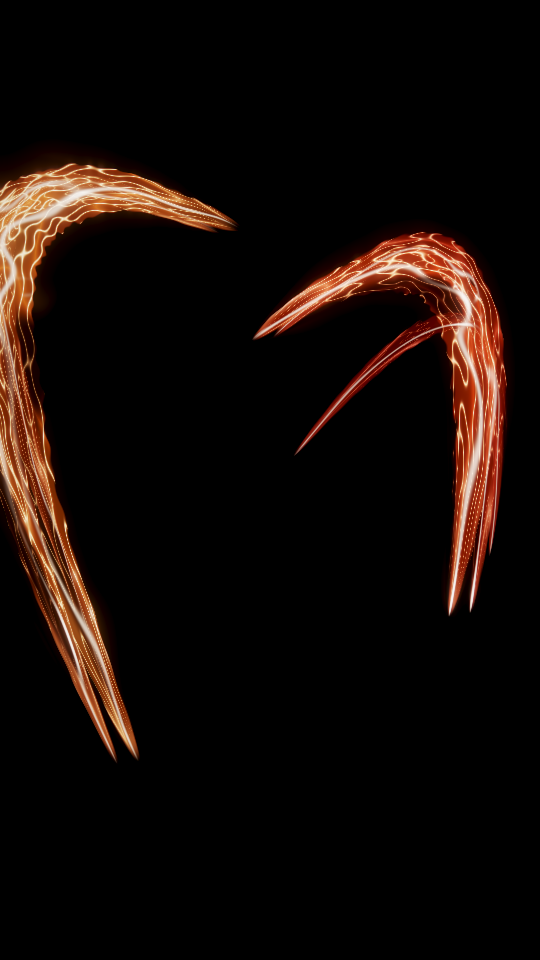
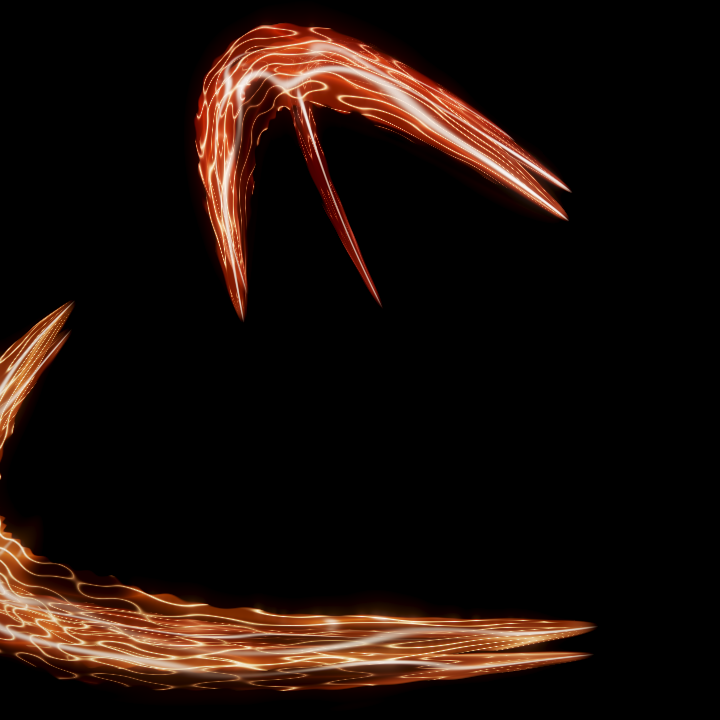
The 16:9 image was decoded from the saved WebM. The portrait and square images were captured from the running studio during recording. These samples show composition, not guaranteed recording quality on every device. Check a short exported file at your chosen size before a long take.
Watch the frame move in portrait and square.
These separate 12-second takes use the original 160 BPM stereo test WAV and the Interference scene. Desktop Chrome recorded at 1080 × 1920 and 1080 × 1080 with video and sound. For faster playback here, the saved WebM files were converted to 720 × 1280 and 720 × 720 MP4 with stereo audio. They are moving exports, not stretched stills.
Both files were reopened and checked for a changing image and non-silent stereo audio. This confirms these two tested exports, not the timing of a physical sound system or the performance of every device. Choose the final ratio before recording, then test a short take on your own setup. For a landscape recording, watch the 16:9 export.
Resolution sets the short edge.
For a standard ratio, the 720, 1080 or 2160 resolution setting defines the shorter side. The other side is calculated from the aspect ratio. For example, 16:9 at 2160 gives 3840 × 2160; portrait 9:16 gives 2160 × 3840.
Look at the pixel dimensions displayed in the studio instead of assuming every shape has the same width. Ultrawide frames can contain more pixels than a 16:9 frame at the same resolution setting. Custom width and height are controlled separately.
Higher pixel counts increase the work for rendering, capture and encoding. A 2160 landscape canvas has four times as many pixels as a 1080 landscape canvas. Start at 1080 or 720 for a new device, then increase the size if a short recording stays smooth.
Four controls affect different things.
- Resolution
- The dimensions of the output canvas and recorded image.
- Render detail
- The internal resolution used to generate the scene. Performance and Balanced reduce rendering work; Native resolution uses the full output dimensions.
- Frame rate
- The recording target: 30 or 60 fps. Actual delivered frames depend on the browser, device and scene.
- Bitrate
- The requested video data rate: 8, 16 or 32 Mbps. Higher values can preserve busy detail but create larger files.
For a detailed moving scene, first keep motion smooth, then increase detail. Lowering bitrate alone does not reduce the shader's rendering work. If recording struggles, try 30 fps, a smaller canvas or a lower Render detail setting.
Bloom and lighting are rendered inside the image. The app's internal HDR processing is not a promise of an HDR-encoded video file. Available recording formats are determined by the browser.
Check the complete composition.
Add the title, subtitle and optional artwork after choosing the ratio. Preview each saved look in the actual frame you will use: a title that fits a wide composition can take much more of a portrait frame.
The projector window displays the same clean composition. Its window or physical display can have a different shape, so matching the canvas ratio to that screen avoids unused space around the image. PNG export uses the same canvas and overlays.
Canvas size changes are blocked during a recording. Stop the take, change the frame, then start a new recording. Follow the video guide for format and playback checks, or the live guide for a second display.
Make room to inspect the composition.
Stage view and the adjustable inspector enlarge the operator preview while leaving output dimensions, mapping and audio unchanged. Prepare in Studio, perform with controls folded, then reveal them to adjust. Stage workspace and recovery instructions →