By Balance IT · Updated
What are you making?
Choose the job. Start with the short path, then open only the details you need. The Studio is free and needs no account; files stay on your device.
Turn a local track into a finished film.
- Choose your MP3/WAV and its passage. Use Current Studio for one composition, or review your saved acts for a changing show.
- Choose the frame before reviewing. Check the first picture and later passages when your show changes. Review again after edits.
- Render, save and reopen the actual file. File render runs on this device and can take longer than the song.
Put your words at the right moments.
- Choose your MP3/WAV in Sound. In Layers & text → Timed text / lyrics, add lines or import a plain VTT/SRT file.
- Save start/end times, placement and size; enable Show timed text. Seek between lines with Speakers off if you want quiet work.
- Use File render with that soundtrack. Trimmed films keep absolute file seconds. Review and inspect the saved film; the words become pixels.
Record the changes you perform.
- Connect your intended file or live audio yourself. Prepare worlds, layers and cues, then choose the frame and a supported recording format.
- Record video captures the picture and sound in real time while you perform. Keep the Studio visible; test a short passage first.
- Stop, save and reopen the take. Check changing pictures and audio before publishing. Choose File render for a preplanned local-file film.
No transcription or word karaoke. Live capture, timed-text editing and file rendering are separate jobs. Codec support and practical output size depend on this browser and device.
Two lines. One real trimmed film.
This existing Studio export takes seconds 4–8 of our original test WAV. Its 120 decoded pictures at 30 fps retain the source clock: the first words appear at film second 0.5, the next at 2.5. It demonstrates line timing in this four-second example.
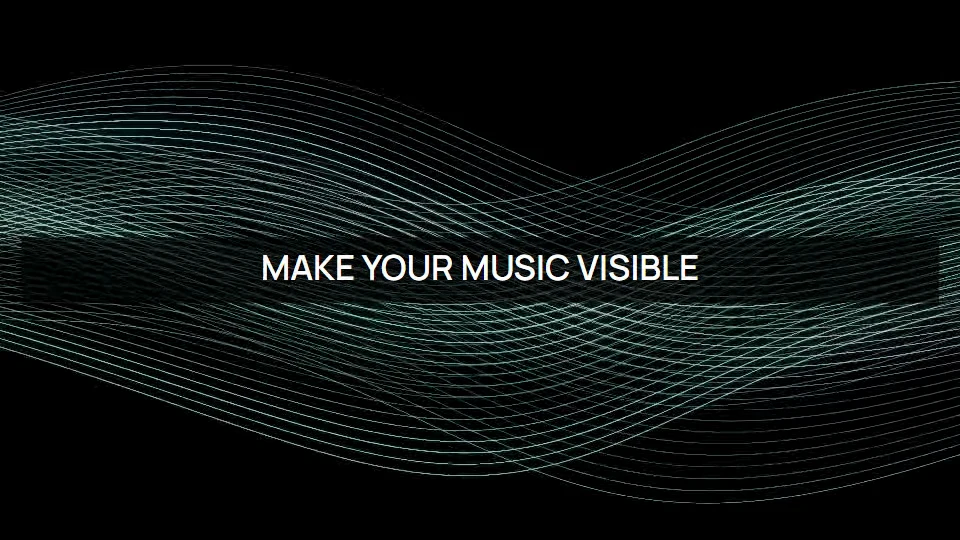
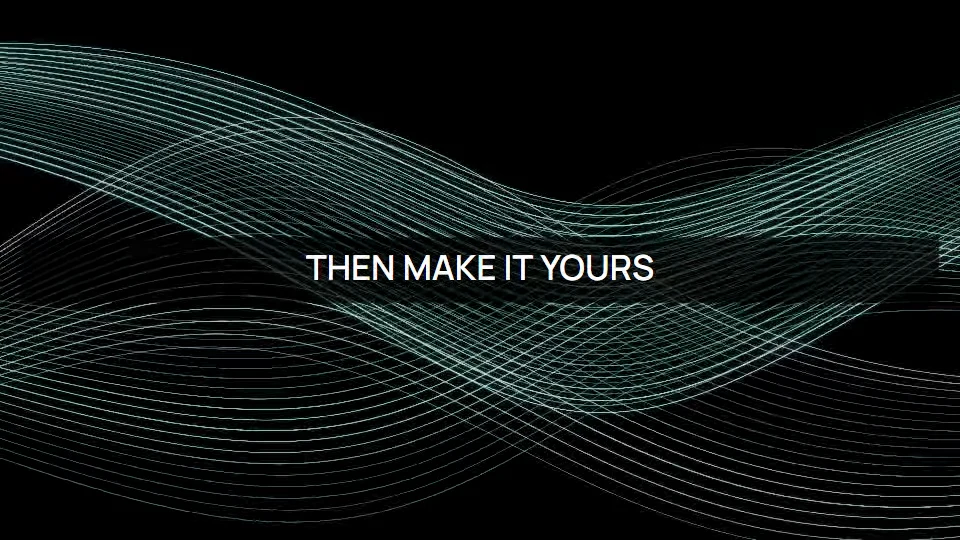
To reproduce it, open our original 24-second WAV, import the plain VTT timing file, turn on timed text and choose Center. Use a Program composition and a 4–8 second File render passage. Independent mapping worlds exclude Program text. Use your own track and words for your project.
This is browser output, not a physical-projector or universal synchronization test. Read the complete timed-text workflow →
Detailed steps, checks and composition tools.
Open a chapter when you need it. Existing links still lead to the same instructions.
Already choosing a look? Preview your local MP3/WAV on the homepage, then explicitly pass the same file to a new Studio tab. It arrives paused, with speaker monitoring off. Review the final segment, dimensions and timeline before rendering; the homepage preview is not the exported film.
Render your track and complete show as a file.
Make a music video from a local track and your complete composition, or give saved acts a reviewed timeline. File render advances the film on its own timeline rather than capturing the screen in real time. Processing can take longer than the finished video; the track is decoded silently, without speaker monitoring.
Open File render in Studio · Prepare saved acts · Recover local clips
Try the complete four-act example. Its setup opens first; loading and rendering remain separate deliberate actions.
- Choose the composition. Open File render with your selected world, output frame, size and motion. Use Current composition for your own look, or press Load four-act example for the original complete fixture. Loading the example checks the known session, two loops and WAV before changing worlds, mapping, sequence, Clip Deck, title and timing. It keeps your selected output frame/size/motion. Undo example setup restores prior settings and loaded local clip resources paused. Opening the link alone does not load anything, play audio or render a film. Stop running performances, mixes, recording and loading first; turn off Freeze/Blackout before reviewing a moving film.
- Choose the sound and segment. A local MP3/WAV already selected in this Studio tab is handed to File render silently without choosing it again. Otherwise press Choose MP3 / WAV for a finite mono/stereo file up to 200 MB. Choosing your own track keeps the current composition; it does not load the example or reset your world/frame. The example loader supplies its original WAV silently; Use original 12-second test WAV also supplies that soundtrack without replacing the composition. Set Start in seconds and End in seconds inside the chosen file and review again after replacement. Set the Studio audio/record level before Review: zero produces silent output; Speakers off only disables monitoring. This path does not request live-input permissions or start monitoring.
- Review the picture and timeline. Choose Current composition or Show sequence · once, then hold last act. Keep Current Studio frame or choose delivery formats inside File render, then choose 24, 30 or 60 fps, 6, 12 or 24 Mbps and a supported format. For a queue, choose explicit Manual holds, fit film-only holds or set Soundtrack entry times, then press Review film timeline. Review each act, incoming transition and scheduled boundary; acts beyond the selected segment are listed but do not appear in the film. The first act begins with a cut; the last reached act continues to the segment end. The film does not reconstruct pad clicks, MIDI gestures, Tap, Resync or a live performance.
- Resolve the preflight. Check the sound segment, total film length, clip dependencies and encoder support before rendering. A missing file, incomplete hold or unsupported configuration must be resolved first. The result is limited to 30 minutes and 750 MB; memory and device limits may require a shorter segment or smaller output.
- Render, with control. Press Render reviewed film deliberately and follow its progress. Studio pauses the show during the job; the exported composition does not replace Program or recalibrate your map. Keep the page open and the device awake. Cancel render discards the unfinished job; cancellation or an error is not a completed film. Music playback stays paused after completion or cancellation: resume it explicitly.
- Inspect, save and reopen. When the result is available, choose Check rendered video. Use Play start, Play middle and Play end, watching clip trims, transitions, surface crops and the first and last intended sounds. Use Download rendered video, then Open a saved video to check to reopen the actual MP4/WebM. Download timing report keeps the local inspection results. Check the saved file in your intended player or editor before choosing I saved this rendered video. Completed films remain available until explicitly discarded; an unsaved result requires its own confirmation.
Keep your chosen passage.
In the catalogue, Propose this passage in Studio is off by default. Enable it to send an optional private range with your File. In File render, choose Use proposed fragment or Keep current range; receipt alone does not apply the proposal. Use the waveform, seek and Start/End controls to check the selection. Preview selected soundtrack plays decoded PCM for up to 60 seconds; this preview limit does not shorten a longer film. Hear soundtrack preview defaults off. Use whole track resets the selection; changing it requires Review again. Preview and export share the decoded soundtrack timeline. Recognized valid MP3 gapless metadata removes encoder delay/padding; otherwise timing remains explicitly encoded-time. Check the displayed timing basis and intended first/last sounds: this is not a universal sample-accurate or audio/video-sync guarantee.
Keep the composition, review the timing.
The render includes the procedural Program, both assigned local video layers and their opacity, blend, fit, flip, trim, rate, loop and order, plus the Program master rack. Current composition starts clip playback from trim In, not from the live decoder position. Queue acts use their captured playback intent: a playing layer starts at its In point when its act begins; a paused layer stays paused. Captured surface looks and full-composition transitions use the existing calibrated layout. Program clips and master FX are applied before mapping; independent procedural surfaces use their own FX. Keep the original source files available throughout the job.
Review the calculated timeline, not just the sum of hold fields. A hold starts after its incoming transition completes. For Bars, add the requested four-beat bars to that point, then round the end forward to the next global four-beat boundary: bars multiplied by seconds per bar alone is not the full schedule. Manual holds need explicit durations for this export. Both Track and Manual grid-pulse modes use the chosen Studio BPM with phase reset to film time zero, not the captured live or source-track phase; the chosen Visual timing offset still applies. There is no automatic BPM detection or recreation of live cue launches. Choose the intended soundtrack segment and ending deliberately.
Check the actual saved film.
The inspector accepts local MP4/WebM up to 800 MB. Video packets, packets per second, track starts/ends and largest picture gap are encoded metadata, not decoded-frame counts or a synchronization verdict. Matching endpoints do not verify content sync. If the final packet duration is missing, the tail/end difference stays unknown and packet rate is approximate; codec priming can also affect decoded audio boundaries. Play the final seconds. An unreadable, oversized, unsupported or timed-out inspection means unknown, not passed. The timing report retains syncVerified: false. Follow the recording and saved-file check.
What this mode needs.
File render is local processing, not an offline-installed application. The sound file must be a mono/stereo MP3 or WAV up to 200 MB; the film is limited to 30 minutes and 750 MB. Choose 24/30/60 fps and 6/12/24 Mbps. WebM uses VP9/Opus; MP4 uses H.264/AAC when that exact configuration is supported. Full-resolution source pictures have a separate 64-million-pixel job budget. Codec, graphics or memory limits can reject the configuration: no surface is silently dropped and there is no silent quality fallback. Choose a smaller delivery target or Studio output, another supported format, lower bitrate or a shorter segment explicitly. Rendering is not guaranteed to be faster than playback or to continue while the device sleeps. There is no cloud copy or automatic YouTube upload. This workflow does not establish zero drops, universal audio/video synchronization, physical-projector timing or long-set reliability. For live input or a manual performance, use the existing real-time workflow.
Sound files, clip media, session settings and generated output are processed locally; this workflow does not upload them. A chosen soundtrack stays in memory, including an explicit same-origin tab transfer; optional proposed ranges, waveform data and decoded previews remain local. Public URLs, MCP and saved sessions exclude the File and proposed range; reload still requires the local file. The explicit example loader fetches only its known public session, loops and WAV, never a private media URL. A local session can contain private names, clip descriptors and calibrated geometry: review it before deliberately sharing. Public setup links and the read-only MCP do not carry these private files or mappings. Four fixed first-party milestone labels count opening, starting, result-ready and the user saved-confirmation once per page load, without private filenames, media, timelines, settings or mappings. They are independent aggregate counts, not a joined conversion funnel; saved-confirmation is not evidence that a browser download completed. Ordinary website requests still reach the hosting provider. See media and privacy.
A twelve-second film, rendered while processing took longer.
This first-party WAV → WebM run used four acts, both original muted loops and two surfaces: Composed wall plus an independent procedural side. Program master FX, surface FX and Cut, Dissolve, Wipe and Dip were active. The film timeline is 12.000 seconds; the saved container is about 12.02 seconds, including a small Opus tail. Intentional 6× CPU throttling made processing take about 26 seconds in one desktop Chrome setup.
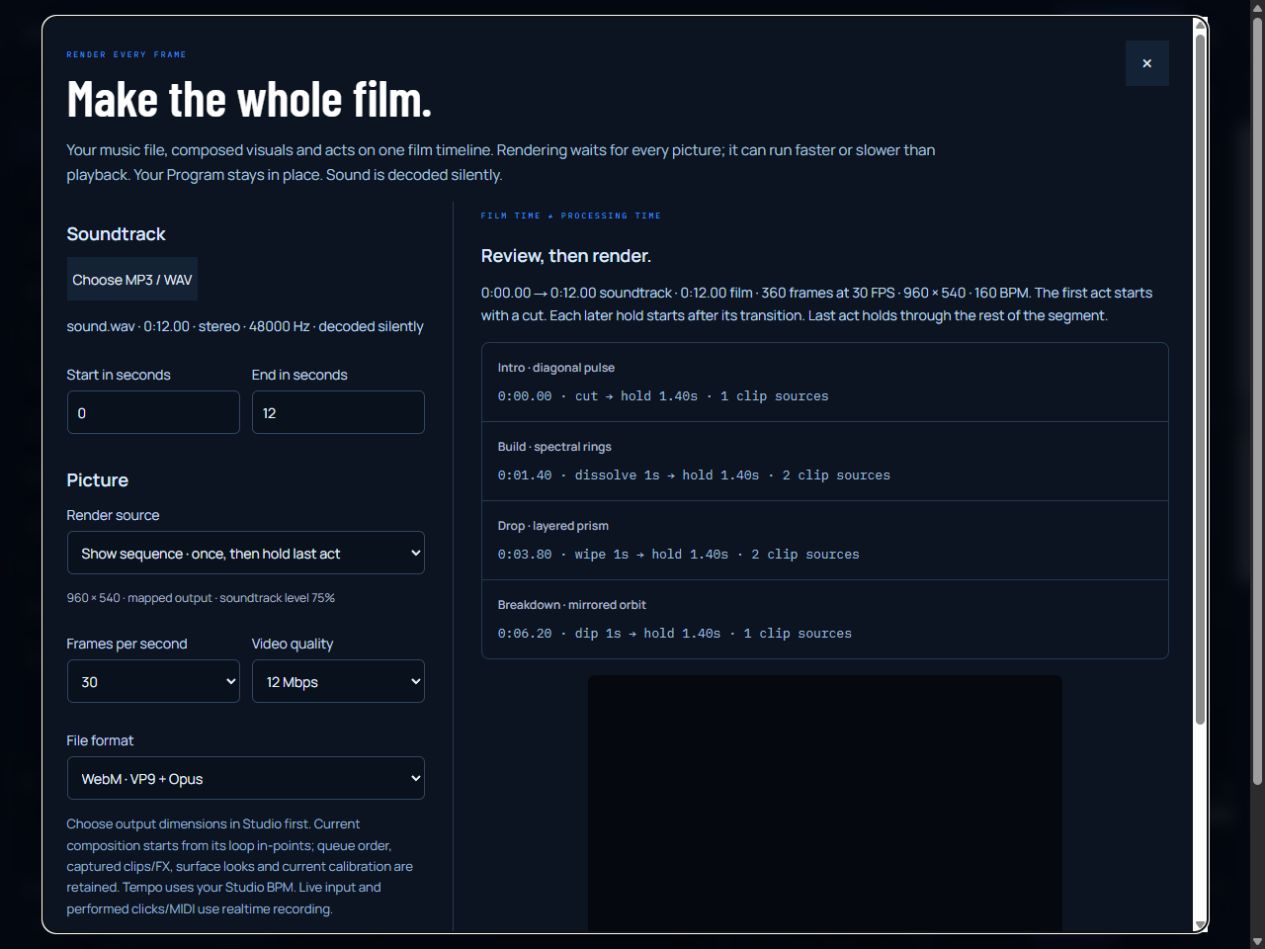
| Independent check | Observed scope |
|---|---|
| Pictures | 360 submitted / 360 decoded / 360 distinct at 960 × 540, 30 fps. |
| Video packet timeline | Maximum absolute PTS error ≤ 0.334 ms; largest video packet interval 34 ms. |
| Soundtrack | Stereo Opus, 48 kHz. Source WAV versus decoded PCM in windows at 0.5, 5.5 and 10.5 seconds: lag 0 ms, correlation > 0.998; declared tolerance one frame, 33.334 ms. |
The native reopened inspector reported 360 packets and a 34 ms largest picture gap; the audio tail remains unknown from packet metadata. The decoded-picture counts and PCM comparisons above are separate checks. Waveform alignment in three windows does not establish sound-to-visual reaction timing, physical synchronization or support for every source/codec. A separate 20× throttled job kept Program PNG bytes identical; Cancel retained the earlier result's Blob URL. These are bounded native checks, not an endurance or universal device claim.
Download the actual WebM · Decoded Drop frame · Independent decode and waveform report · Starting session. Use the separate original loops and WAV above to reproduce the fixture. MP3, MP4 and portrait native acceptance are not demonstrated by this example.
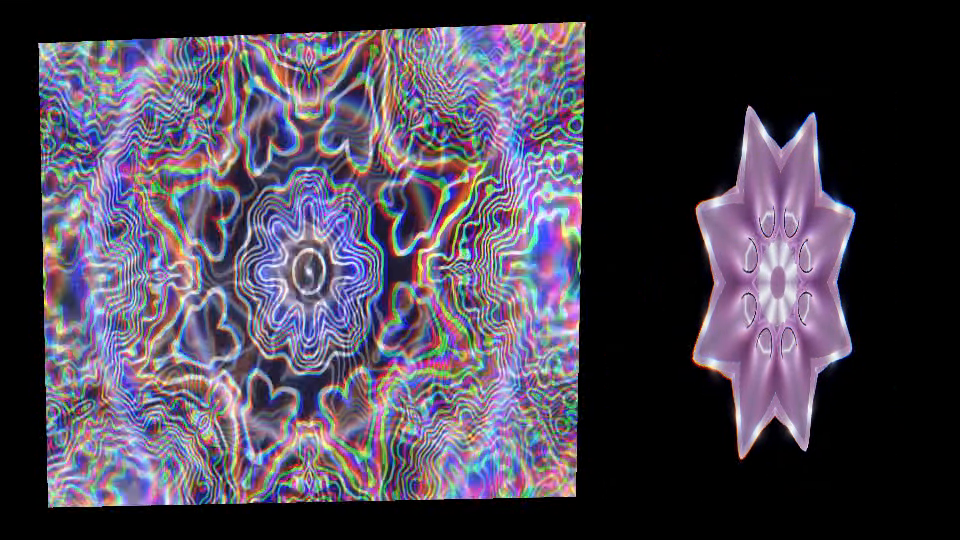
Fit a complete visual show to your music.
A live cue queue and a finished music video need different timing decisions. Plan a film-only version of the show, review later acts before encoding, then deliver the same passage in the formats you selected.
Keep your show and track together
In the homepage live-show builder, choose My MP3 / WAV, select a file and continue with your show and track. Receive selected track loads it paused; Load planned show separately applies the reviewed recipe. In its rehearsal panel, Plan film with this show & track stops the rehearsal and opens File render with Show sequence and the same local File. No playback or render starts. Without a planned show, open File render and choose Show sequence from your existing queue.
Choose the soundtrack passage
Set Start and End in seconds inside your MP3/WAV, or explicitly use the whole track. The film starts at zero; a storyboard time of 0:02 with Start at 0:05 corresponds to soundtrack 0:07. Waveform preview has its own monitoring, off by default, and does not change the selected range.
Fit every act, or keep your live timing
Keep live cue timings preserves seconds and bar holds; Manual acts need explicit seconds. Fit all acts to selected passage switches to Film-only hold seconds, reserves the existing incoming transitions and divides remaining time using the live hold weights with a 0.25-second minimum per act. A blank Manual hold uses a one-second weight. You can edit every film hold afterwards. The live queue, calibration and soundtrack stay unchanged. These seconds are not snapped to bars, musical phrases or detected beats. Audio is not stretched. If the passage cannot hold all transitions and minimum holds, choose a longer passage or deliberately revise the live transitions first.
Read coverage before reviewing
The film lists each act’s entrance, incoming transition, hold and planned end. If it omits an act, cuts a hold or transition, or extends the last act, read the coverage warnings. Fit or edit the holds, or explicitly accept the partial or extended show. Changing the range or settings requires another approval and Review; the tool never silently refits your edits.
Review actual later pictures
Choose one output or a sequential 16:9 / 9:16 / 1:1 delivery set, then Review film timeline. Each selected size gets a real first-frame framing check. For a sequence, the first selected output is then replayed from frame zero at the chosen film FPS, using causal audio analysis and the same compositor as the encoder. The storyboard samples holds, incoming transitions and the final frame, with film time, soundtrack time and frame index. Its PNGs are scaled to at most 640 pixels for display. Other formats get first frames, not their own later-act storyboard. Processing can take as long as rendering one film; Cancel review releases that job without publishing a partial storyboard.
Render, save and reopen each format
Render reviewed film uses the same frozen timeline, soundtrack passage, media references and overlay for each output, one at a time. Completed films survive Cancel; Continue renders the missing outputs. Save each actual video, reopen it in the existing saved-video inspector and check moving geometry, every transition, start/middle/end and the intended soundtrack. A storyboard proves sampled pictures only. It is not a motion, decoded-video, audio-alignment or projector-sync verdict. Save and explicitly discard retained results before reviewing a different delivery set.
The loaded web app is required; this is not an offline installation. Audio and local media are not uploaded or included in shared recipes, saved settings or read-only MCP responses. The existing limits are 30 minutes and 750 MB across the retained delivery set; codec, resolution, GPU and memory support vary by device. Live microphone/tab audio and performed MIDI or pad changes use real-time Capture instead. A physical projector still needs on-site calibration and checking.
Plan a soundtrack film · Start from a homepage show · Multi-format delivery details
One passage. Four acts. Three checked files.
A local Chromium check on 15 October 2026 fitted a four-act, three-surface show to seconds 2–8 of the original test WAV. All three saved WebM files were reopened: each has 180 decoded, distinct pictures at 30 fps, stereo Opus audio and a 6.020-second container including the codec tail. Eight storyboard samples were compared against the corresponding decoded landscape frames; their mean RGB error was at most 4.25 / 255 after scaling and lossy encoding. Four normalized waveform windows per output matched the selected source passage at zero sample offset, with correlation above 0.996. This bounded check does not certify another device, long render, codec or physical synchronization.
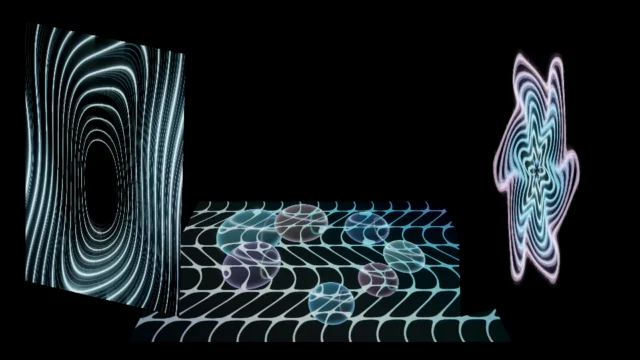

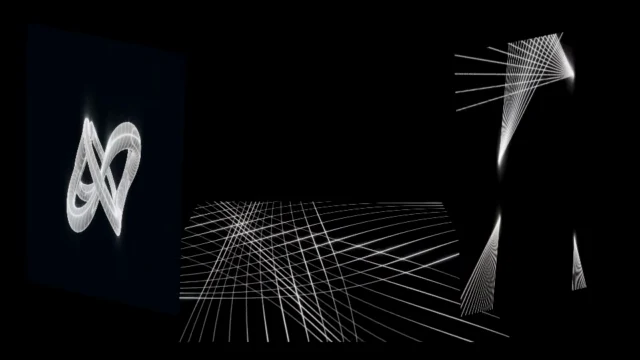
Measurements and limits (JSON). These figures are evidence samples, not a motion preview.
Place visual changes on the soundtrack.
An even fit is useful for starting a film. A musical arrangement may need a longer build, a short cut or a delayed release. Place those decisions on the soundtrack timeline while keeping your live cue queue intact.
Choose the show and passage
Load your own queue or the eight-act Journal exercise, choose a local MP3/WAV, then choose Start and End inside the file. Use Show sequence as the render source. No song or clip is uploaded.
Choose Soundtrack entry times
In Timing mode, choose Soundtrack entry times, then Edit entry times to move to the editor. The first draft fits all queued acts into the passage. This is a starting distribution, not an analysis of the song. Every input uses absolute soundtrack seconds; if Start is 5, the first act is fixed at soundtrack 5 and film zero.
Place the incoming changes
Edit each entry, or Seek preview to that entry and move the existing Preview position slider. Preview selected soundtrack starts only after your click; Hear soundtrack preview is separate and off by default. Place here reads the current audio-clock position while the preview runs or is paused, then invalidates old film Review without stopping this preview. The ruler and each row show the resulting film frame. Entries round to the nearest chosen film frame, not to beats or bars.
Inspect later musical passages
Preview window starts at soundtrack second lets you decode a later part of the selected passage. Each window contains at most 60 seconds of PCM. Seek preview prepares a window around an act and seeks there without automatically playing. Moving this window or playhead does not trim the film, move another entry, start Studio speakers or change your live show.
Resolve timing conflicts
An entry means the beginning of the incoming transition, not the end of its fade. Every act needs its existing incoming transition and at least 0.25 seconds of hold before the following entry or film end. Out-of-order, duplicate-frame, out-of-range or overlapping choices block Review; no act is silently dropped. A different file, passage, FPS or show makes the old draft stale. Reset entries to fit all acts deliberately rebuilds it for the new context.
Review and check the saved films
Review film timeline freezes the same entry schedule for the existing causal storyboard and sequential delivery set. Render, save and reopen each intended 16:9, 9:16 or 1:1 film. Inspect moving transitions, the start, later acts, end and soundtrack. Entries are an in-tab film draft; they do not rewrite Manual live holds, stretch audio, detect beats or prove timing on a physical projector.
Check the change at the selected frame.
A native Chromium check placed eight uneven entries over seconds 1–11 of the original WAV. The actual saved 16:9, 9:16 and 1:1 files each decoded to 300 different frames at 30 FPS; all were reopened muted. Fourteen landscape storyboard samples matched their decoded frames within 2.72 / 255 mean RGB error after lossy encoding and scaling. Four sampled audio windows per output aligned with the selected WAV at zero samples. A separate controlled VBR MP3 sequence produced 360 distinct frames and decoded audio identical to the earlier controlled render; its quiet sampled window has lower lossy correlation, as recorded in the report. This is a bounded digital-output check, not a physical synchronization verdict.
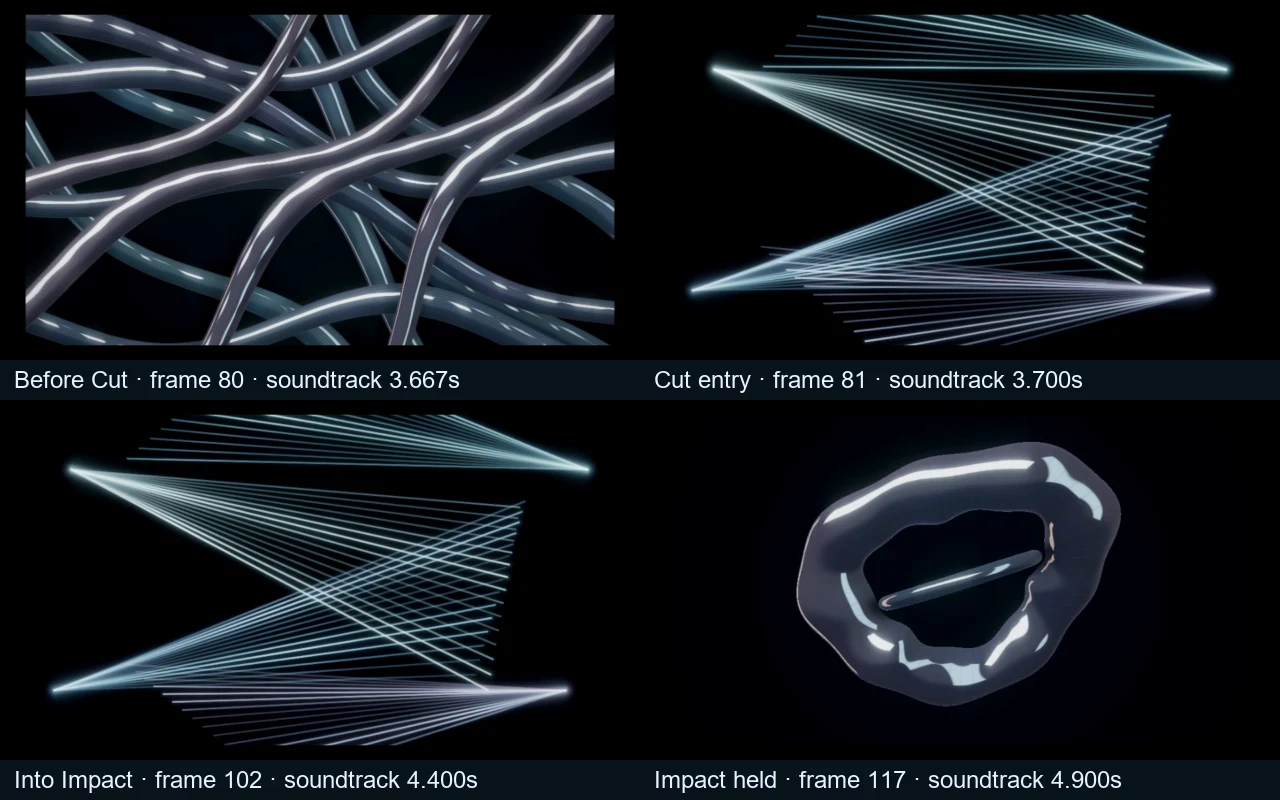
One soundtrack. Three delivery frames.
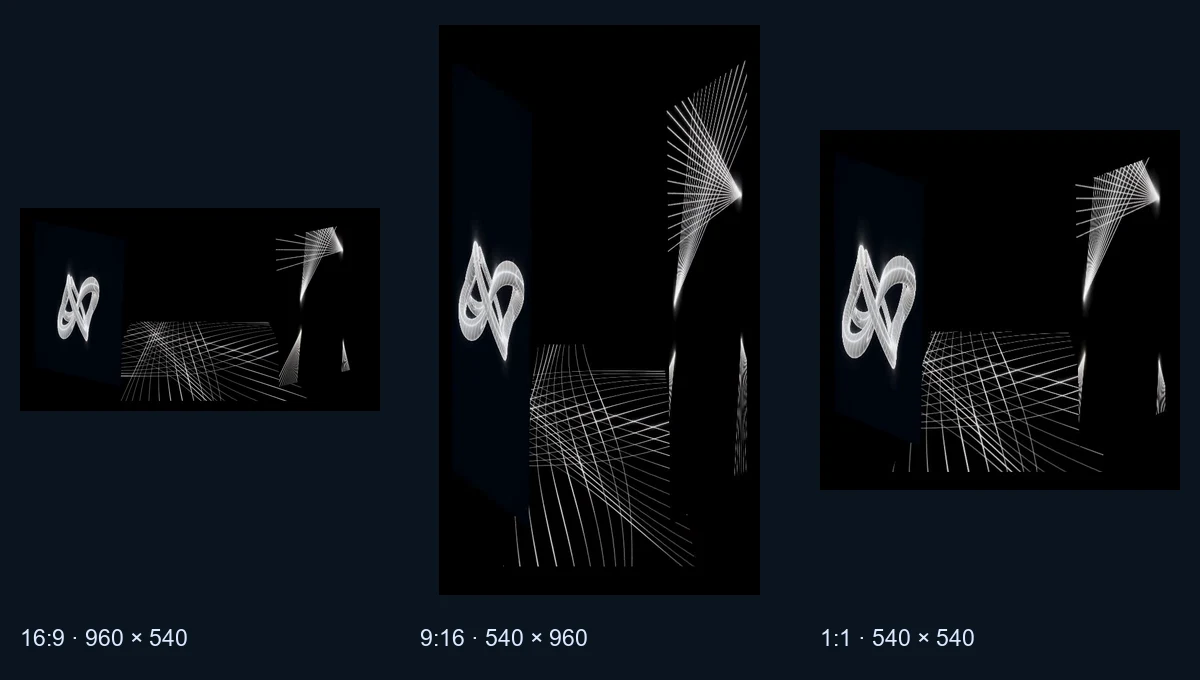
Make landscape, portrait and square films from the same selected local soundtrack passage and reviewed composition. Choose delivery sizes inside File render without changing the main Studio frame. Each target has its own first-picture check and output; the films render one after another.
Prepare my delivery frames · Choose a frame and pixel size
- Keep one soundtrack and composition. Choose MP3 / WAV once, or keep the local file already selected in this tab. Set Start in seconds and End in seconds. Choose Current composition or Show sequence · once, then hold last act; complete any Manual holds. The same selected passage, act timeline, soundtrack level and composition supply every target.
- Choose the delivery frames. Keep Current Studio frame for one output at its existing dimensions, or select Choose delivery formats. Pick 16:9 · Landscape, 9:16 · Portrait and/or 1:1 · Square, then choose a Delivery short edge of 540, 720 or 1080 pixels. Each selected target displays its actual dimensions. The delivery choices do not resize Program.
- Review every target. Set FPS, quality and file format, then press Review film timeline. Review checks encoder support for every selected size before a render starts. Each card shows Rendered first frame · not a motion preview: a still rendered in that target’s own frame, including the reviewed title, artwork, clips and mapping. Check text edges, clip Fit/Fill and surface crops. This is not a finished film or proof of its later motion.
- Render the reviewed set. Press Render reviewed set for several targets, or Render reviewed film for one. Only one target renders at a time. Waiting, Rendering and Ready states identify progress. Keep the page open and device awake. Processing time can differ from film duration; audio is decoded silently and Studio playback remains paused.
- Cancel without losing completed films. Cancel render stops the unfinished target; completed results remain available. After cancellation or an error, Continue missing targets processes only unfinished targets in the same reviewed set. Earlier completed films are not rendered again. Resolve the displayed failure before continuing; a Cancelled or Error state is not a completed film. Closing the panel ends Review and continuation; completed films stay in this tab.
- Check, save and manage each result. Use Check rendered video for each Ready result, then Download rendered video. Reopen the actual download with Open a saved video to check and examine its start, middle and end. Mark I saved this rendered video only after checking the file. Discard this result releases its retained output; an unsaved result requires the explicit Discard this unsaved result confirmation. A requested download is not confirmation that the file reached disk.
Review captures the composition, title and artwork for the chosen target dimensions. The same setup is rendered separately for each shape; portrait and square are not resized copies of a landscape film. Relevant edits require a fresh Review. Preparing first frames pauses Studio playback and holds Program; rendering also holds Program. Rendering, cancelling and continuing preserve the main Program settings and frame; they do not promise an uninterrupted live performance.
The first-frame cards only check one picture. Inspect the saved film for moving geometry, transitions, clip trims, title placement and the intended first/last sounds in each shape. The existing timing inspector reports encoded metadata, not decoded-frame counts, content synchronization or physical-projector timing. Device codec and memory limits still apply; the set is not an endurance or universal synchronization guarantee.
The local File, selected range, target previews, reviewed composition and generated films stay in this tab’s local workflow; they are not uploaded or placed in public setup links. Reload still requires local media again. Nothing renders, plays sound or requests live-input permission merely from opening the link. Read-only MCP can explain the public workflow; it cannot inspect private media or start, cancel, continue or save a delivery. This is browser processing, not an offline application, cloud backup or automatic YouTube upload.
From a local song to a checked download.
Open the first-film setup with your chosen world and frame. Use the local MP3/WAV already selected in this tab, choose your own file once, or press Use original 12-second test WAV. These sound choices retain your composition and do not start monitoring.
For a complete starting show, open the original four-act example setup, then click Load four-act example. Nothing loads or plays merely from opening the link. Undo example setup restores prior settings and attached local clips paused; current output frame/size/motion stay during loading. Review the segment and act timeline, press Render reviewed film, then inspect, save and reopen the film. Follow the complete file-render tutorial above.
Realtime for a performed take.
Open real-time capture for live input or performed MIDI/pad gestures. Choose the audio source deliberately. Before a take, press Check this setup in Capture with Studio visible and uncovered. It measures preview draws, not encoded-video FPS or sound. Choose 10-second test and press Start recording; the test stops automatically. Play it with sound, then download and reopen the saved file before choosing Full recording for a longer take.
Real-time capture needs roughly the performance's playback duration. A segment stops at 30 minutes or 750 MB, and device limits may stop it earlier. Available formats and achieved frame rate depend on the browser/device. The output troubleshooting guide explains interruptions; the recording and saved-file check applies to the actual result.
Choose the frame before the take.
Open your audio, choose a visual world and tune its response. In Output, select the aspect ratio and resolution before recording. Add a title, subtitle and local artwork if the video needs them.
16:9 suits a landscape music video. 9:16 creates a vertical composition; 1:1 is square. There is also 21:9 and a custom size with each side limited to 4096 pixels. Higher resolution increases GPU and recording work.
For exact dimensions and how resolution differs from render detail, read the canvas size guide.
The canvas and its title/artwork layers become the video. The studio controls stay outside the recording. Preview your text in the final aspect ratio so it has enough space.
Watch an actual exported video.
This 12-second clip is the original WebM saved by PHASE//VOID in desktop Chrome, using a locally generated 160 BPM test WAV and the Solar flare scene. It has 960 × 540 video and stereo audio. The saved file was reopened and checked for movement and sound; it was not a mock-up or a silent animation.
The clip is one tested setup, not a guarantee of the same frame rate, codec or appearance on every device. WebM playback also depends on your browser; you can download this 11 MB example if the player is unavailable. For portrait and square canvas captures from the same acceptance run, see the aspect-ratio examples.
Record what you perform.
Choose Record video, then select an available format, 30 or 60 fps and a video bitrate. The studio only offers formats supported by its current browser checks.
Enable Restart track from the beginning for a complete take from the start. Disable it to capture from the current playback position or a live input. Keep the studio tab visible while recording.
This is real-time capture: recording five minutes of music takes about five minutes. It is not an offline render queue. The recording ends when a non-looping track finishes, when you stop it, or when a segment reaches 30 minutes or 750 MB.
WebM and MP4, honestly.
WebM is a supported YouTube upload format. MP4 is available when the browser supports the required recording configuration. The downloaded extension follows the format actually produced; renaming a WebM file to MP4 does not convert it.
YouTube does not accept a standalone MP3 or WAV as a new video, so the generated visual track is what turns your audio into a video file. See YouTube's supported formats.
Your chosen bitrate affects quality, file size and how soon a segment may reach its size limit. A busy particle field can need more bitrate than a restrained geometric scene. A browser can still encounter encoding limits even after reporting format support.
If you need a specific codec profile for an editor, check the exported file in that editor before making a long take. The current workflow does not promise an identical codec combination on every device.
Watch the file before you share it.
Check a take with changing clip cues.
A clip cue can change both local video layers and the Program rack, as well as the procedural look. Attach the required files and press Prepare show before audio, recording or going live. It checks cue decoders off air and warms the show's procedural worlds without changing the stage, settings, map or transport. Missing-file errors name the file to reattach. Rehearse, then Record. Follow the original clip-show kit and capture workflow.
Record a short take, download it and reopen the actual saved file. Check that the intended clips, trims, effects and transitions appear, music is audible, framing is correct and motion has no unexpected gaps. Stage, projector and recorder share the final image; a short successful take does not establish long-set or physical-projector performance.
For a completed File render, choose Check rendered video, inspect and reopen that film. The preview-draw check and ten-second capture instructions below apply to real-time recording; you do not need another real-time take to inspect a rendered file.
After recording stops, use the preview to check movement and audio, then download the result. Listen at the beginning and near the end. Confirm the frame shape, title placement and audio level.
Download each segment and check the saved file, then choose I have saved this video. Until you confirm, starting another take requires an explicit choice to replace the previous recording. The browser may also warn before you leave during a recording or while a video is marked unsaved; this cannot protect against every browser crash or mobile app closure.
Downloads are local files; PHASE//VOID does not upload them to YouTube or keep a cloud copy. Choose music and artwork you have permission to publish.
A locally playable file in a supported format is ready to try uploading. YouTube processing and any rights checks happen on YouTube and are not guaranteed by the visualizer. For microphone or DJ-interface capture, use the live audio guide.
Check the file you will actually use.
- Choose the sound, frame and full composition you intend to record. For a cue show, attach its files and press Prepare show before starting audio. Keep the Studio window in front and uncovered.
- Press Check this setup at your recording target. It measures preview draws. A good preview result is a reason to make a short take, not evidence that the encoded file has the same cadence or synchronized sound.
- Under Capture method, leave Timestamped · where supported selected, or choose Browser capture · compatibility. The default uses the audio-graph clock where supported and falls back to browser capture for unsupported encoding configurations. Choose 10-second test, an offered format and Start recording. Use Restart track from the beginning for a take from the start; turn it off for the current position or live input. Wait for finalization.
- The finished take is inspected locally. Read Video packets and packets/s, codecs, dimensions, sound channels/sample rate, track timelines, Largest picture gap and Track start difference / Track end difference. These are encoded packet metadata, not decoded pictures or a sync verdict. Use Play start, Play middle and Play end; watch movement and cue changes, and listen for the first and last intended sounds.
- Download the video, then choose Open a saved video to check to reopen the actual MP4 or WebM, up to 800 MB. Play it in your intended player/editor too. Download timing report saves the local results with synchronization marked unverified. Only after checking the saved video choose I have saved this video. Preserve an earlier useful take before replacing it.
If a final packet has no duration, the timeline says last packet, tail unknown and Track end difference says Unknown · play the final seconds. Packet rate is approximate while that tail is unknown. Codec priming can also make decoded audio boundaries differ from container timestamps. Use Play end; do not treat the last packet timestamp as the exact end of its picture or sound.
If preparation or encoding fails, save any available take and retry with Browser capture · compatibility or another offered format. For uneven motion, try 30 fps and a 720-pixel short edge, or lower Render detail while keeping output dimensions. Compare one change at a time. Higher bitrate cannot replace pictures never drawn. Recording is real time; memory, encoder and device limits can stop it early. An unreadable or timed-out inspection is an unknown result, not a successful check. Follow recording troubleshooting.
Make a film in three clear steps.
In Studio → Output, choose Render music video. The workflow now keeps sound, picture and final review separate, so you can make a one-world video before learning the full show director.
- Sound: reuse the local track already loaded in Studio, choose your MP3/WAV or explicitly load the original 12-second test WAV. Set a valid Start/End passage of up to 30 minutes. Inspect the actual PCM waveform or start its silent-by-default soundtrack preview. Choose Choose the picture to continue; missing/loading files and invalid passages cannot be skipped.
- Picture: keep Current composition, or select Show sequence for your existing acts. Use the Studio frame or choose landscape, portrait and square delivery shapes. File format stays beside the output choices; FPS and quality are under Encoding settings. The four-act example is optional and explicitly warns that it replaces the setup; its existing Undo remains available. Sequence timing and soundtrack entry controls stay here. Back keeps your selections.
- Review & render: request the real first-frame/timeline review. Correct codec, missing-media or coverage errors before rendering. For a sequence, review also prepares later-act and transition stills for the first output. These stills do not prove motion or sound. Then deliberately choose Render reviewed film or set. Completed videos, download links, inspection and saved/discard controls stay in this step; reopening returns to retained films.
Changing the soundtrack, passage, picture, delivery targets or encoding settings invalidates the old review. Navigation alone does not apply a show, start playback or create a film. Realtime microphone/tab performances still use Record video instead of this file-based workflow. Browser codec support and the existing 750 MB retained-results budget apply. A download request or a saved checkbox does not prove a file was downloaded and reopened.
Place beat one before the take.
Sound → Timing & beat sync → Align file beat grid decodes a 2–32 second waveform window locally and silently. The operator places beat one, enters 30–300 BPM, inspects later windows for drift and deliberately applies BPM, file alignment and Track sync. Guarded Undo restores the earlier BPM, exact file phase and pulse source. Track sync and file-render reviews/films use the same pulse envelope at absolute soundtrack seconds, including trimmed starts and pulse delay. A different soundtrack cannot borrow the loaded file’s grid. Audio, playback, cue-grid position, mapping and delay stay separate. Alignment lasts in this tab for this file; replacement, session load and reload reset it. No changing tempo map, automatic downbeat detection, audio stretching or physical latency correction. Follow the waveform → grid → film workflow.
Add a soundwave to your composition.
Layer frequency bars, a radial Ring or an instantaneous Waveform over your world/video, then frame your title or artwork and inspect the finished file. Soundwave opens a free Program layer with frequency Spectrum bars, a radial Ring or an instantaneous Waveform. Choose color, position, size, response, opacity and background darkening without replacing or starting audio. The layer uses the existing MP3/WAV or supported live-input signal, sits above Program video/worlds and below titles/artwork, and reaches the composed projector and realtime recording. File-render first-frame review, causal storyboard and encoded films consume the current decoded signal with frozen layer settings at each actual output size. Local/settings-only sessions retain the layer; legacy sessions default off. Freeze/Blackout cover the complete output. Independent mapped world sources and shared procedural-look links exclude this global layer. This is not a whole-track waveform, calibrated meter, lyric generator, source separation or physical latency correction. Follow the spectrum-to-video workflow →
Give an effect a repeating phrase.
Loop folding geometry, pixelation, RGB split or the rack amount on the shared BPM grid, independently for Program and mapped surfaces. Use Track sync to keep file-grid phase through seeks and trimmed renders, then inspect the actual downloaded film. Beat-loop setup, shapes and recovery →
Make room to inspect the composition.
Stage view and the adjustable inspector enlarge the operator preview while leaving output dimensions, mapping and audio unchanged. Prepare in Studio, perform with controls folded, then reveal them to adjust. Stage workspace and recovery instructions →
Let each effect follow its own band.
Connect bass, mid, high, energy or the detected transient independently to geometry, pixelation, RGB split and FX amount. Set Low/High ranges and a response curve for Program or the selected mapping surface. Audio links setup and recovery →
Put your words on the track.
Open Layers & text → Timed text / lyrics. Load your MP3/WAV in Sound, keep Speakers off for quiet work, then add a line. Set Start and End in seconds or MM:SS.mmm, enter your words and choose Save line. Each interval includes its start and excludes its end.
- Build or import. Add lines individually, or import a plain
.vtt/.srtfile, up to 256 KB. Import replaces the current text track after the complete file validates; Undo last text edit restores the preceding track. Invalid imports keep your text. No subtitle markup, cue styling/position settings, overlapping cues or automatic transcription. - Place and rehearse. Choose position and size, turn on Show timed text and use Seek to start. Seeking retains Play/Pause. The selected-line preview is a static design reference; it is separate from the file clock and does not turn on output. A positive Offset delays display. Check the actual canvas, other titles and all target formats.
- Make the film. Use File render with the intended soundtrack. Review again after editing text. A render starting at file second 30 still uses cues at second 30; caption timing is not reset to zero for a trim. Open the encoded film and inspect changes between lines as well as sound. Rendering adds no caption track that a player can switch off; the words are drawn into Program pixels.
Timed text / lyrics in Layers & text edits up to 500 non-overlapping plain-text cues of at most 320 characters, with file-second start/end times, a ±600-second display offset, three positions and three sizes. Plain VTT/SRT timing/text imports replace the track atomically; styling, overlapping cues, word highlighting and automatic transcription are not supported. Session JSON and local Studio settings keep the text. File render captures an immutable track and uses absolute soundtrack seconds, including trimmed starts. Program surfaces include it; independent worlds exclude Program overlays. No file clock is inferred from live input, and no text is sent to MCP or analytics.
For example, a plain WebVTT file follows this structure:
WEBVTT

00:04.000 --> 00:06.000
Make your music visible

00:06.000 --> 00:08.000
Then make it yours
Use words and music you have permission to include. W3C WebVTT describes the wider format; this Studio imports its plain timing/text subset. A live microphone has no file timeline. Freeze holds the picture, Blackout hides all output, and independent mapping worlds keep their separate sources. For them, use a Program surface when you need timed words.
Open timed-text instructions in Studio →Choose the sound and file you will deliver.
Before a long export, separate the soundtrack from speaker monitoring, then check the destination’s format requirements.
- Which sound reaches your saved video? Source, Speakers off, recording level and muted clip layers.
- Choose MP4 or WebM for the destination. Containers, codecs, current encoder availability and post-upload processing.
These explanations complement the working Sound → Picture → Review & render path. They start no audio, export or upload.