By Balance IT · Updated
Start with one output.
You need a computer running the Studio and one projector connected as a display. Choose an output frame for that display, then fit surfaces inside it. PHASE//VOID maps up to eight surfaces within one raster; a second surface is not a second projector feed.
Public Studio tools are free and need no account. For MP3/WAV, select your own local file. For microphone or tab/system input, connect the intended source explicitly. Start silently with Speakers off while checking the picture. You do not need Loxone for manual projection; room automation is a separate installation task.
Get one surface working before adding more.
- Choose the frame. In Output select the actual display ratio and resolution. A wider or taller preview does not change the physical projector. Start at a practical test resolution and inspect the final picture.
- Open the output. Use Open projector window, move that window to the intended display, then double-click its picture for fullscreen. Use the display's extended-desktop arrangement if you want the controls and output on different screens. Keep Studio visible while it draws.
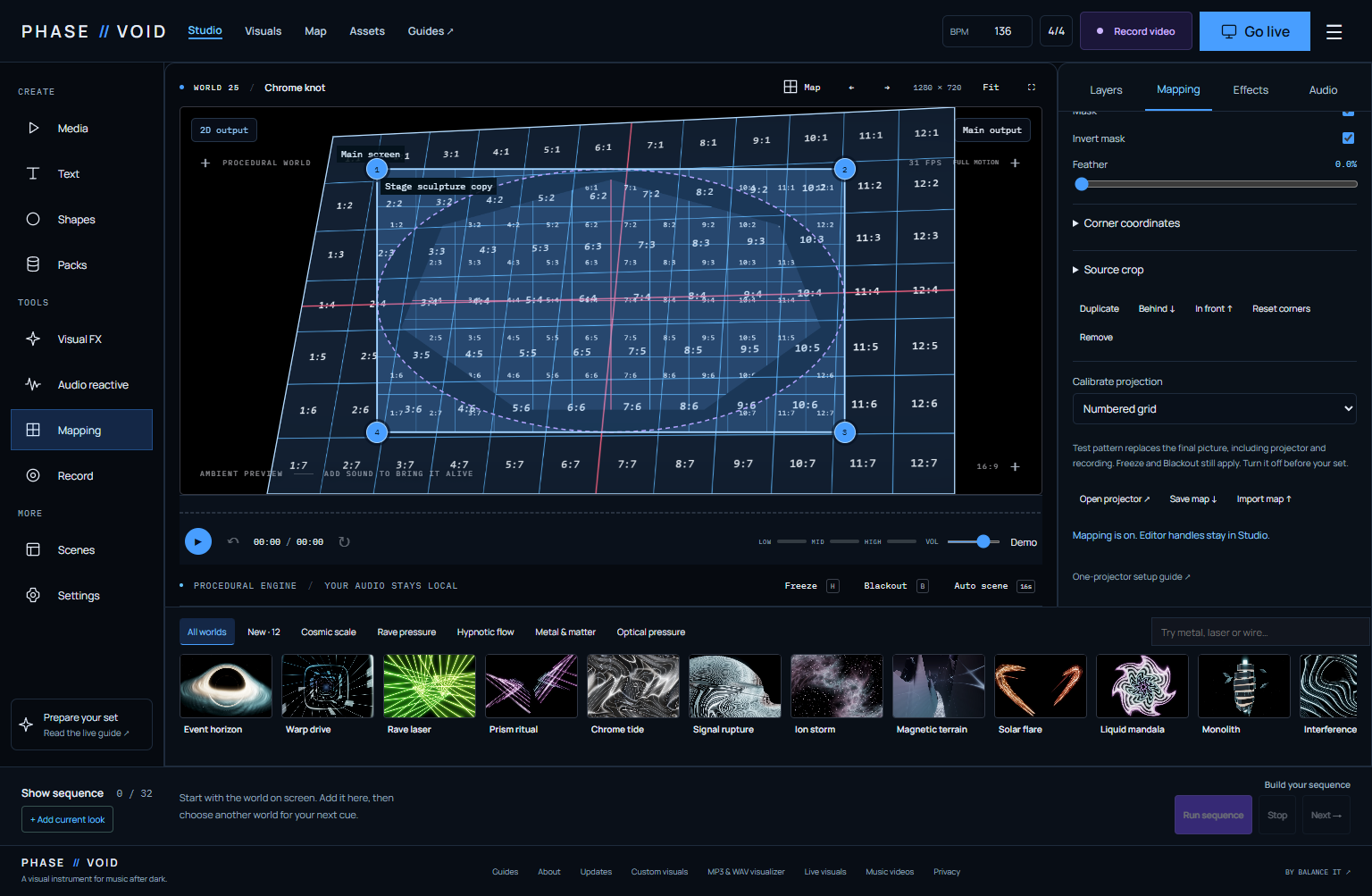
- Fit one surface. In Mapping enable the map, select a surface and turn on a calibration pattern. Move its corners onto the intended screen or object. Change one thing at a time; turn the pattern off to judge the actual visual.
- Choose what it plays. Program uses the complete composed picture. An independent world has its own look and surface FX. Select the named surface before tuning it; changes in Look belong to the main world.
- Rehearse and save. Check real sound, empty/quiet passages, Freeze and Blackout on the actual display. Save a map or session, reopen it and inspect the result. A settings JSON is not a package of audio/video files.
Fit the final picture to one projector.
In Studio → Mapping, create up to eight surfaces on one final output. A surface can use Program, the complete composition, or its own procedural world and surface effects. All surfaces still share one raster output and one audio source; they are not independent clip decks or physical projector routes. Program includes the global effects, titles and artwork before mapping.
Choose what each surface plays.
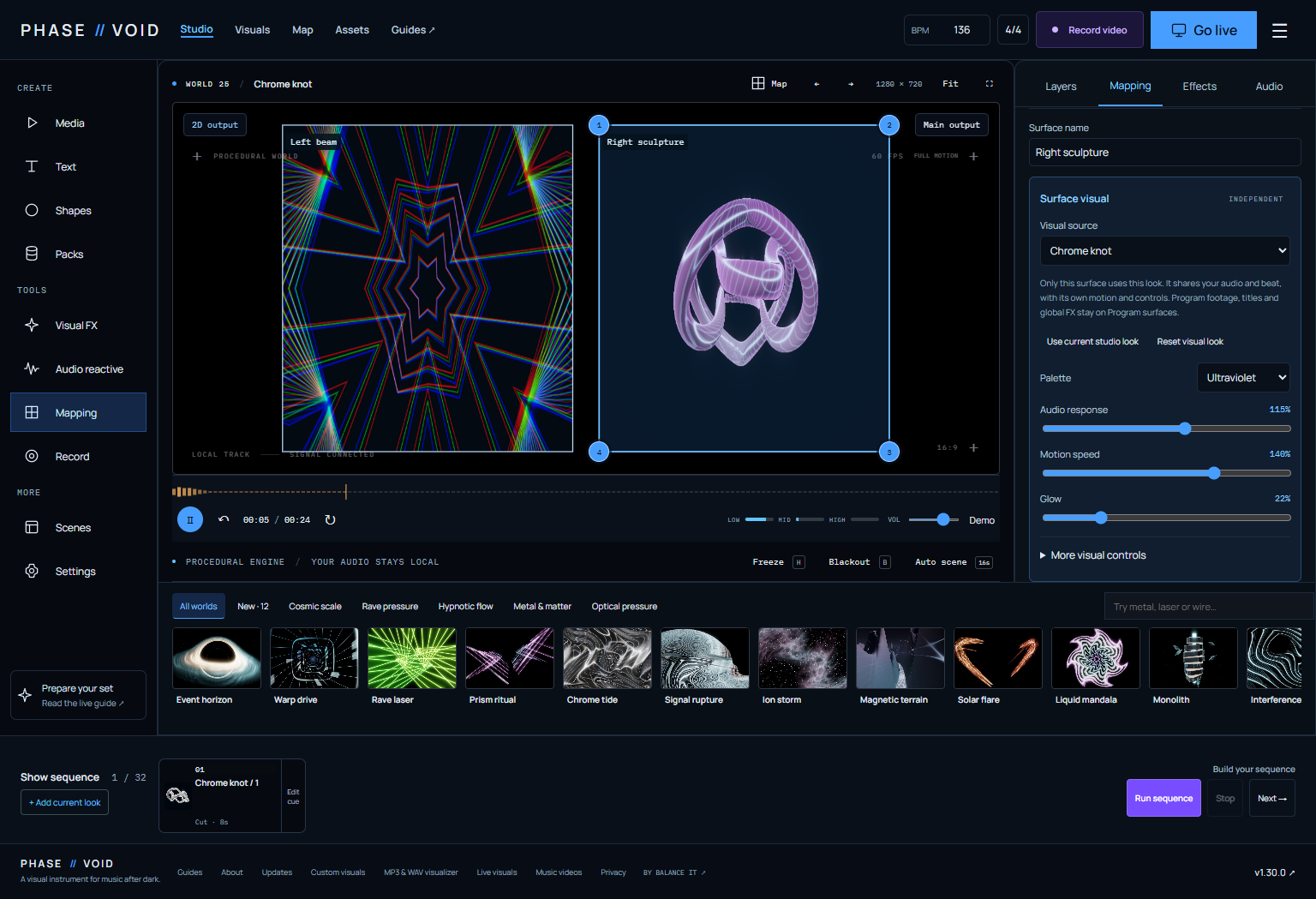
In Mapping → Surface visual, select a surface, then choose Visual source: Program is the default and uses the complete A/B or single-world composition, video clips, global output effects, title and artwork. Alternatively, choose one of the 108 procedural worlds for that surface. An independent world has its own palette, Audio response, Motion speed and Glow, plus Detail, Zoom, Rotation, Symmetry, Grain and Chromatic light under More visual controls; it excludes Program clips, overlays and global effects. Motion speed changes that world's movement, not a separate audio track or detected BPM. Use Use current studio look to copy the current procedural world and look into the selected surface; Reset visual look restores that world's default look.
Each surface has a Surface FX rack: Kaleidoscope → Pixelation → RGB split, FX amount, Link amount to audio, Bypass surface FX and Reset surface FX. Surface FX works inside its selected source crop, before corner geometry and masks, in that fixed order. The global rack in Effects still belongs to Program. All surfaces share the connected audio and selected pulse; Freeze, Blackout and Gentler motion remain global. Calibration patterns replace every source and bypass the surface racks; turn the pattern off to return to visuals.
Source choices, looks and surface effects are included in map JSON, sessions, duplicate and undo/redo. Older maps default to Program with neutral surface effects. Live independent-world rendering uses one additional reusable renderer context, a budget of 4,194,304 source pixels and a 1920-pixel edge limit, downsampled with Render detail when needed. A larger output frame does not imply native-resolution world sources or a frame-rate guarantee.
Preview a surface look before taking it live.
Select the surface in Mapping, then choose Browse & tune world. Surface Look Studio names the destination, so you can search the existing library and compare candidates without replacing the audience's picture. Tune the copied look and Surface FX in the draft. Reset draft restores the opening draft; Cancel discards your edits.
The muted moving preview uses the current analyzed audio, scene clock and selected pulse when available. It shows the procedural source and its surface FX only: no crop, calibrated corners, masks, opacity/blend, clips, title/artwork or master FX. It never starts audio or requests input permission. If moving preview is unavailable, the reference still and status remain; a still is not proof of the tuned result.
Choose Take to [surface name] when ready. Only that surface's visual and effects change; its geometry, masks, crop, opacity, blend, visibility and order stay in place, as do all other surfaces. Mapping Undo restores the earlier take. Check the final mapped picture, then save your map/session or capture the look in a cue. Draft opening and Take are blocked during recording, cue playback/preparation, transitions and active A/B mixing. Moving preview stops during recording and when closed or hidden.
- Set the output first. Choose the dimensions and aspect ratio for your target display. Open the projector window, allow the popup, move it to the display and double-click its picture for fullscreen. Keep Studio visible. Recheck alignment after changing output size, projector placement or display layout.
- Enable mapping and calibrate. Use the grid, checkerboard, color or white test pattern. Select a surface and move its four corner handles in Studio to match the intended area, or enter corner positions. Corners must form a convex quadrilateral without crossing and remain inside the output frame. A projective transform changes perspective across the whole surface.
- Shape the visible area. Choose a rectangle, ellipse or non-crossing polygon with 3–16 vertices. Adjust the mask and source crop: crop chooses part of the composed picture, while the mask shapes what appears on that surface. Use undo/redo to recover an earlier edit.
- Balance the surfaces. Add, name, hide and reorder surfaces, then tune opacity and Normal, Screen, Add, Multiply or Difference. Feather softens a local mask edge. It does not match projector brightness or provide multi-projector edge blending.
- Save and restore a test. Use Save map to download JSON, or include the map in a session; configuration is also remembered locally. Stop recording before Import map. Import checks format, limits and geometry. Audio, artwork and video bytes are not stored in a map or uploaded; reattach media after restoring. Reloading does not restart calibration patterns.
- Return to the performance. Choose Off · show visuals, then switch from Mapping to Layers or Effects and check the mapped composition. Corner and mask handles appear only in Studio. The Stage, projector and real-time recording share the mapped final picture. Record, download and reopen a short test with sound; verify shape, crop and absence of handles. Test Freeze and Blackout before the set.
Freeze holds the complete mapped frame. Blackout hides every surface, title and calibration pattern. Patterns are intentional output images, so turn them off before an ordinary performance or recording. Loading map settings does not start audio or grant browser permissions.
Check the picture that will reach the room.
| If you see… | Inspect this first |
|---|---|
| Black or held output | Blackout, Freeze, a calibration pattern, then hidden/transparent surfaces. |
| Every surface changes together | Program may be the selected source. Choose independent worlds only on the surfaces that need them. |
| Changing Look has no effect on a surface | Select that independent surface in Mapping and inspect its copied look. |
| No reaction to the track | Use Check my setup and the three-second signal observation. Speaker monitoring is separate from analysis. |
| Soft, cropped or slow output | Inspect the real output size, source crop, render detail and workload. A large canvas is not a sustained-frame-rate guarantee. |
Diagnose the current setup or rehearse the original three-surface, four-act show. Existing example films are browser output, not evidence of alignment in your venue. Test a saved recording separately in the recording guide.
Feather softens a local mask. It does not supply brightness-matched projector edge blending, independent physical outputs or a calibrated 3D venue model. The software chooser separates those requirements. Physical setup, speaker/projector delay and long-set reliability still need a rehearsal on the actual equipment.
Use a starter when it saves setup time.
Screen, triptych, room corner and booth layouts are normalized starting geometry. Use the planner below to choose sources, worlds, frame and audio starting path, then review the setup in Studio before applying it. Choose File when you will supply your own track. The optional multi-act builder prepares a show; it is not required for a single surface.
Copying/reopening a setup link keeps public recipe choices. Applying a layout replaces geometry only after explicit review. Align it in your room and use Undo if you need the previous map. A copied plan is not a calibrated installation.
BUILD YOUR ONE-PROJECTOR SETUP
Start with a layout. Make it fit your room.
Choose a map, its picture sources and canvas, then build a complete cue show or keep a map-only setup. These are editable starting points: align corners against your own surfaces. The diagram is a layout schematic, not a live or physically calibrated projection.
One rectangular surface for the complete composition or one procedural world.
Three panels: split Program into thirds or put a different world on each panel.
Two perspective planes for a corner. Align both against your actual walls.
A trapezoidal booth front with two tall side surfaces in one output.
Build your own mapped show, from its layout to its acts and A/B looks. Choose One screen, Triptych, Room corner or DJ booth + wings, then use Program or separate procedural worlds. This planner creates a complete session for one output; the map-only actions remain available separately.
Choose 2–8 acts, their worlds, palette and surface FX: Off, Kaleidoscope, Pixelation or RGB split. Set Cut, Dissolve, Dip or Wipe, Manual/Seconds/Bars holds, a manual BPM from 30 to 300, and the acts to capture into A and B. Your canvas, motion and audio starting path travel with the session.
Your show sequence
Choose a starting direction, then edit the worlds, surface effects and timing of each act. Nothing plays here. The scene images are static references.
Manual BPM sets your cue grid; it does not detect a song's tempo. Act names are fixed in this public recipe. Rename cues locally in Studio after loading.
Each surface receives its own complete world, with an editable starter look.
Your starting setup
- Layout
- Triptych · 3 surfaces
- Canvas
- 1280 × 720 · 16:9
- Sources
- Independent worlds
- Sound
- Public demo · click to play
The Studio link keeps your current map until you press Apply layout & canvas. Mapping Undo restores the earlier map, not earlier canvas dimensions or motion. Audio never starts from the link.
Review, load, then connect sound.
- Set the layout, sources and acts. Program uses one world per act; independent mode uses one world per surface, up to three. Dissolve, Dip and Wipe last 0.25–4 seconds. Holds are Manual, 0.25–3600 seconds or 1–64 bars. Bars use a whole BPM from 30 to 300 and 4/4 timing; the planner does not detect the song's tempo. Select two different acts for the saved A/B picture banks.
- Use Review my show in Studio. Generating or copying a link does not open Studio. Opening the review link keeps the current setup until you press Load planned show; it starts no audio, cues, mixer or input permission.
- Stop recording or a live mix before loading. Load planned show replaces the map, canvas, cues, timing and saved banks. Undo planned show restores the replaced settings in the current tab, until reload. Save a session before leaving; media files need reattaching.
- Click Open test audio, select your own local MP3/WAV, or connect a live input when ready. The test WAV is 160 BPM: a different planned BPM changes bar timing, not the audio's speed. Align corners and masks to your room, then turn calibration Off. Fire acts in Show sequence, or start the saved A/B looks in Live mixer. Recall and mixing preserve your current mapping geometry.
- Download the planned full session, or use Save full session after editing in Studio. Reopen through session import and reconnect media. Use the output check and a short recording before a performance.
Session file or setup link?
The full Session JSON contains map geometry, canvas, cues, timing and saved A/B settings, without audio, artwork or video bytes. Import does not start the cue queue or mixer; audio transport is separate. A map-only JSON contains just its map and looks, without the show's canvas, timing or acts.
Copy show setup link carries only public IDs, choices and numbers. Acts start with fixed public labels: Intro, Build, Drop, Breakdown, then Act 5–8. Rename them locally in Studio if needed. Private names, titles, files and later room calibration or show edits are not in the recipe. Recipients and normal hosting requests can read its public choices; copying does not send it to another person.
The diagram and scene references are static aids, not moving previews or proof of physical alignment. All surfaces share one audio input and one raster; two moving banks share a 4,194,304-source-pixel budget. The planner does not measure a room, route several projectors, edge-blend projectors or generate a 3D mesh. Test actual output capacity. Short software checks do not establish sustained frame rate or hours-long reliability.
Public choices only. No media, private names or calibrated geometry.
Shared settings contain public choices, without songs, artwork or private surface names.
Turn the map into a show. In Mapping → Surface show, append Intro / Build / Drop / Breakdown. Each cue recalls separate surface visuals and FX without moving calibrated corners or masks. Edit a surface, then Add cue or Edit cue → Recapture. Surface cues cut; change their hold to seconds or manual-BPM bars if needed. Save full session for map, canvas, cues, timing and mixer; starter links and map JSON do not contain later show edits. Audio and video files stay separate. Import starts with the sequence stopped.