By Balance IT · Updated
Sound & timing
Choose what drives the picture, then decide what follows the beat.
- MP3 / WAV from your device
Local track, visual response and saved settings.
- Microphone, mixer or audio interface
Route the intended input and check its signal.
- Find a track’s BPM
Analyze a steady section silently; review the tempo before applying it.
- Audio reaction or beat sync?
Understand bands, pulse and physical sound/picture timing.
Picture & visual ideas
Find a world, add a responsive layer or learn how to build contrast.
- Browse all visual worlds
Search by look and choose a world to try in Studio.
- Build a techno visual set
Compare three recorded scenes and shape a cue sequence.
- Compose an audio spectrum
Bars, Ring or Waveform alongside your world, title or artwork.
- Read the Journal workshops
Practical scene, contrast, portrait and stage exercises.
Screen, mapping & video
Choose the destination before you spend time making the composition.
- Make and check a music video
File rendering, timed words or a take you perform.
- 16:9, 9:16, 1:1 or a custom canvas
Frame the composition and understand output size.
- Map one projector onto several surfaces
Prepare geometry, independent visuals and a calibration check.
- Watch real browser recordings
Three dated takes, their original signal and an explicit Studio replay.
Recovery & connections
Get a blocked task moving, or find the boundary of an integration.
- Fix sound, picture or export
Start with the symptom and follow the recovery steps.
- Choose the right visual tool
Match requirements and check when a specialist desktop tool fits better.
- Connect an AI assistant to public documentation
Read-only MCP discovery; it cannot inspect or control a private session.
- Put a visualizer on your website
Configure the existing embedded player and copy its iframe.
Search the full collection.
Find the controls, a visual world or a practical guide. Try a task, a sound source or the screen you are preparing.
Browse 166 public tasks, worlds and reading links below. Search stays on this page.
- Studio tasks · Room control → Operate room → Visual output
Recover a dim or black picture
Room control → Operate room → Visual output
- Read Output’s brightness notice or Check my setup. Room brightness dims the entire final picture after worlds, layers, effects and mapping; normal meters or FPS do not reveal the setting.
- Choose Open brightness control. It opens the existing local Visual output slider, without connecting or arming Loxone, requesting a device or raising brightness automatically.
- Adjust the level deliberately for your audience, then return to Studio and inspect the actual output. Keep the saved value if it is intentional. Check Blackout, Freeze, calibration and surface visibility separately.
This is picture brightness on this browser’s final composition. It does not control the physical projector’s lamp, room lights or audio level. No automatic reset or room connection.
- Studio tasks · Studio → Check my setup
Diagnose a blank, frozen or nonreactive picture
Studio → Check my setup
- Choose Check my setup beside workspace help. Read the simultaneous current engine, source, Freeze/Blackout, calibration and mapping observations; opening the check changes nothing.
- Start the intended sound yourself with Speakers off if you want silent monitoring. Check signal for 3 seconds samples the existing analyser; changing, pausing or hiding the source invalidates the observation.
- Use the named existing controls to inspect a cause, then reopen and Refresh setup. Copy setup summary is optional and excludes filenames, devices, room addresses and keys.
A quiet passage can produce a quiet result; a connected source is not proof of sound. This is current browser diagnosis, not physical projector, latency, recording-quality or long-show certification.
- Studio tasks · Sound → Open MP3 / WAV
Visualize an MP3 or WAV
Sound → Open MP3 / WAV
- Choose Open audio or Open MP3 / WAV, then select your local music file. Canceling the chooser keeps the current source.
- Press Play deliberately, inspect the LOW/MID/HIGH meters, then choose a world and tune its Look controls.
- Keep Speakers off while working silently. Use Record video → Render from MP3 / WAV when you want a frame-by-frame film.
Files remain in the browser. Audio codec support varies; a filename alone does not establish that decoding or output works.
- Studio tasks · Sound → Microphone / interface input
Connect a DJ mixer or microphone
Sound → Microphone / interface input
- Open Sound → Microphone / interface input and Refresh inputs. Listing devices does not start capture or grant permission.
- Choose the next exposed input, then press Microphone deliberately. Browser permission still applies. Selection alone leaves a current source unchanged; a missing selected device never silently becomes default.
- Check the connected input reported by the browser, LOW / MID / HIGH and the actual output. Keep live monitoring off; a device name alone is not proof of signal or mixer channel routing.
Device routing and permission belong to the browser and operating system. A live input is not silently granted or selected by this help.
- Studio tasks · Sound → Tab / system
Capture sound from a browser tab
Sound → Tab / system
- Choose Tab / system in Audio, then select a browser-supported capture target yourself.
- Enable the browser share-audio choice where available. A shared screen picture without an audio track cannot drive the meters.
- Check the meters and the capture-status label. Keep monitoring off if the source is already audible elsewhere.
Tab/system audio availability depends on browser, OS and selected target. The site cannot promise capture from every application.
- Studio tasks · Sound → Match sound and picture timing
Check audio and visual timing
Sound → Match sound and picture timing
- Confirm that the intended source drives the meters; check direct sound routing, interface buffers and the projector processing path.
- In Beat sync choose the intended pulse source and align its tempo/phase. Get the timing right separately adds a device-local 0–250 ms delay to the reacted bands and pulse; it cannot advance a late picture and standalone File render ignores it.
- Check a short saved recording and the physical speaker/projector separately. Packet timestamps or a preview still alone are not a synchronization verdict.
The published digital tab-capture benchmark excludes physical speaker, DJ-interface and projector latency. No automatic all-device latency correction is promised.
- Studio tasks · Sound → Timing & beat sync / Beat sync
Find file tempo and set the intended pulse
Sound → Timing & beat sync / Beat sync
- Use Find tempo from loaded track to analyze 8–60 seconds silently, compare the candidate readings and explicitly Apply. Or enter a known BPM or Tap quarter notes.
- For a loaded file, open Align file beat grid, place beat one on the waveform and compare a later window for drift. Apply deliberately changes BPM, file origin and Track sync; guarded Undo restores the previous phase and source.
- Use that same loaded soundtrack in File render: Track sync keeps absolute file phase through trimmed starts. The cue grid, audio speed and physical-device delay stay separate. For live input use Tap / Resync.
File tempo analysis proposes a constant BPM for a section; the operator still chooses pulse source and beat-one alignment. This is not live beat matching, a downbeat map or audio time stretching.
- Studio tasks · Worlds → world browser
Find a world that fits your track
Worlds → world browser
- Browse the world library by name, family or collection. Favorites help retain a useful shortlist.
- For a controlled sound comparison, use the scene catalog with one local track and the same selected passage for A/B.
- Inspect movement and negative space, then continue into Studio. A reference thumbnail is not a preview of every tuned or recorded result.
Worlds respond differently to sound and phase. The catalog comparison and Studio output are separate checks.
- Studio tasks · Look → Gentler motion / transport safety
Control motion, Freeze and Blackout
Look → Gentler motion / transport safety
- Keep Gentler motion on when you want softer procedural movement and audio accents; it does not set video-layer speed.
- Freeze holds the current output; Blackout sends black. Their visible controls and H/B shortcuts remain separate choices.
- Release these deliberately and inspect the projector or recorded result. Changing the visual source does not silently remove these choices.
These controls do not certify suitability for every audience. Inspect the actual brightness, motion and viewing context.
- Studio tasks · Mapping → select surface → Browse & tune world
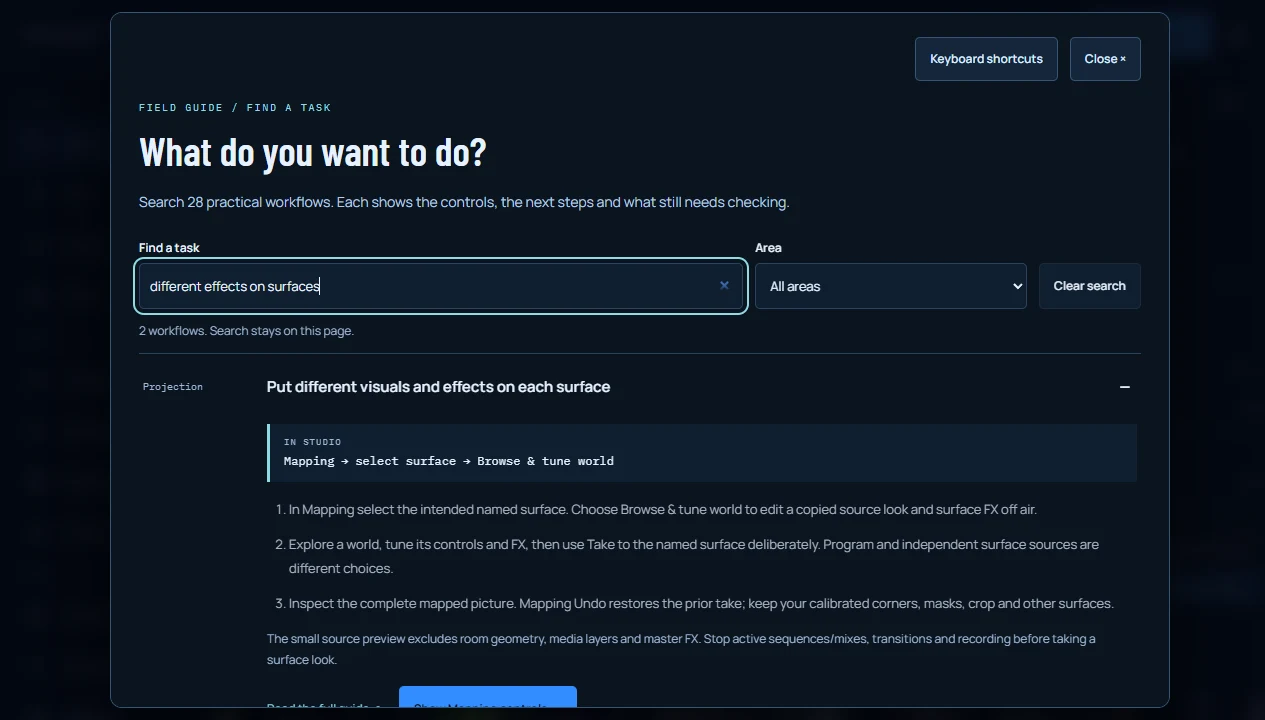
Put different visuals and effects on each surface
Mapping → select surface → Browse & tune world
- In Mapping select the intended named surface. Choose Browse & tune world to edit a copied source look and surface FX off air.
- Explore a world, tune its controls and FX, then use Take to the named surface deliberately. Program and independent surface sources are different choices.
- Inspect the complete mapped picture. Mapping Undo restores the prior take; keep your calibrated corners, masks, crop and other surfaces.
The small source preview excludes room geometry, media layers and master FX. Stop active sequences/mixes, transitions and recording before taking a surface look.
- Studio tasks · Mapping → surfaces → corner coordinates
Align one projector to screens or objects
Mapping → surfaces → corner coordinates
- Use one projector raster and enable Mapping. Add the rectangle, polygon or ellipse surfaces your layout needs.
- Select a surface and drag its corners, or edit Corner coordinates, onto the actual screen/object. Adjust crop, mask, feather, opacity and blend as needed.
- Use Calibrate projection patterns to check orientation and alignment. Turn the pattern off before performing, then save the map or session. Stage view folds the tool rail, library and sequence editor; Hide controls folds inspector/edit handles, and Map reveals them. Resize the desktop divider by drag or arrow keys. Back to Studio or Escape returns; Workspace → Reset layout restores defaults. Local layout choices do not change output size or calibrated corners.
A starter shape is not calibrated venue geometry. One output raster is not independent multi-projector routing or native edge blending.
- Studio tasks · Mapping → Starter layouts
Start a booth, triptych or room-corner layout
Mapping → Starter layouts
- Open Starter layouts and choose the one-projector arrangement and Program/shared or independent sources.
- Review the proposed layout and canvas before Apply layout & canvas. The existing map remains until that action.
- Align the new surfaces to the actual room. Use the mapping Undo path to restore the earlier layout if needed.
The layout supplies normalized geometry, not physical calibration, installation approval or multiple independent projector feeds.
- Studio tasks · Output → canvas shape
Choose landscape, portrait or square output
Output → canvas shape
- Open Output and choose 16:9, 9:16, 1:1 or the required custom frame. Check the actual pixel dimensions beside the stage.
- Recompose titles, artwork and mapping for that shape; a different ratio is a new composition, not merely a cropped thumbnail.
- For several finished versions from one soundtrack, use File render → Choose delivery formats, review each framing, then save each result.
A preview size is not a sustained-FPS guarantee. Inspect the actual saved file at the target dimensions.
- Studio tasks · Layers & text → Timed text / lyrics
Time lyrics and captions to a local track
Layers & text → Timed text / lyrics
- Open Layers & text → Timed text / lyrics. Add a line, enter Start/End seconds or MM:SS.mmm, type your words and Save line; or import a plain VTT/SRT file up to 256 KB.
- Choose placement, size and an optional offset. Enable Show timed text, then Seek to start with your MP3/WAV loaded. Static selected-line preview is separate from the actual file clock; Undo restores the last text edit.
- Review File render after editing. Trimmed films keep absolute soundtrack seconds and capture a frozen text track. Inspect the encoded film; words are burned into Program, while independent mapping worlds exclude these overlays.
Up to 500 non-overlapping plain-text cues, 320 characters each. No auto-transcription, markup styling or word-by-word karaoke. Live audio has no file clock; local/saved sessions can contain private lyrics.
- Studio tasks · Record video → Render from MP3 / WAV
Render a complete music-visualizer film
Record video → Render from MP3 / WAV
- Open File render, choose one MP3/WAV and set the soundtrack Start/End passage. Sound is decoded silently.
- Choose Current composition or the prepared Show sequence. Review film timeline checks the source, output targets and actual framing before rendering.
- Render deliberately. Download each completed result, reopen the actual file and inspect motion and soundtrack before marking it saved.
Codec, memory and GPU limits vary. File render does not record a performed live input or silently publish a video to YouTube.
- Studio tasks · File render → Soundtrack entry times
Place act changes at exact soundtrack moments
File render → Soundtrack entry times
- Choose a file, passage, show sequence and FPS. Enable film-only timing, then edit each absolute soundtrack entrance.
- Seek or preview the relevant passage; Place here reads that separate preview playhead. An entry starts the incoming transition on the nearest film frame.
- Resolve ordering, overlap and minimum-hold errors, then Review the frozen timeline. Reset entries deliberately after a changed file, passage, FPS or show.
Film entries do not rewrite live holds, detect musical beats, stretch sound or establish physical timing. Preview monitoring starts off.
- Studio tasks · File render → Delivery set
Export the same film in 16:9, 9:16 and 1:1
File render → Delivery set
- Prepare one soundtrack passage and film timeline. Choose delivery formats and the landscape, portrait and square targets you need.
- Review each actual target framing. Rendering runs one target at a time with the same frozen soundtrack and schedule.
- Save, reopen and confirm each completed file separately. Continue missing targets keeps completed results; explicitly discard a result only when you intend to free its budget.
Up to three retained results share a 750 MB budget. Portrait/square are composed at their own dimensions, not proof that every title or source is framed well.
- Studio tasks · Record video → Check a saved recording
Check a saved video before publishing
Record video → Check a saved recording
- Save the actual completed MP4/WebM, then open it with Check a saved recording.
- Read dimensions, codecs and packet timelines, then play the start, middle and final seconds. Keep the preview muted during silent work.
- Inspect decoded movement and soundtrack, including the end. Retain the file and timing report if you need to investigate a failure.
Packet counts, first-frame stills or a download request alone do not prove decoded motion, synchronization or successful local saving.
- Studio tasks · Video library / Layers & text → Video layers
Combine local video loops with procedural worlds
Video library / Layers & text → Video layers
- Add your local MP4/WebM files through the media library. The browser checks supported codec, size and decoded dimensions.
- Take a clip into A or B deliberately, then tune layer opacity, blend, frame, speed and loop. Clip sound stays muted; MP3/WAV or live input is the soundtrack.
- Capture layer references in cues when useful. Save settings separately and reattach the original files after reopening.
The public library allows up to twelve clips, 200 MB each and 512 MB total. It is not a cloud upload, DXV host or offline application.
- Studio tasks · Effects → output rack
Shape the complete output with effects
Effects → output rack
- Open Effects to inspect the final output rack and its current bypass/amount choices.
- Choose a band or Beat loop in Audio links & beat loops for each target. Set Low/High values, then band gain/curve or loop length/waveform/offset. Compare against bypass deliberately.
- Check the actual complete output and a short recording. Surface-specific FX and loops belong to the selected surface in Mapping. Align Track sync for file phase through seeks and trimmed films.
Master FX and a surface source preview are different stages. Additional effects use GPU capacity and are not native FFGL/VST plugins.
- Studio tasks · Show → sequence controls
Build and perform a sequence of acts
Show → sequence controls
- Tune a complete look/composition and choose Add current look. Edit the saved act, hold and transition deliberately.
- Prepare show so its required worlds and local media can be checked. Use performance pads to rehearse the real sequence.
- Choose manual, seconds or bar holds and run only when ready. Keep film-only entry timing separate when rendering a soundtrack film.
A named act or prepared world is not proof of long-set frame rate or physical-controller compatibility. Keep local media available.
- Studio tasks · Journal → eight-act review / Show
Rehearse the eight-act techno exercise
Journal → eight-act review / Show
- Open the eight-act Journal workshop and inspect its visual roles, full public recipe and limits.
- Review the exercise in Studio before Load exercise; load is an explicit settings replacement with its own Undo path.
- Choose your soundtrack, Prepare show, then rehearse or use the separate film timing tools. Manual starting tempo is supplied, not inferred from your music.
The exercise uses existing authored worlds. It is not eight new shaders, a guaranteed musical arrangement or proof of physical venue synchronization.
- Studio tasks · Layers & text → Mix two worlds
Crossfade two visual banks while preparing a third look
Layers & text → Mix two worlds
- Set and capture the A/B banks before Start live mix. A selected Preview look remains separate from the live banks.
- Shape Preview, then Take Preview into A or B deliberately. Taking into the visible fader side changes the audience image immediately.
- Use the picture crossfader or Cut A/B. Keep soundtrack volume separate and test any independent surface-bank option before the show.
The fader changes picture, not audio volume. Two procedural banks and mapped sources need extra GPU capacity.
- Studio tasks · Sound → Timing & beat sync → MIDI controls
Learn a MIDI control for a Studio action
Sound → Timing & beat sync → MIDI controls
- Open MIDI controls and review the available targets before requesting device access.
- Connect a permitted controller deliberately, choose Learn for a target and operate the intended control.
- Rehearse continuous and launch actions on your actual device; save the bindings with session settings.
Browser/device MIDI support and permissions vary. A saved binding is not verified physical-controller behavior.
- Studio tasks · Layers & text → Title & logo / Soundwave layer
Compose soundwaves, titles and artwork
Layers & text → Title & logo / Soundwave layer
- Choose the actual canvas shape. Soundwave opens Spectrum bars, Ring and Waveform with color, position, size, response, opacity and background darkening. Enabling a style does not start sound.
- Place your title/artwork separately above the global layer. Check the whole composition and keep both readable in portrait or square frames. Independent mapped worlds keep their own source.
- Review each intended File render target and the final saved film, including transitions where the background changes.
The shared procedural-look link excludes titles and artwork. A reference crop does not establish every delivery framing.
- Studio tasks · Sound → source status and recovery
Fix a silent or unresponsive input
Sound → source status and recovery
- Read the source status in Sound. Cancel opening stops a pending attempt; dismiss a remaining browser picker manually. On error, Try again is deliberate, or choose another source. Check playback and LOW/MID/HIGH before raising visual Energy.
- For tab/system capture, verify that the selected target supplied an audio track. For microphone/interface input, check browser permission and OS/device routing.
- Keep speaker monitoring separate: Speakers off can silence monitoring while analysis still works. Check the actual source and output again.
This help does not grant a missing permission or guarantee capture from an unsupported application or audio device.
- Studio tasks · Video library → media recovery
Recover missing files after reopening a session
Video library → media recovery
- Choose Import session and review the settings before Apply session settings. Close keeps current work. Temporary Undo session import restores the preceding settings and retained video files unless newer settings or attachments would be overwritten. Then open Video library and review the missing-file checklist.
- Reattach the required original local video files deliberately. Check the matches and cue references before taking them live.
- Choose your audio and artwork again where needed, Prepare show and inspect the complete output.
Settings JSON is not a packaged copy of media or an offline Studio. Names/checklists alone do not prove that the right files are attached.
- Studio tasks · Room control → Setup
Prepare a Loxone-controlled visual room
Room control → Setup
- Open Room setup and review the computer/projector arrangement and local connector instructions.
- Prepare the local connector and Loxone commands with the installer. Connect, Arm and test the explicit application acknowledgements deliberately.
- Align and rehearse the actual room, review the operator handover and keep a manual fallback. Use the published Polish PDF for the installer/operator.
A browser/emulator acknowledgement is not physical Miniserver, wiring or projector acceptance. Model/configuration and local access still require real installation checks.
- Studio tasks · Output → quality / Look → motion
Investigate slow or broken visual output
Output → quality / Look → motion
- Check Freeze, Blackout and the actual graphics status before changing a look. Confirm that the intended source drives the meters.
- Reduce canvas size or render detail, and compare the work added by video layers, effects, transitions and independent mapped worlds.
- Use a short actual recording and the intended projector path to check sustained behavior. Re-enable features one at a time.
A reduced preview or first-frame check does not certify long-show performance, all resolutions or every device.
- Studio tasks · Custom visuals → Build a usable scope
Prepare a custom visual project brief
Custom visuals → Build a usable scope
- Open Custom visuals, inspect the first-party product demonstrations and choose release, show or installation.
- Specify deliverables, duration, screens, playback setup, direction, timing and budget. Review the generated scope and open questions.
- Copy or save your brief and decide whether to send it yourself. Confirm price, rights, revisions and hardware testing separately before production.
This is an enquiry, not a booking, accepted quote, commissioned-client portfolio or change to the permanently free public Studio.
- Visual worlds · Cosmic scale
Event horizon
A copper accretion disc bends around a silent, monumental void.
Try this world in Studio - Visual worlds · Cosmic scale
Warp drive
Accelerate through concentric gates and long trails of light.
Try this world in Studio - Visual worlds · Rave pressure
Rave laser
Six moving laser banks snap into crossfire, tunnel rakes, fans and scanning curtains.
Try this world in Studio - Visual worlds · Rave pressure
Prism ritual
Prismatic light gates fracture into jagged wings, a twisted corridor and split angular throats.
Try this world in Studio - Visual worlds · Hypnotic flow
Chrome tide
Sculpted liquid metal catches wide reflections of colour.
Try this world in Studio - Visual worlds · Hypnotic flow
Signal rupture
Dense luminous filaments twist into vortices, flowing ribbons and ruptured apertures.
Try this world in Studio - Visual worlds · Cosmic scale
Ion storm
A luminous particle swarm drifts through a breathing nebula.
Try this world in Studio - Visual worlds · Cosmic scale
Magnetic terrain
Fly through an alien canyon carved by a meandering river of light.
Try this world in Studio - Visual worlds · Rave pressure
Solar flare
Molten arcs tear into hooked flares, reconnect across a dark slit and eject opposing jets.
Try this world in Studio - Visual worlds · Hypnotic flow
Liquid mandala
Iridescent membranes and nested tendrils form a living alien topology.
Try this world in Studio - Visual worlds · Rave pressure
Monolith
An obsidian monument fractures around a laser core and orbiting shards.
Try this world in Studio - Visual worlds · Hypnotic flow
Interference
Acid contours split into twin vortices, tear apart and reconnect with the beat.
Try this world in Studio - Visual worlds · Metal & matter
Ferro bloom
A perforated chrome organism unfolds and twists through a field of reflected light.
Try this world in Studio - Visual worlds · Hypnotic flow
Wire loom
Layered wire membranes buckle into deep valleys and flowing crests.
Try this world in Studio - Visual worlds · Rave pressure
Helix run
A spiralling flight through braided neon rails and changing depth.
Try this world in Studio - Visual worlds · Optical pressure
Acid ink
Liquid black-and-white islands stretch, fold and break into flowing contours.
Try this world in Studio - Visual worlds · Rave pressure
Photon lattice
An endless perspective grid folds around moving light sweeps and spectral ridges.
Try this world in Studio - Visual worlds · Metal & matter
Kinetic blades
Reflective curved blades orbit, open and shear into an asymmetric sculpture.
Try this world in Studio - Visual worlds · Hypnotic flow
Plasma weave
Luminous silk ribbons braid and unbraid across a dark field.
Try this world in Studio - Visual worlds · Cosmic scale
Orbital glass
Orbiting glass lenses bend an intricate light field and eclipse one another.
Try this world in Studio - Visual worlds · Metal & matter
Void tendrils
An alien branching sculpture twists through an illuminated, misty void.
Try this world in Studio - Visual worlds · Rave pressure
Rave fan
Moving laser fans sweep, interlock and rake the frame in rhythmic formations.
Try this world in Studio - Visual worlds · Optical pressure
Moiré engine
Fine ruled surfaces slide through one another, revealing shifting optical waves.
Try this world in Studio - Visual worlds · Metal & matter
Fractal forge
Recursive metallic folds unfold into a rotating, faceted alien form.
Try this world in Studio - Visual worlds · Metal & matter
Chrome knot
Interlocking metallic tubes change their lobes, cross in depth and carry travelling spectral ribs.
Try this world in Studio - Visual worlds · Cosmic scale
Vortex sheet
Dense point-sampled sheets fold, curl into vortices and drift through several layers of depth.
Try this world in Studio - Visual worlds · Rave pressure
Laser switchyard
Three scanning laser walls bend and cross into moving diagonal hatches and sweeping curtains.
Try this world in Studio - Visual worlds · Metal & matter
Spectral organ
A wall of curved three-dimensional cables flexes in depth while luminous packets run along its surface.
Try this world in Studio - Visual worlds · Optical pressure
Op art axis
Bold black-and-white ribbons curl into shifting optical islands and reverse across bending boundaries.
Try this world in Studio - Visual worlds · Cosmic scale
Neural web
A moving node network stretches its connections as light signals chase through the branches.
Try this world in Studio - Visual worlds · Hypnotic flow
Diffraction sea
Layered iridescent sheets focus into moving caustics, narrow fringes and intersecting liquid folds.
Try this world in Studio - Visual worlds · Metal & matter
Shutter drive
Overlapping iris leaves open, shear and occlude one another around a changing aperture.
Try this world in Studio - Visual worlds · Metal & matter
Sonic crystals
A faceted crystal cluster rotates, tilts and changes its tips under travelling internal light.
Try this world in Studio - Visual worlds · Rave pressure
Circuit run
Fly over perspective circuit lanes with right-angle branches and independent moving light packets.
Try this world in Studio - Visual worlds · Hypnotic flow
Alien membrane
Smooth lobes merge into a twisting metallic membrane while cavities open through its surface.
Try this world in Studio - Visual worlds · Rave pressure
Ribbon detonation
Slashing ribbon fronts change their width and trajectories as light chases their edges.
Try this world in Studio - Visual worlds · Metal & matter
Chrome cocoon
Two counter-wound chrome cages enclose a breathing perforated membrane. Bass expands the braided structure while moving reflections reveal passages and an internal cellular scale.
Try this world in Studio - Visual worlds · Hypnotic flow
Mercury morph
Colliding liquid-metal lobes open multiple organic passages and change their silhouette continuously. Bass drives their collision and openings; bright audio catches the edges of the curved membrane.
Try this world in Studio - Visual worlds · Metal & matter
Turbine bloom
Three interleaved impellers curl around an open hub with curved thickness, inset sockets and rear blades. Bass changes the vane pitch while treble reveals fine metal scoring.
Try this world in Studio - Visual worlds · Metal & matter
Skeletal wave
A continuous close-up wall of paired spinal braids, curved ribs and diagonal struts buckles with the audio. Bass bends the structure and travelling signals cross its recessed junctions.
Try this world in Studio - Visual worlds · Cosmic scale
Alloy eclipse
Hollow scalloped orbital bands reveal sockets, cross-ribs and a separate inner orbit. Bass expands the shell while moving reflections and treble reveal its recessed metal details.
Try this world in Studio - Visual worlds · Hypnotic flow
Molten lace
A full-frame folded metal gyroid contains broad cavities and a second cellular scale. Bass buckles the membrane and high frequencies trace the edges of its deep openings.
Try this world in Studio - Visual worlds · Metal & matter
Nanofiber storm
Dense braided cable bundles overlap with curved cross-sections, corrugated strands and cast contact shadows. Bass bends their paths while treble sends signals along their fine wires.
Try this world in Studio - Visual worlds · Hypnotic flow
Liquid spire
A tall lobed crown grows helical passages and independent lateral buds. Bass expands its living shell while moving reflections reveal its perforations and finely scored surface.
Try this world in Studio - Visual worlds · Hypnotic flow
Mirror petals
Two interleaved sets of concave mirror bowls curl around a perforated heart. Bass spreads their sculptural lips while rear leaves, contact shadows and bright audio reveal their depth.
Try this world in Studio - Visual worlds · Metal & matter
Tessellated skin
A continuous folded-metal skin shares vertices between animated triangular facets. Bass buckles its surface and projective compression while narrow signals travel along recessed seams.
Try this world in Studio - Visual worlds · Cosmic scale
Ribbed vortex
The viewpoint moves inside a curved, physically modelled chrome bore with ribs and longitudinal struts. Bass deforms the tunnel and high frequencies send light chases through its grooves.
Try this world in Studio - Visual worlds · Metal & matter
Chitin signal
A fenestrated biomechanical body carries paired curved limbs, sockets and independent hinges. Bass bends the exoskeleton while bright audio reveals its finely scored nerves.
Try this world in Studio - Visual worlds · Optical pressure
Origami pulse
Two deeply folded foil membranes bend around moving creases; cut seams expose the layer beneath while fine engraved threads carry spectral light.
Try this world in Studio - Visual worlds · Optical pressure
Liquid checkers
A glossy checker cloth folds into deep perspective-compressed valleys, with moving reflections and bass-driven deformation.
Try this world in Studio - Visual worlds · Hypnotic flow
Prismatic fault
Four moving glass faults split, bend and magnify an evolving light field along luminous fracture edges.
Try this world in Studio - Visual worlds · Optical pressure
Halftone flow
A draped halftone film folds in perspective as optical dots grow into liquid islands, with directional light revealing its curved surface.
Try this world in Studio - Visual worlds · Rave pressure
Tear tunnel
Rippling torn sheets pass the camera while a twisting elliptical slit opens and closes independently in depth.
Try this world in Studio - Visual worlds · Optical pressure
Strata slip
Thin metallic strata slip into a deformed layered sculpture, opening deep gaps as their lobed rings bend and expose engraved surfaces.
Try this world in Studio - Visual worlds · Hypnotic flow
Cellular silk
A distorted cellular film grows pores and shifting membranes while spectral highlights migrate along its walls.
Try this world in Studio - Visual worlds · Optical pressure
Lenticular iris
A sculpted iris shell folds into deep lenticular petals around a changing aperture, with nested engraved filaments and reflective valleys.
Try this world in Studio - Visual worlds · Optical pressure
Mirror mosaic
A perforated mirror membrane twists into interconnected curved chambers, revealing deep occlusion and moving spectral engravings.
Try this world in Studio - Visual worlds · Hypnotic flow
Isometric weave
Three families of thick luminous strips bend, braid and exchange their over-and-under order across an isometric field.
Try this world in Studio - Visual worlds · Optical pressure
Magnetic contour
Two migrating poles pull an embossed contour field into shifting ridges, valleys and luminous terraces.
Try this world in Studio - Visual worlds · Optical pressure
Phase lace
Crossing diagonal wavefronts form luminous woven lace while travelling defects twist and stretch its topology.
Try this world in Studio - Visual worlds · Rave pressure
Phase scissors
Three broad light walls buckle, open and exchange their direction while dense fine rays and travelling signal fronts shear through the formation.
Try this world in Studio - Visual worlds · Rave pressure
Warehouse sweep
Swept luminous planes cross a three-dimensional warehouse, revealing layered moving smoke, overhead rails and a reflecting perspective floor.
Try this world in Studio - Visual worlds · Rave pressure
Aperture stack
Grooved polygonal light diaphragms open down a deep passage, carrying bevelled surfaces, narrow luminous edges and moving circumferential gaps.
Try this world in Studio - Visual worlds · Cosmic scale
Orbital discharge
A stretching iridescent membrane carries dense moving electrical contours and fine surface ribs while charged orbit shells circulate around it.
Try this world in Studio - Visual worlds · Rave pressure
Forked current
Layers of curved plasma nerves grow tapered organic branches, revealing cylindrical surfaces, fine moving ribs and separate travelling currents.
Try this world in Studio - Visual worlds · Rave pressure
Prism relay
Three staggered fields of reflective diamond relays fold and skew their faceted surfaces while diagonal signal fronts travel through luminous inner channels.
Try this world in Studio - Visual worlds · Cosmic scale
Magnetic swarm
Dense short particle wakes stream through several depths and curl around a pair of migrating magnetic wells.
Try this world in Studio - Visual worlds · Hypnotic flow
Ribbon flight
Six continuous iridescent ribbons braid through projected depth, revealing curved surfaces, fine transverse grooves and light packets chasing their edges.
Try this world in Studio - Visual worlds · Rave pressure
Meteoric rain
Four depths of luminous meteor curtains turn together, bend with the midrange and open their asymmetric tails with the low band.
Try this world in Studio - Visual worlds · Rave pressure
Ceiling array
A corrugated three-dimensional ceiling unfolds into hanging light sheets, with changing depth folds, fine luminous channels and a reflective installation floor.
Try this world in Studio - Visual worlds · Rave pressure
Triad resonator
Five thick triangular resonators counter-rotate through depth, exposing bevelled metal faces, finely grooved surfaces and travelling spectral signals.
Try this world in Studio - Visual worlds · Cosmic scale
Spectral flock
A school of iridescent organic fins banks through three dimensions, separates into opposing wings and re-forms with moving ribs and curved tapered tails.
Try this world in Studio - Visual worlds · Metal & matter
Spine reactor
Three articulated chrome arms merge into a continuous nerve field. Curved ribs open and reconnect across depth while bass changes their bend and radius; high frequencies send fine signals through the structure.
Try this world in Studio - Visual worlds · Hypnotic flow
Caustic membrane
Two iridescent glass films buckle independently in depth. Migrating apertures merge and separate to expose the rear film while bass folds the surface and the midrange displaces its luminous caustics.
Try this world in Studio - Visual worlds · Cosmic scale
Particle accelerator
Curved particle wakes stream through several depths, separate into opposed helical jets and gather again. Bass expands their trajectories, the midrange winds their turns and bright audio sharpens their travelling tails.
Try this world in Studio - Visual worlds · Rave pressure
Laser braid
Four light banks weave curved rays through projected depth. Their moving apertures and crossings stretch with the bass while per-ray gates chase through the braided formation.
Try this world in Studio - Visual worlds · Metal & matter
Möbius engine
A twisted one-sided ribbon opens and folds through depth. Its changing width and winding expose fine surface rulings while travelling light traces the continuous strip.
Try this world in Studio - Visual worlds · Cosmic scale
Hopf fibration
Linked circular fibres pass through a stereographic projection, opening a nested structure of interwoven loops. Their centres, radii and planes evolve while bass expands the projection and the midrange thickens the fine conductors.
Try this world in Studio - Visual worlds · Metal & matter
Gyroid transit
A finite gyroid saddle network changes its level set and opens a viewing aperture into its interior. Curved channels reveal reflective walls and fine luminous contours as their spatial scale changes.
Try this world in Studio - Visual worlds · Hypnotic flow
Klein current
A figure-eight Klein immersion turns its surface through itself. The changing width and flattening of its half-twisted section expose overlapping layers traced by fine travelling currents.
Try this world in Studio - Visual worlds · Metal & matter
Torus surgery
Toroidal surfaces approach, merge and separate into new openings. Reflected strips and travelling edge signals make the changing junctions and cavities visible.
Try this world in Studio - Visual worlds · Metal & matter
Dodeca bloom
Twelve pentagonal plates hinge outward and gather again. Opening windows expose inset rims behind the moving faces, forming an articulated geometric bloom with finely ruled surfaces.
Try this world in Studio - Visual worlds · Optical pressure
Hypercube collapse
A four-dimensional cube is rotated and projected into three-dimensional light geometry. Its nested cells pass through one another as separate plane rotations change the projected structure.
Try this world in Studio - Visual worlds · Metal & matter
Tensegrity pulse
Suspended struts separate under a changing web of tension lines. The supports tilt, compress and expand while fine luminous connections preserve the articulated structure.
Try this world in Studio - Visual worlds · Hypnotic flow
Cyclide rift
A cyclide surface bends its circular channels into an asymmetric rift. The central opening and curvature evolve while fine reflected detail follows the continuous surface.
Try this world in Studio - Visual worlds · Hypnotic flow
Helicoid drift
A continuous helicoidal sail winds into successive turns and unwinds again. Its changing pitch and opening axial slit expose ruled surfaces and travelling light along the spiral edges.
Try this world in Studio - Visual worlds · Optical pressure
Newton basins
Moving complex roots reshape a Newton iteration field. Nested basin boundaries split into fine luminous branches as the roots approach and separate.
Try this world in Studio - Visual worlds · Optical pressure
Julia lamination
An evolving complex Julia map is revealed through layered orbit traps. Its branching islands and nested filaments change their connectivity as the complex parameter moves.
Try this world in Studio - Visual worlds · Optical pressure
Riemann fold
Complex branch sheets fold around moving branch points. Fine rulings reveal the separate sheets and the seams where their projected paths exchange depth.
Try this world in Studio - Visual worlds · Hypnotic flow
Reaction fronts
Analytic reaction-like fronts grow, divide and reconnect into a changing cellular field. Fine contours and reflected highlights follow the moving boundaries.
Try this world in Studio - Visual worlds · Optical pressure
Quasicrystal breach
A quasiperiodic projection builds interlocking angular order. Moving phase defects shear the structure, opening breaches between its fine nested channels.
Try this world in Studio - Visual worlds · Optical pressure
Chladni architecture
Coupled standing-wave modes reorganize a nodal plate into branching corridors. Audio changes their relative scale and balance while fine light gathers around the moving nodal structure.
Try this world in Studio - Visual worlds · Cosmic scale
Loxodrome glass
Rhumb-line curves wind around nested transparent spherical layers. Their pitch, separation and projection change as luminous crossings move through the glass-like structure.
Try this world in Studio - Visual worlds · Optical pressure
Catastrophe fold
A changing cusp-caustic construction concentrates fine rays into folds. The control parameters move the cusp and split its bright ridges into new arrangements.
Try this world in Studio - Visual worlds · Optical pressure
Fresnel split
Diffractive phase zones separate and interfere in a changing Fresnel field. Fine fringes bend around moving sources while the bright orders open and recombine.
Try this world in Studio - Visual worlds · Metal & matter
Schwarz lantern
Alternating antiprism rings unfold into a faceted lantern. Their radius, stagger and height evolve independently, changing the silhouette and its fine triangular surface.
Try this world in Studio - Visual worlds · Rave pressure
Laser delta
Four nested tetrahedral light wings separate and reconnect across depth. Their opening angles and lifted apexes change while independent signal trains travel through the fine triangular cells.
Try this world in Studio - Visual worlds · Rave pressure
Lens scanner
Opposing laser banks pass through two moving optical sheets. Refracted ray directions change at each sheet, shifting the focus and reshaping the crossing pattern.
Try this world in Studio - Visual worlds · Metal & matter
Solenoid storm
Three continuous wound conductors bend and cross through depth. Their helical pitch and curved axes change independently while voltage trains reveal the reflective windings.
Try this world in Studio - Visual worlds · Cosmic scale
Shockwave atlas
Expanding wave fronts move through three independently inclined planes. Their migrating centres and elliptical apertures create changing intersections while each front fades smoothly at birth and departure.
Try this world in Studio - Visual worlds · Cosmic scale
Graviton stream
Fine particle wakes flow across a changing hyperbolic saddle. Convex and concave regions exchange depth as the streams fan apart, fold over and gather into opposing jets.
Try this world in Studio - Visual worlds · Cosmic scale
Orbital orrery
Eccentric light orbits precess in separate spatial planes. Changing focal distances reshape the tracks while luminous bodies move around each independent ellipse.
Try this world in Studio - Visual worlds · Rave pressure
Plasma bifurcation
Three banks of binary conductive channels unfold into branching trees. Their fork widths and depth change as independent light packets travel from the roots toward the fine outer branches.
Try this world in Studio - Visual worlds · Rave pressure
Photon billiards
Laser paths reflect from a continuously deforming elliptical boundary. Every collision uses the current surface normal, so changing the enclosure reshapes the complete sequence of crossings.
Try this world in Studio - Visual worlds · Cosmic scale
Relativistic grid
Two migrating mass wells deform a continuous spatial survey mesh. Separating saddles bend its fine meridians while travelling wave fronts reveal the changing depth.
Try this world in Studio - Visual worlds · Hypnotic flow
Spectral sail
Nine thin triangular sails bend in opposing winds. Moving internal openings reveal independently folding layers, with fine threads and reflected edge light tracing the changing surfaces.
Try this world in Studio - Visual worlds · Rave pressure
Vortex crown
Eleven curling horns grow outward and uncoil around an opening throat. Four fine wires wind around each horn while travelling signals reveal the changing spatial depth.
Try this world in Studio - Visual worlds · Optical pressure
Chronotopic rings
Nested phase rings exchange rolling radii and counter-rotating lobes. Their three-fold and five-fold components join and divide while independent light trains reveal each fine contour.
Try this world in Studio - Guides & tools · Music visualizer
Free MP3 & WAV Music Visualizer
Visualize your MP3 or WAV here for free. Preview 108 worlds with your own track, choose landscape, portrait or square, then continue in Studio. No account or upload.
- Guides & tools · Live visuals
Live Audio Visualizer & Projector Setup
Connect a microphone, audio interface or supported shared tab audio to PHASE//VOID. Create live DJ visuals, tune the signal and open a projector output.
- Guides & tools · Music videos
Make a Music Visualizer Video for YouTube
Record an audio-reactive music video with local MP3/WAV audio, titles and artwork. Choose landscape, portrait or square and supported WebM or MP4 recording. Add timed lyrics or captions from plain VTT/SRT.
- Guides & tools · Aspect ratios & sizes
Visualizer Aspect Ratios & Export Sizes
Choose 16:9, 9:16, square, ultrawide or a custom canvas in PHASE//VOID. Compare output sizes, render detail, frame rate and video bitrate before recording.
- Guides & tools · Troubleshooting
Visualizer Troubleshooting: Audio & Recording
Fix silent inputs, blocked microphone access, missing shared audio, a black WebGL canvas and recording problems in the PHASE//VOID browser visualizer.
- Guides & tools · Techno & rave visuals
Techno Visualizer for DJ Sets & Rave Videos
Build a changing techno visual set with your own music. Choose contrasting worlds, rehearse eight acts, set file or live timing and prepare one projector or a finished video.
- Guides & tools · Custom visuals
Custom Music Visuals for Events & Releases
Plan custom music visuals with Balance IT: a visual direction for your release, branded scenes for a show, or a tailored browser installation. Prepare a project brief.
- Guides & tools · BPM finder
Free BPM Detector for MP3 & WAV — Local Tempo Finder
Find BPM from a local MP3 or WAV, compare tempo alternatives and prepare music visuals. Free, silent analysis in your browser, with no audio upload or account.
- Guides & tools · Audio spectrum
Free Audio Spectrum Visualizer & Waveform Video Maker
Add an animated audio spectrum, circular ring or waveform over music visuals and video. Create branded MP3/WAV videos locally in the free PHASE//VOID Studio.
- Guides & tools · Wizualizator muzyki
Darmowy wizualizator muzyki MP3/WAV online
Darmowy wizualizator MP3/WAV w przeglądarce: wybierz własny utwór, świat i kadr, a następnie przygotuj film lub projektor w Studio. Bez konta i bez wysyłania muzyki.
- Guides & tools · Projection mapping
Free Projection Mapping Guide: One Projector
Estimate throw distance and image fit for one projector. Then calibrate surfaces, choose independent visuals and FX, review layouts and rehearse the output.
- Guides & tools · Tools & connection
Compare Music Visualizer & VJ Workflows
Choose a music-video, live VJ or projector workflow. Compare PHASE//VOID, Resolume, Synesthesia and MadMapper with documented limits and a requirements chooser.
- Guides & tools · Tools & connection
Embed a Free Audio-Reactive Visualizer
Embed a free PHASE//VOID music visualizer on your site. Choose a scene and format, preview it and copy an iframe. Visitors start demo audio or a local MP3/WAV.
- Guides & tools · Tools & connection
Connect PHASE//VOID with MCP | Visual scenes for AI assistants
Connect an MCP-compatible assistant to PHASE//VOID. Discover 108 audio-reactive visual worlds, inspect capabilities and plan a free music visualizer session without sharing media or source code.
- Recorded examples · Recorded example
Watch Signal Rupture: Techno Visualizer Video
Watch an 11-second first-party techno visualizer recording with stereo sound. See Signal rupture respond to an original 160 BPM WAV, then repeat the test in the free studio.
- Recorded examples · Recorded example
Watch Interference: Audio-Reactive Contour Video
Watch a real 11-second Interference visualizer recording driven by an original 160 BPM WAV. Inspect its nested contours, compare the other takes and replay the input in Studio.
- Recorded examples · Recorded example
Watch Solar Flare: Charged-Arc Music Visualizer Video
Watch a real Solar flare music-visualizer take with orange charged arcs and an original 160 BPM WAV. Compare its motion and replay the controlled input in the free browser Studio.
- Journal · Product explainer
Music Visualizer Video Sound: Source, Monitoring and Export
Understand which soundtrack reaches a music visualizer video. Separate speaker monitoring, recording volume, muted video layers and the local file-render soundtrack.
- Journal · Product explainer
MP4 vs WebM for Music Visualizer Videos
Choose MP4 or WebM for an audio-reactive music video. Understand containers, codecs, browser export availability, saved-file checks and YouTube processing.
- Journal · Product explainer
Audio-Reactive vs Beat-Synced Visuals: Three Clocks
Understand measured audio, predicted beat phase and physical output delay. Choose the right timing control for a file, a DJ input or a finished visualizer film.
- Journal · Product explainer
One Projector, Different Visuals: Program vs Surfaces
See how one final raster can contain independent worlds and effects. Understand Program, per-surface sources, mapping geometry and the physical output boundary.
- Journal · Product explainer
Music Visualizer Preview vs Rendered Video
Separate live preview FPS, file-render processing time and the actual encoded film. Read a first-party decoded-frame example and choose the right recording workflow.
- Journal · Design workshop
An Eight-Act Techno VJ Set to Rehearse
Load an eight-act techno VJ set with exact worlds, looks and transitions. Rehearse with your own MP3/WAV, then fit the complete sequence to a soundtrack film.
- Journal · Design workshop
Build a Visual Set with Contrast and Release
Plan a visual set around space, pressure, contrast and release. An original four-act design exercise using real PHASE//VOID worlds and off-air rehearsal.
- Journal · Design workshop
Design a Stage Picture for One Projector
Design a readable stage picture with one projector: a focal surface, supporting wings, intentional negative space and a room-specific rehearsal.
- Journal · Design workshop
Choose Visual Motion That Fits the Sound
Audition audio-reactive scenes by silhouette, low-band deformation, midrange movement and fine detail. Keep visual motion, sound response and pulse distinct.
- Journal · Design workshop
Compose Vertical Music Visuals in 9:16
Make a vertical music visual feel intentional: choose a useful silhouette, preserve room for text, compare square and portrait framing, then review movement.
No match for this search.
Try a shorter task such as “audio”, “lyrics” or “projector”, or clear the search to browse everything. Search does not inspect your current Studio.
Your search stays in this tab. Nothing starts playing or changes in Studio until you choose its controls. Public directory as JSON
One checked path, from question to output.
In a native Chromium check, different effects on surfaces found the surface workflow. Show Mapping controls preserved the current settings. Browse & tune kept Program unchanged before Take; taking Laser braid with Kaleidoscope 4 changed only the intended surface source/FX, and Mapping Undo restored the prior map. The same help then led to portrait Output and File render.
The actual saved 720 × 1280 film decoded to 90 distinct frames at 30 FPS. Three sampled PCM windows aligned at zero measured sample offset. The download was reopened muted and reached its actual end. Guide/Studio layouts were checked at 320px; all 28 workflow entries remained in the guide HTML with JavaScript disabled. Read the bounded measurements and limits.
These are short digital and interface checks. They do not certify every instruction on real MIDI/Loxone hardware, all browsers, long shows, physical sound-to-screen latency, indexing or AI citations.
Keep the instructions with your controls.
When a task takes several steps, you can keep it open while you work.
- Open Find a task in Studio, or follow a task link from these guides. Expand the task you need.
- Choose Keep steps open. One task appears beside the workspace. Use Show task controls when you want to navigate; pinning alone does not execute a step.
- Use Previous instruction and Next instruction as you read. You can change Sound, Look, Output or another workspace. The selected instruction follows an open tool and returns beneath the preview when it closes.
- Use Full task & search to choose another task, or Unpin task to remove the instructions. Your audio, visuals and drafts remain yours to operate.
Keep steps open pins one curated task in Studio. Previous/Next instruction changes only the text being read; it does not execute or certify those steps. Show task controls uses the existing explicit navigation and busy checks. Instructions follow an open tool dialog and return to the workspace when it closes. Close a tool through its own controls before jumping elsewhere; a pin never discards a draft. Full task & search can replace the pin, and Unpin task leaves the show unchanged. Pins are in-memory UI state until reload, separate from saved sessions, public links and media. No task history, search query or project data is stored or sent by pinning.
Review independent-surface instructions in Studio · Review timed-text instructions
Need something beyond the public Studio?
Plan a separate custom-visuals project for a release, event or installation. Public tools remain free. Read Privacy for selected media and remembered settings, or About PHASE//VOID for product and publisher information.