By Balance IT · Updated
Changing language reopens the guide. Choose your file again.
Your music. In motion.
Choose your track, shape one world, then continue with the same file. Nothing plays until you press Play.
1. Add your sound
Up to 200 MB. Stays on your device.
2. Find your look
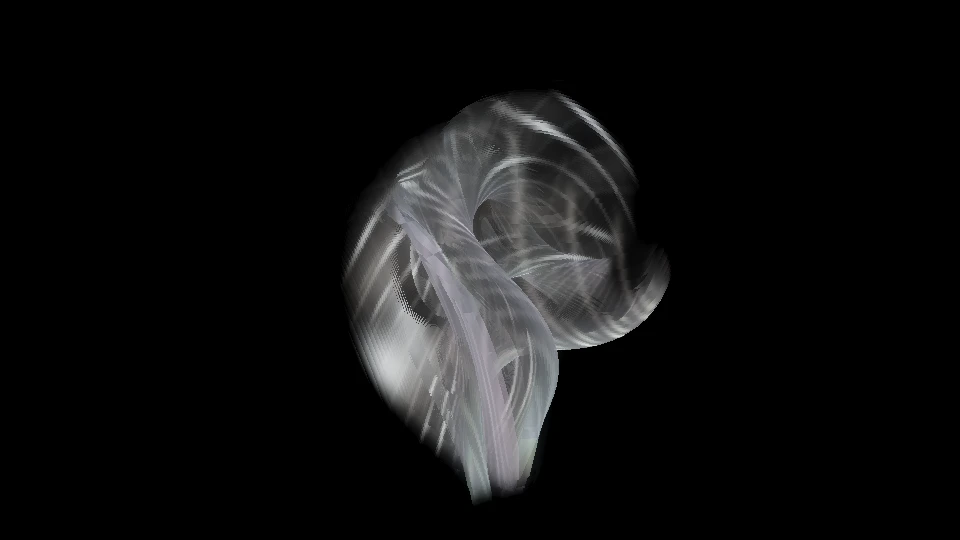
Choose a file, then press Play. The reference still is not a moving preview.
3. Choose your output
Edit the full composition, perform a take or prepare a projector.
Review Sound → Picture → Render and inspect the finished file.
Your track stays in this tab. Studio asks before receiving it; nothing plays automatically.
Single-world preview, up to 640 pixels on the long edge. Studio is where you add layers, map a projector or render the film. Browser decoding and graphics limits apply.
Open directly in Studio or compare MP3 / WAV samples
Make your music move.
Bring an MP3 or WAV from your device. Or try the same 24-second test signal in both formats before adding your own sound.
Open my MP3 / WAVTest setup: Interference · 960 × 540 · 24 seconds · 160 BPM. Studio loads a test file only after you press Play. It is a controlled signal, not the PIP — TARSAN demo. Replace it with your own track without resetting the look or frame. Your selected file stays on your device.
FROM YOUR TRACK TO A FINISHED RESULT
One file. Three deliberate steps.
- Sound: choose and check. Choose a local MP3/WAV above, or explicitly load the original test WAV. File selection is not playback. Press Play only when ready; Hear preview audio controls speakers, not the visual analysis. Pause, seek and compare a quiet passage with a loud one. If you already have a track open in Studio, continue there instead of loading it again.
- Look: compose around the track. Pick a world, a 16:9 / 9:16 / 1:1 frame and Gentler motion. A new world or frame does not start playback. This is one source, capped at 640 pixels on the long edge; the reference image is a still until the moving preview runs. It does not include your eventual titles, footage, mapped geometry or master FX.
- Output: choose your destination. Use the two continuation actions above. Continue in Studio is for a complete composition, a performed recording or a projector. Make a music video opens the file-to-film workflow. With a selected track, keep this guide open, choose Receive in the new Studio tab, then inspect the paused source. Cancel a pending transfer if you change your mind. If transfer is unavailable, select the same original file directly in Studio.
The shared setup carries public world/frame/motion choices. The local transfer carries your chosen File once between these same-origin tabs; it does not upload it, put the filename in the URL or keep it after reload. Receiving a file is separate from rendering it.
| Your next result | Do this in Studio | Check before leaving |
|---|---|---|
| A finished music video | Sound → Picture → Render. Review the selected file, source passage and film steps; use Layers & text for title/artwork or timed words. | Inspect the encoded result, then save and reopen the actual file. Check sound, first/last frames, framing and text. Finished-file checklist → |
| A take you perform | Prepare cues and controls, then Record video for the performance you actually play. Realtime capture follows that take; it differs from a deliberate File render. | Stop and inspect a short saved take before the full session. Performed recording → |
| A live screen or one projector | Output → Open projector window. Use Mapping when the surface needs corner fitting or independent worlds. | Rehearse on the real display; inspect crop, alignment and timing. One-projector setup → |
Open the chapter you need.
Start with the route above. Keep these controls, dated test inputs and troubleshooting steps available without reading every chapter in order.
Compare worlds with your own music.
Use the catalogue audition to search worlds, select your local MP3/WAV and compare A/B on the same passage. Save candidates to existing Favorites. Continue with the selected world and track through explicit Studio receipt; audio arrives paused. Propose this passage in Studio is optional and off by default; File render requires accepting or declining the range before reviewing and rendering. The catalogue owns the audition controls and limits.
Try your own track before opening Studio.
The visualizer on this page and the homepage composer can preview a selected world with your local MP3/WAV. You do not have to upload a track or replace it with the public demo.
- Choose the local track. Select an MP3/WAV up to 200 MB from your device. Loading the file does not start playback. Keep the originating page open until Studio has received the file.
- Check the picture. Start the preview deliberately, then pause or seek through your track. Speaker monitoring is off by default; enable Hear preview audio explicitly if you want sound. The visual can react while speakers remain muted. Compare worlds with the same passage and inspect 16:9, 9:16 and 1:1 framing. This lower-resolution preview runs one world, not your complete mapped show or exported film. The homepage video path offers a twelve-second Original test WAV; this guide offers the separate 24-second format-test WAV. Neither starts playback when selected.
- Continue with the same file. Choose Continue with my track in Studio. It opens a new tab on the same site; choose Receive selected track there within 90 seconds, while the originating page remains open. The one-use transfer keeps the same local file and public project settings. The received track is paused, and speaker monitoring stays off. No audio or render starts automatically.
- Make the film. In Studio, review the selected world, final dimensions and soundtrack segment. Use the existing File render workflow, review the timeline and render deliberately. Inspect, save and reopen the actual result. A successful transfer or moving preview is not proof of a finished or synchronized film.
On the homepage, Copy setup link shares public visual settings, not the track. The existing custom-work brief can carry that public direction without the local file or filename; nothing is sent automatically.
Open the intended file.
In Sound choose Open MP3 / WAV, or drop your track onto the stage. Inspect the selected source before Play. Transport pause/seek/restart/loop belongs to that file. Preview or Studio speakers can stay off while analysis runs; speaker volume is not visual sensitivity.
Files stay on this device and need no account. Browser decoding still varies; if a source cannot open, use the silent-source diagnosis and a compatible MP3 or PCM WAV. The guide preview accepts files up to 200 MB. A cancelled picker keeps the existing track.
The optional public PIP — TARSAN demo (142 BPM) and original 160 BPM test WAV are separate sources. Neither supplies tempo metadata for your own song. Live mic/tab input belongs to the live-audio route.
See MP3 and WAV drive the scene.
Dated reference · September 25, 2026. Retained first-party files and browser output; no current browser-wide performance or codec-quality claim. Players start muted.
We made an original 24-second, 160 BPM stereo test loop and loaded it into the live PHASE//VOID studio twice: first as a 48 kHz PCM WAV, then as a 192 kb/s MP3 converted from that WAV. In desktop Chrome, each local file played through the file input and drove the Interference scene at 960 × 540. The audio analyzer reported a live signal for both, and frames captured a little apart showed visibly different geometry.
Original WAV
48 kHz stereo PCM · 24 seconds
Download WAV (4.6 MB)
SHA-256: aa8d4dafd54fe18a9ad4f0948450f77f4bbfd18b3d4e6d45fc565a74f1299a28
Converted MP3
192 kb/s stereo · from the same signal
Download MP3 (577 KB)
SHA-256: b2b48ac0e637b87ba3e317e82a09db58e550e51d56c03abdd159bb95ba6d0b04
Repeat the file-input check.
- Choose the MP3 test or the WAV test. Interference and a 960 × 540, 16:9 canvas are preselected; press Play in Studio to load the file.
- Play from the beginning. Confirm that the meters move and the contour geometry changes. Watch the MP3-driven recording and WAV frames below.
- Use Load MP3 test or Load WAV test in the Studio file guide to switch the input without changing the look or canvas, then repeat. These are separate plays of related signals, not synchronized frames for judging codec quality.
Both files were synthesized or converted from our own test signal; no artist track or external music sample is included. For a comparison of different scenes driven by the same WAV, see the techno visualizer test.


The MP3 and WAV come from the same original signal, but these captures are from separate playback moments, not a frame-by-frame codec comparison. The test covers one desktop Chrome setup and a short export; decoding support, frame rate and recording formats can vary by browser and hardware. The YouTube guide also shows a saved WAV-driven export in another scene. Open the free studio to test your own track before a full recording.
Choose a visual response, then a pulse.
Look edits the main procedural world. Start with one world, compare a quiet and dense passage, then change Energy, Motion, Detail or Glow with a clear purpose. Low/mid/high band response, effect-audio links and a repeating beat loop are different controls. Motion changes movement, not the song or its BPM.
Use the local BPM and beat-grid tool when your file needs a deliberate pulse. Review a candidate and align beat one; a detected BPM is not automatically an accurate downbeat. Keep file pulse and rendered timing aligned. A manual cue grid is separate. Gentler motion, Freeze and Blackout remain global.
For contrasting directions, compare worlds in the existing catalogue audition; for surface-specific worlds and FX, use Mapping controls. Program controls and independent surfaces have different owners.
Frame the complete composition.
In Output → Canvas format choose the intended ratio and pixel size. Use the canvas planner for exact dimensions and a reviewed Studio setup. Its Undo restores the previous frame; it does not turn a preview into an encoded film.
Layers & text owns titles, subtitles, local artwork and timed words. Recheck them in the complete Program composition and final ratio. Independent mapping worlds exclude Program footage and overlays. Render detail changes workload and source detail; it is separate from output dimensions.
For a deliberate film use File render. For a live take use Record video. The on-page continuation above can offer your selected File to the receiving Studio; these direct links ask you to choose a file there.
Take your MP3 or WAV from sound to video.
Press Make a video in the Studio file guide to open File render with the current sound, look and frame. A local File already selected in this tab is handed off silently; you do not choose it again.
- For a new session, open the first-film setup. Choose your own MP3/WAV, or use Use original 12-second test WAV for a silent test source. Neither choice replaces your current composition.
- Keep your selected world and output frame, or deliberately load the complete four-act example with Load four-act example. Loading keeps output frame/size/motion; Undo example setup restores prior settings and attached clips paused. Opening its link alone loads and plays nothing.
- Choose the soundtrack segment and Current composition or reviewed Show sequence. Complete Manual holds, press Review film timeline, then Render reviewed film. Inspect, save and reopen the actual film.
File render advances on a separate film timeline; processing may take longer than the result. Output is limited to 30 minutes and 750 MB; browser codecs, GPU and memory can require a shorter segment or smaller frame. It decodes the soundtrack silently and leaves music paused afterwards. See the complete file-render guide for dependencies, timing, codecs and limits.
Realtime for a performed take.
For microphone/shared-tab input or live MIDI and pad gestures, open real-time capture. Rehearse, check the setup and make a short take. This path records playback in real time, so a five-minute performed song takes roughly five minutes to capture. Keep Studio visible, inspect the result with sound, then save and reopen it.
Keep settings and original media separately.
Header menu → Save session saves settings, references and the show. Keep the original soundtrack, footage and artwork too: settings JSON does not package them. Local browser storage is a convenience, not a backup of your source files.
Import session first reviews normalized incoming settings. Apply is explicit. One temporary Undo retains prior settings and attached local video files in that tab; newer settings/attachments are protected. A full-session replacement, Discard Undo or reload ends that backup. Current audio and artwork stay separate. Reopen and recover a saved session →
Save and inspect the actual encoded video separately. A settings file, shareable look link, reference still and rendered film are different artifacts.
Share your own music-visualizer look.
A world name is a starting point. Its palette, energy, speed, detail, glow, symmetry, zoom, rotation, grain and chromatic controls make your version. Send those exact numbers in a review link.
- Capture your Program source. In Studio, open Look, tune a world and choose Share procedural look ↗ beneath Your presets. The dialog captures that moment; reopen it after later tweaks.
- Inspect and copy. Watch the clean source preview, check all ten numbers and choose Copy public look link. If clipboard access is unavailable, select and copy the visible link manually. Opening this dialog starts no audio.
- Review before taking it live. A recipient sees Review shared look; the current Studio is kept. The preview uses the recipient's current audio analysis when available. Apply look to Program changes the procedural source. Their canvas is kept unless Also apply the shared canvas dimensions is checked.
- Check the complete result. Existing clips, titles, master effects and surface routing can cover or alter Program. Independent surface looks remain independent. Undo applied look restores the prior source and frame until a later source/frame edit. Audio, media, map geometry, cues, MIDI, Gentler motion, Freeze and Blackout stay separate.
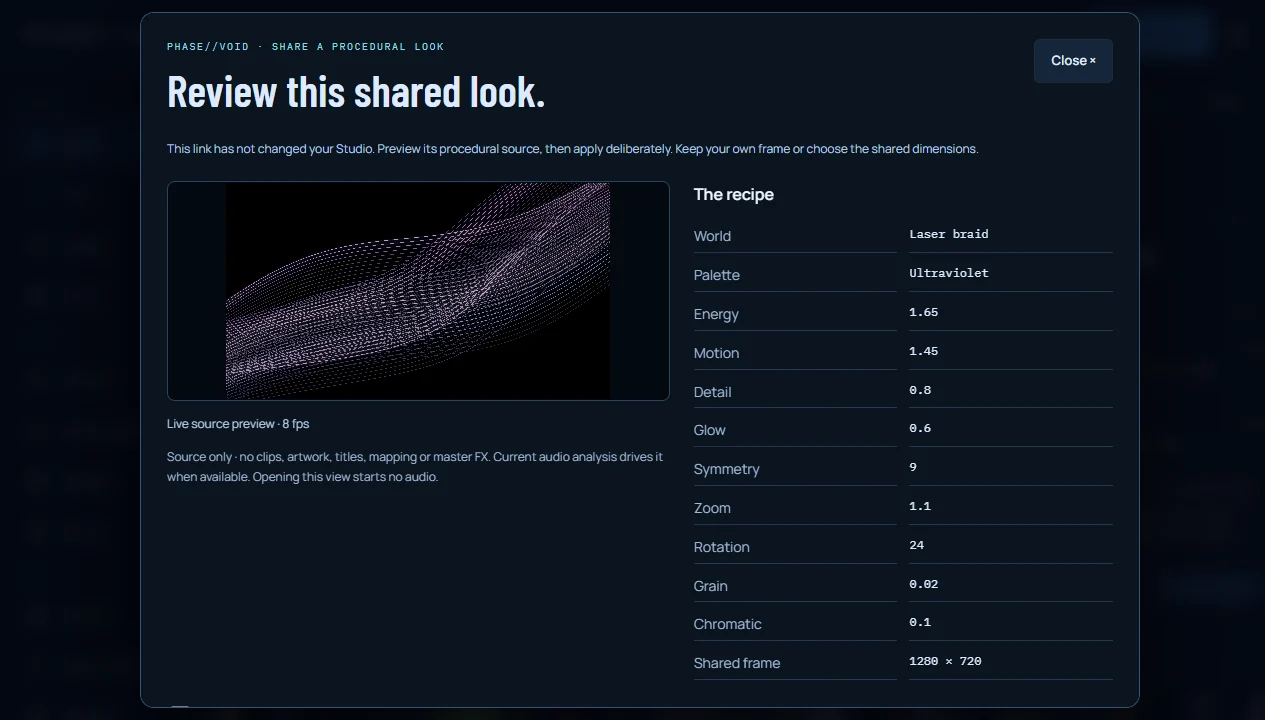
Try three authored starting directions.
- Review Braided pressure — A tight violet laser direction for a fast section. 1280 × 720.
- Review Silver suspension — A slower, lower-glow glass direction for breathing space. 720 × 1280.
- Review Folded peak — A dense geometric direction framed for a square. 720 × 720.
These are editable recipes, not recordings or frame-identical renders. Sound, procedural phase and motion choices affect the image. Links contain public controls and dimensions only: no file bytes or names, room calibration, credentials or private repository access. A fragment is not sent in the website HTTP request, but anyone receiving the complete URL can read its settings. Preview is bounded to 384 × 216 and eight updates per second, lower on slow frame pacing. Finish recording, rendering, Auto scene, active mixes, sequences and transitions before applying; no remote performance is triggered.
A bounded native check preserved three surfaces, an independent surface source and a title through Apply/Undo in all three shared frame shapes. A saved 720 × 720 test film decoded to 90 distinct frames at 30 FPS; three sampled audio windows aligned at zero measured sample offset. The download was reopened muted through its actual end. Read the measurements and limits. These checks do not establish all-device performance or physical projection timing.
For a private complete setup, use the existing settings-only session workflow and retain your media separately. For assistant-created numeric recipes, use create_look_link via MCP.
Find the tempo before you perform.
Analyze a steady 8–60 second section of MP3/WAV silently, compare alternative BPM readings and bring the selected track into Studio for explicit receipt and tempo review. In Studio, Sound → Timing & beat sync → Find tempo from loaded track reuses the current file. Applying BPM does not start audio, change the pulse source, find beat one or fix physical latency. Open the free local BPM finder →
Align a music visualizer to the beat of your file.
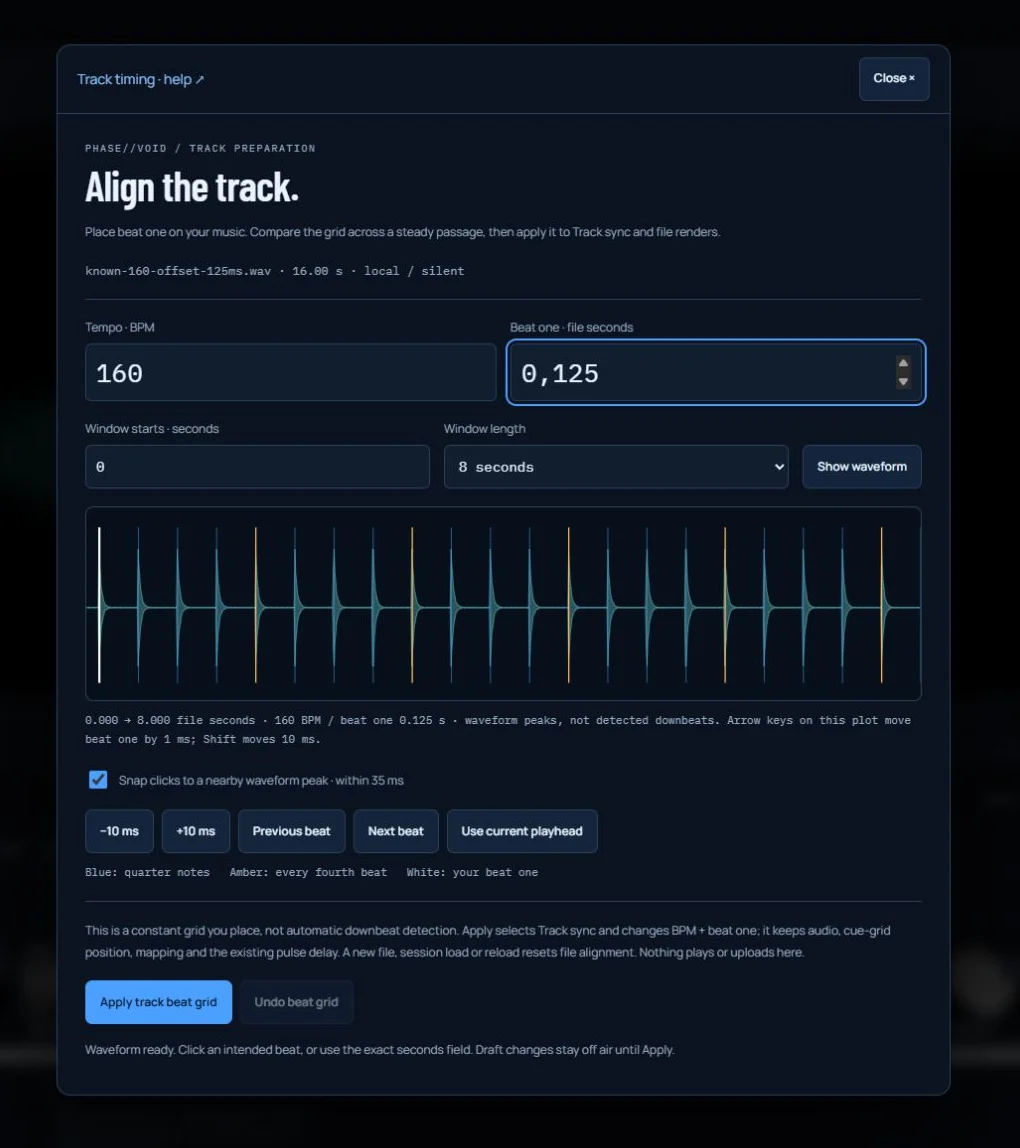
The right BPM can still produce a late-looking flash: tempo describes the distance between beats, while beat one places that pattern on the song. The free Studio lets you inspect your MP3/WAV waveform, place that origin and keep it when you seek or render a passage from the middle of the track.
- Open your MP3/WAV in Studio. In Sound → Timing & beat sync, choose Align file beat grid. It reads the loaded file without replacing it, starting sound or requesting microphone access. Need the BPM? Use Find tempo first; its result can open the grid editor with a proposed BPM.
- Enter the intended Tempo · BPM. The editor supports 30–300 BPM. Start with a steady passage containing clear kicks. This waveform is the largest channel magnitude; it is not a bass-only stem or a machine-detected downbeat map.
- Click the intended first beat on the waveform, or enter its exact Beat one · file seconds. The white line marks your origin, blue lines quarter notes and amber lines every fourth beat. Optional snap chooses a nearby amplitude peak within 35 ms; a loud peak might be a snare, vocal or part of a kick, so review the choice. Turn snap off for exact pointer placement.
- Use the 2-second close-up, ±10 ms buttons or Arrow keys on the plot (1 ms; Shift for 10 ms). Previous/Next beat moves the bar origin one beat while retaining quarter-note phase. Use current playhead copies the transport time; it does not seek or play the track.
- Change Window starts to a later section, select up to 32 seconds and click Show waveform. The origin stays fixed while you compare. A constant displacement suggests a placement/delay issue; steadily increasing displacement suggests a BPM mismatch or changing tempo. Compare both early and late passages before applying.
- Choose Apply track beat grid. It deliberately sets BPM, beat one and Beat sync · track position. It keeps the audio source, playback, mapping, pulse delay and current cue-grid position. Undo beat grid restores the previous BPM, exact file phase and pulse source while the file/timing remain unchanged. Newer changes are protected.
Keep the same grid in the final film.
Choose File render using the track already loaded in Studio. Review freezes the grid, offset and BPM with the film. A film starting at soundtrack 30 seconds samples the pulse at 30 seconds, rather than silently restarting its pulse at film zero. First-frame review, the causal storyboard and every encoded frame use that same rule in 16:9, 9:16 and 1:1. Review lists the reference seconds and delay. Choosing a different file requires loading/alignment in Studio or deliberately switching to Audio transients/manual BPM; the old file’s grid is not reused.
The separate manual-BPM mode starts its film pulse at film zero. Audio transients use the decoded sound. The cue/show timeline remains separate: a beat-one edit does not quantize act boundaries, move clip in-points, alter animation speed or stretch audio. Realtime capture receives the current composed Studio output; File render rebuilds every picture from its reviewed timeline.
Wrong tempo, wrong origin or physical delay?
| What you observe | What to check |
|---|---|
| Beat spacing is right, every flash is displaced. | Place beat one on the intended attack. Inspect existing pulse delay; positive values move the pulse later, negative earlier. |
| It starts aligned and drifts through a steady passage. | Check BPM, half/double time and a later window. A constant grid cannot follow a changing tempo. |
| The rendered passage starts on the wrong phase. | Use Track sync and the same loaded soundtrack, then Review again after changing its grid. |
| The file looks aligned, but the room does not. | Measure the actual speaker/interface/projector path. A waveform origin cannot remove device buffering or acoustic travel time. |
Aligning a beat reference and controlling tempo are distinct tasks in established tools too: see Resolume’s BPM and Resync controls and Ableton’s downbeat/warping workflow. PHASE//VOID provides a manually placed constant visual pulse, without audio warping, Ableton Link or native media-server parity.
Scope: the waveform window is bounded to 32 seconds and released on close. Nothing uploads or plays in the editor. File alignment belongs to the current track in this tab; replacement, a saved-session load or page reload resets it. The saved session retains the normal BPM/pulse settings, not a recoverable private-audio grid. Dated engineering checks and limits. For live input use the live timing workflow.
Add a soundwave to your composition.
Layer frequency bars, a radial Ring or an instantaneous Waveform over your world/video, then frame your title or artwork and inspect the finished file. Soundwave opens a free Program layer with frequency Spectrum bars, a radial Ring or an instantaneous Waveform. Choose color, position, size, response, opacity and background darkening without replacing or starting audio. The layer uses the existing MP3/WAV or supported live-input signal, sits above Program video/worlds and below titles/artwork, and reaches the composed projector and realtime recording. File-render first-frame review, causal storyboard and encoded films consume the current decoded signal with frozen layer settings at each actual output size. Local/settings-only sessions retain the layer; legacy sessions default off. Freeze/Blackout cover the complete output. Independent mapped world sources and shared procedural-look links exclude this global layer. This is not a whole-track waveform, calibrated meter, lyric generator, source separation or physical latency correction. Follow the spectrum-to-video workflow →
Give an effect a repeating phrase.
Loop folding geometry, pixelation, RGB split or the rack amount on the shared BPM grid, independently for Program and mapped surfaces. Use Track sync to keep file-grid phase through seeks and trimmed renders, then inspect the actual downloaded film. Beat-loop setup, shapes and recovery →
Let each effect follow its own band.
Connect bass, mid, high, energy or the detected transient independently to geometry, pixelation, RGB split and FX amount. Set Low/High ranges and a response curve for Program or the selected mapping surface. Audio links setup and recovery →